MB-230 · Question #282
Drag and Drop Question A company has a Customer Service environment. The company plans to implement Customer Service Analytics dashboards. You need to configure the dashboards in Power BI. Which order
The correct answer is Install the Customer Service Analytics app.; Connect Dynamics 365 to the Customer Service Analytics app.; Configure the Power BI dataset refresh frequency.; Publish the application.; Enable Power BI reporting and add the Power BI dashboard to the Customer Service Hub.. Power BI Customer Service Analytics - Setup Order Explained --- The Correct Order & Why 1. Install the Customer Service Analytics app This is the mandatory first step. The app (from Microsoft AppSource) is the Power BI template that contains the pre-built reports and dataset sche
Question
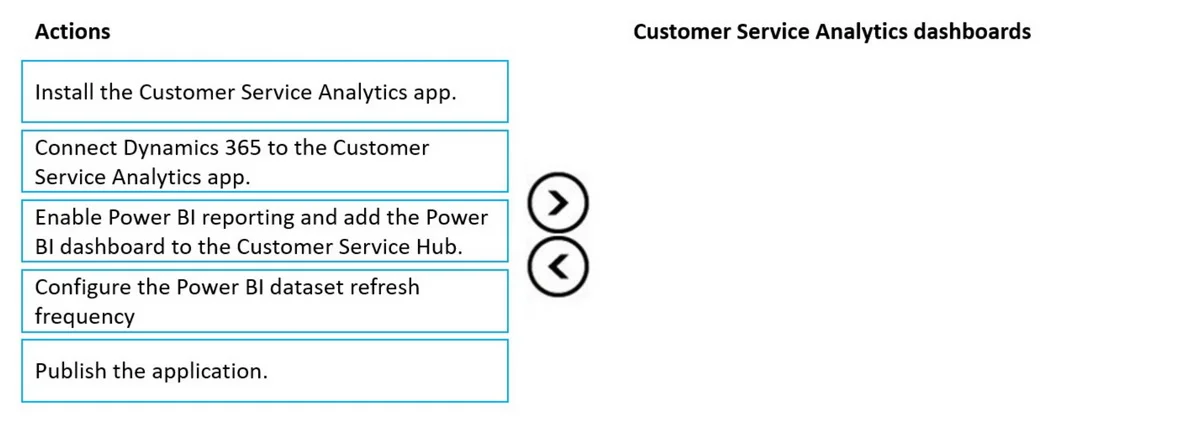
Drag and Drop Question A company has a Customer Service environment. The company plans to implement Customer Service Analytics dashboards. You need to configure the dashboards in Power BI. Which order should you perform the actions in? To answer, move all actions from the list of actions to the answer area and arrange them in the correct order. Answer:
Exhibit
Answer Area
Drag items
Correct arrangement
- Install the Customer Service Analytics app.
- Connect Dynamics 365 to the Customer Service Analytics app.
- Configure the Power BI dataset refresh frequency.
- Publish the application.
- Enable Power BI reporting and add the Power BI dashboard to the Customer Service Hub.
Explanation
Power BI Customer Service Analytics - Setup Order Explained
The Correct Order & Why
1. Install the Customer Service Analytics app
This is the mandatory first step. The app (from Microsoft AppSource) is the Power BI template that contains the pre-built reports and dataset schema. Nothing else can be configured until this app exists in your Power BI environment - you have no dataset to connect to, no reports to publish, and nothing to embed.
2. Connect Dynamics 365 to the Customer Service Analytics app
Once the app is installed, it contains an empty dataset that needs a data source. You point the app at your Dynamics 365 org (providing the environment URL and credentials). This establishes the live link between your CRM data and the Power BI model. Refresh configuration and publishing are meaningless without a working connection.
3. Configure the Power BI dataset refresh frequency
With the connection established, you now set how often Power BI pulls fresh data from Dynamics 365 (e.g., daily, hourly). This is configured before publishing so that the version users receive is already set to refresh on the correct schedule - avoiding a separate post-publish reconfiguration step.
4. Publish the application
Only after the dataset is connected and the refresh schedule is set do you publish. Publishing locks in the configuration and makes the dashboards available to end users in Power BI. You can't embed a dashboard in Dynamics 365 that hasn't been published yet.
5. Enable Power BI reporting and add the Power BI dashboard to the Customer Service Hub
This final step happens inside Dynamics 365, not Power BI. You enable the Power BI integration in the Customer Service Hub settings and pin the now-published dashboard to the Hub interface. This must be last because it references a specific published dashboard - if the app isn't published, there's nothing to pin.
Common Mistakes
| Mistake | Why It's Wrong |
|---|---|
| Putting "Enable Power BI reporting" first | This is a Dynamics 365 setting that embeds a dashboard - you need a published dashboard to embed first. |
| Publishing before configuring refresh | Technically possible, but the exam expects best-practice order: configure completely, then publish. |
| Connecting Dynamics 365 after publishing | You can't publish a properly functioning app if the data source isn't wired up yet. |
Key mental model: Think of it as install → wire up data → configure data behavior → release → integrate back into Dynamics 365.
Topics
Community Discussion
No community discussion yet for this question.
