
300-440 · Question #33
Drag and Drop Question An engineer must configure a CLI add-on feature template in Cisco vManage for enhanced policy-based routing (ePBR) for IPv4. These configurations were deleted: - licensing…
The correct answer is Click Configuration, select Templates, and then select Feature Templates.; Click Add Template, select the device, and then click Select Template.; Click CLI Add-On Template and enter the name and description.; Paste the CLI configuration and then click Save. Cisco vManage CLI Add-On Feature Template - Configuration Order Explained Why This Order? The correct sequence follows the standard vManage UI navigation flow: you always navigate to the right section before you can act within it. Each step is a prerequisite for the next - you…
Question
Exhibit
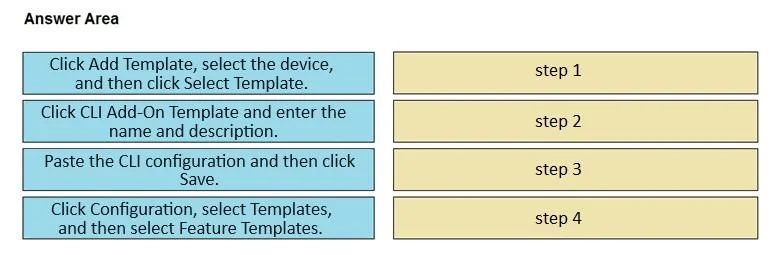
Answer Area
Drag items
Correct arrangement
- Click Configuration, select Templates, and then select Feature Templates.
- Click Add Template, select the device, and then click Select Template.
- Click CLI Add-On Template and enter the name and description.
- Paste the CLI configuration and then click Save.
Explanation
Cisco vManage CLI Add-On Feature Template - Configuration Order Explained
Why This Order?
The correct sequence follows the standard vManage UI navigation flow: you always navigate to the right section before you can act within it. Each step is a prerequisite for the next - you cannot skip ahead in the UI.
Step-by-Step Breakdown
1. Click Configuration, select Templates, and then select Feature Templates.
- This is the entry point. In vManage, all template work lives under
Configuration > Templates > Feature Templates. You must navigate here first before any template-related actions are available. - Common mistake: Trying to start from the Dashboard or from a device view. Templates are managed centrally under the Configuration section, not per-device.
2. Click Add Template, select the device, and then click Select Template.
- Once inside Feature Templates, Add Template creates a new one. You must also select the target device type (e.g., ISR, ASR, vEdge) at this stage because template types are device-specific - the available template options differ by platform.
- Common mistake: Assuming you pick the template type before the device. The device selection comes first to filter which template types are valid for that hardware.
3. Click CLI Add-On Template and enter the name and description.
- After selecting the device, vManage presents available template types. You choose CLI Add-On Template specifically (not a full CLI template) because a CLI Add-On supplements an existing feature template rather than replacing it - appropriate for ePBR configs that aren't natively exposed in the GUI.
- You must name and describe it here before any configuration content can be entered.
- Common mistake: Confusing CLI Template (full device config takeover) with CLI Add-On Template (targeted additions). Using the wrong type can override unintended settings.
4. Paste the CLI configuration and then click Save.
- Only after the template is named and typed do you enter the actual CLI content (the licensing/ePBR configuration lines). Saving commits it to vManage.
- Common mistake: Forgetting to click Save - vManage does not auto-save, and navigating away loses the configuration.
Summary Rule
Navigate → Create → Type/Name → Configure → Save
Each step unlocks the next in the UI. The order is enforced by the application itself - there is no shortcut path.
Topics
Community Discussion
No community discussion yet for this question.