
PL-200 · Question #72
Drag and Drop Question You create a report by using Power Bl Desktop and publish the report to the Power Bl service. You enable Power Bl visualization embedding in a model-driven app. You need to…
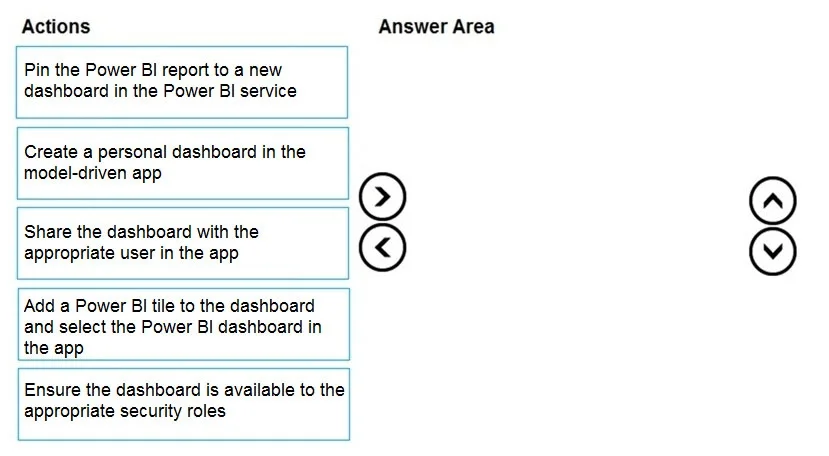
The correct answer is Pin the Power BI report to a new dashboard in the Power BI service; Create a personal dashboard in the model-driven app; Add a Power BI tile to the dashboard and select the Power BI dashboard in the app. To display a Power BI tile in a model-driven app, first pin the Power BI report to a dashboard in the Power BI service, then create a personal dashboard in the model-driven app, and finally add the Power BI tile to that model-driven app dashboard.
Question
Exhibit
Answer Area
Drag items
Correct arrangement
- Pin the Power BI report to a new dashboard in the Power BI service
- Create a personal dashboard in the model-driven app
- Add a Power BI tile to the dashboard and select the Power BI dashboard in the app
Explanation
To display a Power BI tile in a model-driven app, first pin the Power BI report to a dashboard in the Power BI service, then create a personal dashboard in the model-driven app, and finally add the Power BI tile to that model-driven app dashboard.
Approach. The scenario requires configuring a model-driven app to display a Power BI tile. This process involves specific sequential steps:
- Prepare the Power BI content: To display a 'Power BI tile' in a model-driven app, the relevant report visuals must first be available as tiles within a Power BI dashboard. Therefore, the first logical step is to 'Pin the Power BI report to a new dashboard in the Power BI service'. This makes the Power BI content ready for embedding as a tile.
- Create the container in the model-driven app: A Power BI tile in a model-driven app is displayed on a model-driven app dashboard. Before a tile can be added, a dashboard must exist within the model-driven app to host it. So, the second step is to 'Create a personal dashboard in the model-driven app'.
- Embed the Power BI tile: Once both the Power BI dashboard (containing the desired tiles) and the model-driven app dashboard are created, the final configuration step is to link them. This is achieved by adding the Power BI tile to the model-driven app dashboard and selecting the specific Power BI dashboard from which the tile originates. Thus, the third step is 'Add a Power BI tile to the dashboard and select the Power BI dashboard in the app'.
Following these steps ensures that the Power BI content is properly prepared, a display area exists in the model-driven app, and the content is then correctly linked to be shown as a tile.
Common mistakes.
- common_mistake. Common mistakes include misordering the steps or selecting actions that are not directly part of the 'configuration to display' the tile. For instance, 'Share the dashboard with the appropriate user in the app' and 'Ensure the dashboard is available to the appropriate security roles' are related to managing access and permissions after the dashboard and its content have been configured. The question specifically asks for actions to 'configure the model-driven app to display' the tile, focusing on the technical setup rather than user visibility. Attempting to add a Power BI tile without first pinning it to a Power BI dashboard or creating a personal dashboard in the model-driven app would also be incorrect, as the prerequisites for the tile and its host dashboard would not be met.
Concept tested. Embedding Power BI content (specifically Power BI dashboard tiles) within Microsoft Power Apps model-driven apps, understanding the necessary preparatory steps in the Power BI service, and the correct sequence of configuration actions within the Power Apps environment.
Topics
Community Discussion
No community discussion yet for this question.