
PL-200 · Question #59
Drag and Drop Question You are a Dynamics 365 administrator. You create a new app. You need to create the site map for the app. Which three actions should you perform in sequence? To answer, move…
The correct answer is Add an area.; Add a group.; Add a subarea. The correct sequence to create a site map structure in Dynamics 365 is to first add an Area, then a Group within that Area, and finally a Subarea within that Group.
Question
Exhibit
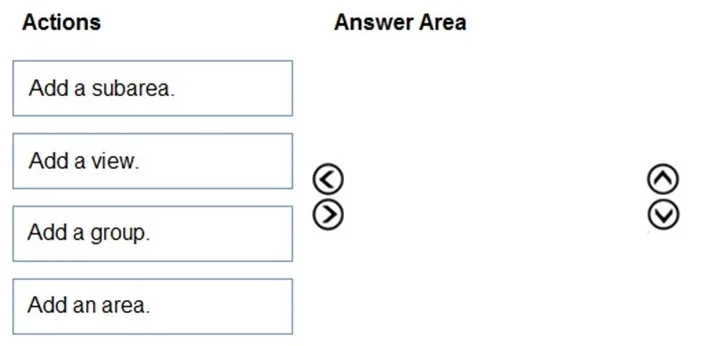
Answer Area
Drag items
Correct arrangement
- Add an area.
- Add a group.
- Add a subarea.
Explanation
The correct sequence to create a site map structure in Dynamics 365 is to first add an Area, then a Group within that Area, and finally a Subarea within that Group.
Approach. The correct interaction is to drag the actions 'Add an area.', 'Add a group.', and 'Add a subarea.' into the 'Answer Area' in that specific order.
- Add an area.: In Dynamics 365 site map design, an Area is the highest-level organizational unit. An app can have multiple areas (e.g., Sales, Service). You must first define an area to contain subsequent structural elements.
- Add a group.: Within an Area, content is organized into Groups. A Group provides a logical grouping for related Subareas. You add a group after an area to create a container for subareas.
- Add a subarea.: A Subarea is the actual navigation link that points to a specific entity, dashboard, web resource, or URL. Subareas are contained within Groups. After defining the area and group, you then add subareas to provide the actual navigational items users interact with. This hierarchical structure (Area > Group > Subarea) is fundamental to building a Dynamics 365 site map.
Common mistakes.
- common_mistake. - Add a view.: This action is incorrect because 'Add a view' is not a primary structural component of the site map hierarchy itself, unlike Area, Group, and Subarea. A view is a specific configuration detail within a Subarea (when the subarea type is an entity). For example, when you add a subarea and choose to display an entity, you can then select which specific view of that entity to show. It's a property of a subarea, not a standalone high-level step in building the map's structure.
- Incorrect Order: Placing 'Add a group.' before 'Add an area.' or 'Add a subarea.' before 'Add a group.' would be incorrect. The Dynamics 365 site map structure is strictly hierarchical: Area -> Group -> Subarea. You cannot have a group without an area or a subarea without a group.
Concept tested. The core concept tested is the hierarchical structure and administrative process of creating and configuring site maps in Dynamics 365 model-driven apps. This includes understanding the definitions and relationships between Areas, Groups, and Subareas.
Topics
Community Discussion
No community discussion yet for this question.