
PL-200 · Question #176
You create several recordings of the actions you perform on your computer and group these recordings into activities by using Process Advisor. You complete the analysis of the recordings and want to…
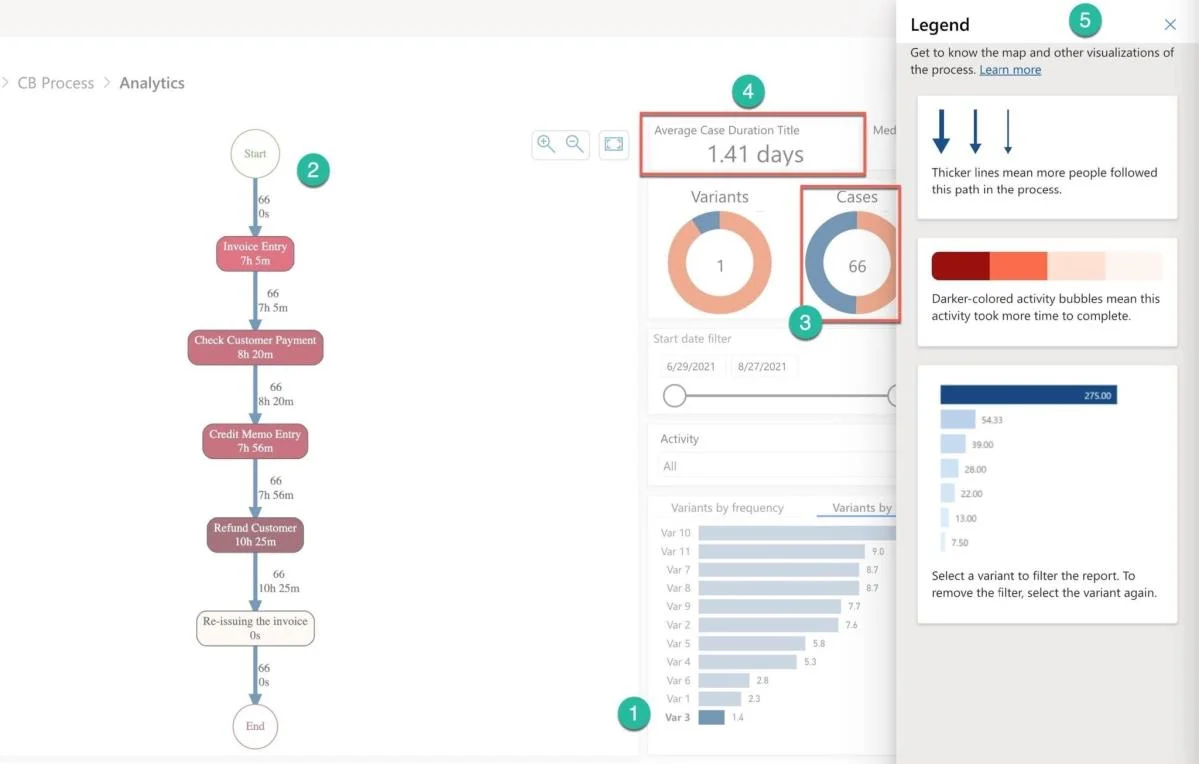
The correct answer is B. Variants by frequency D. Variants by time. To investigate the specific path or variant on the Process Analytics screen (Number 1), you need to compare data on two visuals: Variants by frequency (Number 2) and Variants by time (Number 3). The Variants by frequency presents the number of cases for a specific path, e.g…
Question
Exhibit
Options
- ANumber of recordings
- BVariants by frequency
- CRecordings by time in min
- DVariants by time
- EAverage time
How the community answered
(30 responses)- A3% (1)
- B93% (28)
- E3% (1)
Explanation
To investigate the specific path or variant on the Process Analytics screen (Number 1), you need to compare data on two visuals: Variants by frequency (Number 2) and Variants by time (Number 3). The Variants by frequency presents the number of cases for a specific path, e.g., Variant 3 occurred in 66 cases. The process map outlines all the paths for the process (Number 4). The screen presents additional process information as the number of variants, cases, and activities If you click on the variant bar in the “Variants by …” visuals (Number 1), the map will be updated and show the path for the selected variant, e.g., variant 3 (Number 2). As you can see from the “Variants by frequency” visual (or on the number of cases card when you selected the variant (Number 3)) the variant 3 has the most cases – 66 and took the less average throughput time per average case – 1.41 days to execute (Number 1 and Number 4). You can always invoke the Legend panel (Number 5) by clicking on the Legend button in the right upper corner of the Analytics screen. The panel explains the visualizations’ markings and colors. https://docs.microsoft.com/en-us/learn/modules/business-process-optimization-process- advisor/5-analyze-recordings-interpret-results
Topics
Community Discussion
No community discussion yet for this question.