
PL-100 · Question #83
Drag and Drop Question A company must use a Power Apps app custom control that is exported from a different canvas Power Apps app. You need to insert the custom control into the Power Apps app…
The correct answer is Components; Display. This question tests the ability to correctly identify the Power Apps Studio locations for importing custom controls (components) and configuring their display properties.
Question
Exhibit
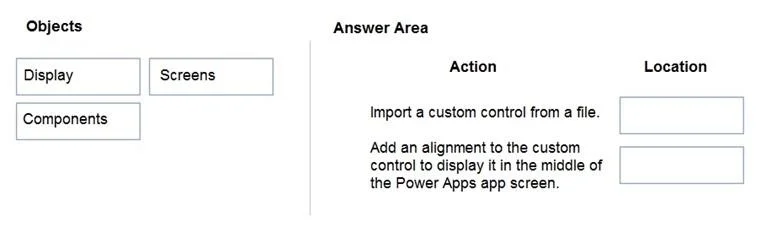
Answer Area
Drag items
Correct arrangement
- Components
- Display
Explanation
This question tests the ability to correctly identify the Power Apps Studio locations for importing custom controls (components) and configuring their display properties.
Approach. For the action 'Import a custom control from a file', the correct location is 'Components'. In Power Apps, custom controls are implemented as components. As evidenced by the Power Apps Studio screenshot, importing components (which include custom controls) is a dedicated action found under the 'Insert' tab, within the 'Custom' dropdown, specifically the 'Import component' option. This directly relates to managing the 'Components' within the app. For the action 'Add an alignment to the custom control to display it in the middle of the Power Apps app screen', the correct location is 'Display'. Alignment, positioning (like setting X, Y coordinates, width, height), and other visual properties are all aspects of how a control is 'displayed' on the screen. These properties are typically configured in the property pane for the selected control, which directly impacts its visual presentation or 'Display' characteristics.
Common mistakes.
- common_mistake. Dragging 'Screens' to either action is incorrect. 'Screens' are the canvases where controls and components are placed, not where components are imported from or where individual control alignment properties are directly set. While a custom control will eventually reside on a screen, the act of importing it or configuring its specific display properties (like alignment) is managed differently. 'Display' is not where you import components; it describes the visual aspect after something is placed. Therefore, confusing the role of Screens, Components, and Display properties is a common mistake.
Concept tested. The core concepts tested are the management of reusable components (custom controls) in Power Apps, specifically the process of importing them, and the understanding of how to configure visual properties like alignment for controls within the Power Apps Studio interface.
Topics
Community Discussion
No community discussion yet for this question.