
PL-100 · Question #80
Drag and Drop Question You have a model-driven app that has an entity named Marinas. You have an entity named Boats that list the boats associated with each marina. You must add a list of boats to…
The correct answer is Add a Subgrid component to a form; Select Show related records and then select the related entity and default view for the subgrid; Select the Allow users to change view option; Save and publish the form. The correct sequence of actions for embedding a list of related records with view selection options on a Dataverse form is to first add the subgrid, then configure it to show related records and a default view, enable the user view change option, and finally save and publish…
Question
Exhibit
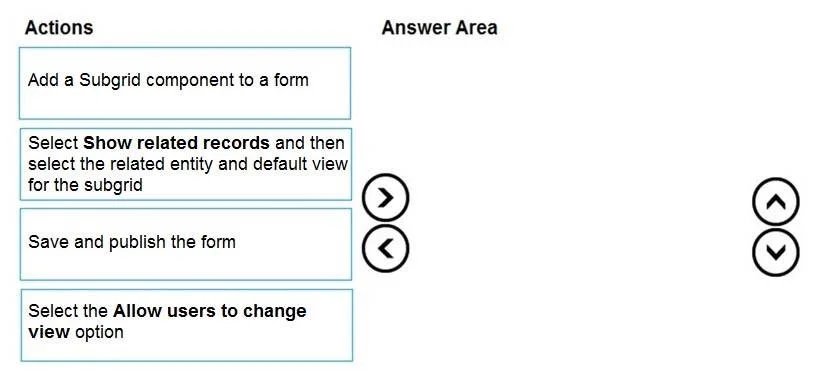
Answer Area
Drag items
Correct arrangement
- Add a Subgrid component to a form
- Select Show related records and then select the related entity and default view for the subgrid
- Select the Allow users to change view option
- Save and publish the form
Explanation
The correct sequence of actions for embedding a list of related records with view selection options on a Dataverse form is to first add the subgrid, then configure it to show related records and a default view, enable the user view change option, and finally save and publish the form.
Approach. The correct order of actions to embed a list of related records (Boats) on a parent entity form (Marinas) with the ability for users to change views is as follows:
-
Add a Subgrid component to a form: This is the foundational step. To display a list of related records, a Subgrid control must first be added to the Marinas entity form. Without the component, no further configuration is possible.
-
Select Show related records and then select the related entity and default view for the subgrid: Once the subgrid is on the form, its primary function - displaying related records - must be configured. This involves specifying that it should 'Show related records', identifying the 'Boats' entity as the related entity, and selecting a default view (e.g., 'Active Boats') to display initially.
-
Select the Allow users to change view option: After the subgrid is configured to show specific related records and a default view, the next logical step is to enable optional functionalities, such as allowing users to switch between different views (like 'boat owners' or 'marina members' views for boats). This setting is a property of the subgrid configuration.
-
Save and publish the form: Finally, for all the changes made to the form (adding the subgrid, configuring its data source, and enabling view options) to take effect in the model-driven app, the form must be saved and then published. Publishing makes the changes available to end-users.
Common mistakes.
- common_mistake. Common mistakes include misordering the configuration steps or saving/publishing too early. For instance, selecting 'Allow users to change view option' before defining which related records the subgrid should display ('Select Show related records...') is incorrect because the view option pertains to records that haven't been specified yet. Likewise, saving and publishing the form before all configurations are complete would require repeated save/publish actions or would mean that later changes are not applied. You cannot configure a subgrid that has not yet been added to the form, making 'Add a Subgrid component to a form' the undisputed first step.
Concept tested. This question tests the candidate's knowledge of customizing forms in Microsoft Dataverse and model-driven apps, specifically focusing on how to add and configure Subgrid components to display related entity records and enable user-selectable views within those subgrids.
Topics
Community Discussion
No community discussion yet for this question.