
PL-100 · Question #43
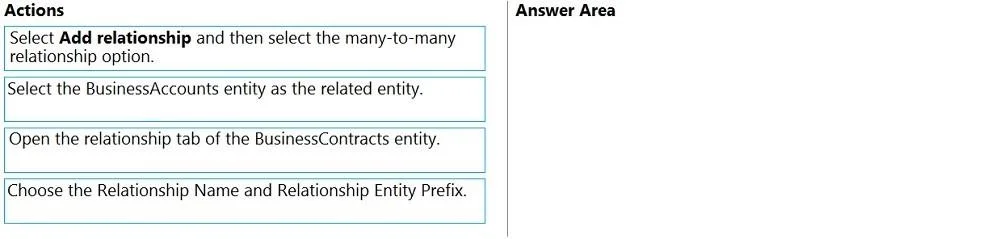
Drag and Drop Question You have the following Common Data Service entities: BusinessContracts and BusinessAccounts. You need to configure an N:N relationship between the two entities. Which three…
The correct answer is Open the relationship tab of the BusinessContracts entity.; Select Add relationship and then select the many-to-many relationship option.; Select the BusinessAccounts entity as the related entity. The correct sequence to configure an N:N relationship in Dataverse involves navigating to the entity's relationship settings, initiating the many-to-many relationship creation, and selecting the related entity.
Question
Exhibit
Answer Area
Drag items
Correct arrangement
- Open the relationship tab of the BusinessContracts entity.
- Select Add relationship and then select the many-to-many relationship option.
- Select the BusinessAccounts entity as the related entity.
Explanation
The correct sequence to configure an N:N relationship in Dataverse involves navigating to the entity's relationship settings, initiating the many-to-many relationship creation, and selecting the related entity.
Approach. The correct sequence for configuring an N:N relationship in Dataverse (formerly Common Data Service) is as follows:
- Open the relationship tab of the BusinessContracts entity. - To create a relationship for an entity, you must first navigate to its specific relationship configuration area within the Power Apps portal or similar interface. This is the logical starting point.
- Select Add relationship and then select the many-to-many relationship option. - Once on the relationship tab, the next step is to initiate the creation of a new relationship and specify the type, in this case, a many-to-many (N:N) relationship.
- Select the BusinessAccounts entity as the related entity. - After choosing to add an N:N relationship, you must specify which other entity
BusinessContractswill be related to. In this scenario, it isBusinessAccounts. This sequence completes the core steps required to establish the N:N relationship between the two entities.
Common mistakes.
- common_mistake. A common mistake would be to include 'Choose the Relationship Name and Relationship Entity Prefix' as one of the three primary steps. While naming conventions are an important part of relationship configuration, they typically come after the fundamental aspects of the relationship (which entities are involved and the relationship type) have been defined. The question asks for the primary actions to configure the relationship. Attempting to choose a name or prefix before defining the type of relationship and the entities involved would be out of sequence or premature in the configuration process. For example, you cannot name something that hasn't been fundamentally defined yet.
Concept tested. Dataverse (formerly Common Data Service) entity relationship configuration, specifically the practical steps involved in creating a many-to-many (N:N) relationship between two custom entities within the Power Apps maker portal or similar administration interface.
Topics
Community Discussion
No community discussion yet for this question.