
PL-100 · Question #310
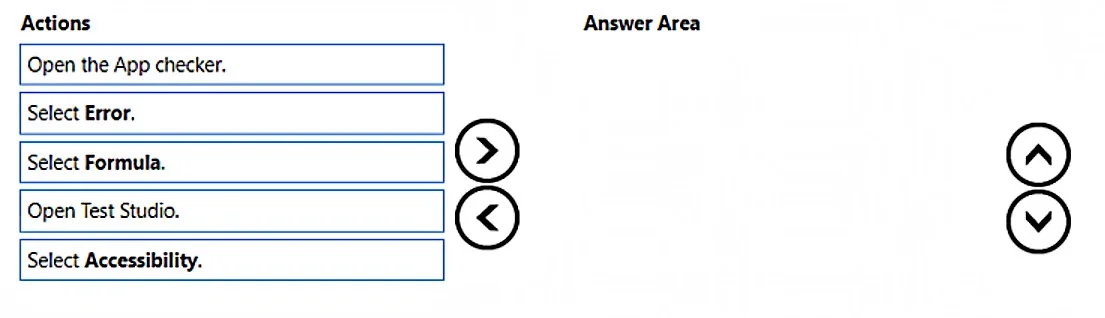
Drag and Drop Question You create a canvas app. You need to ensure that there are no screen reader issues in the app. Which three actions should you perform in sequence? To answer, move the…
The correct answer is Open the App checker.; Select Accessibility.; Select Error. To identify screen reader issues in a Power Apps canvas app, the correct sequence is to open the App checker, then navigate to the Accessibility section, and finally select individual errors to review details.
Question
Exhibit
Answer Area
Drag items
Correct arrangement
- Open the App checker.
- Select Accessibility.
- Select Error.
Explanation
To identify screen reader issues in a Power Apps canvas app, the correct sequence is to open the App checker, then navigate to the Accessibility section, and finally select individual errors to review details.
Approach. The goal is to ensure no screen reader issues, which falls under app accessibility. Power Apps Studio provides the 'App checker' for identifying various issues, including accessibility. The correct sequence of actions is:
- Open the App checker. This is the primary tool within Power Apps Studio used to find and diagnose issues in an app. It's the starting point for checking for errors, formulas, or accessibility problems.
- Select Accessibility. Once the App checker is open, it presents different categories of checks. To specifically address screen reader issues, which are accessibility-related, the user must navigate to the 'Accessibility' tab or section within the App checker.
- Select Error. After selecting 'Accessibility', the App checker will display a list of identified accessibility issues. Each issue is essentially an 'error' or a warning that needs attention. To view the details of a specific accessibility problem and understand how to resolve it, the user would select an individual error from this list. This action allows the user to investigate and rectify the screen reader issue.
Common mistakes.
- common_mistake. Common mistakes include selecting 'Select Formula.' or 'Open Test Studio.' instead of the correct options. 'Select Formula.' is for checking formula-related issues, not accessibility. 'Open Test Studio.' is used for creating and running automated tests for app functionality, not for design-time accessibility checks via the App checker. Another mistake would be to choose the correct items but arrange them in an illogical order, such as selecting an error or accessibility tab before opening the App checker itself.
Concept tested. Using the Power Apps App checker to identify and resolve accessibility issues in canvas apps, specifically understanding the workflow for checking screen reader compatibility.
Topics
Community Discussion
No community discussion yet for this question.