
PL-100 · Question #311
Drag and Drop Question You perform repeatable tasks using software installed on a home computer. The operating system includes Microsoft Power Automate Desktop. You need to decide which tasks to…
The correct answer is Yes; No; Yes; No. This question assesses the test-taker's understanding of Microsoft Power Automate Desktop's capabilities, specifically differentiating between tasks it can directly perform and those requiring external triggers or cloud flows.
Question
Exhibit
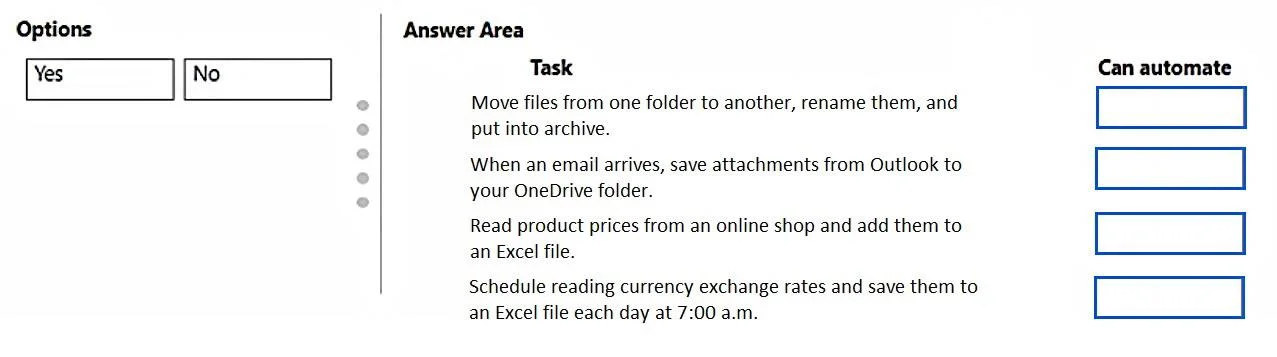
Answer Area
Drag items
Correct arrangement
- Yes
- No
- Yes
- No
Explanation
This question assesses the test-taker's understanding of Microsoft Power Automate Desktop's capabilities, specifically differentiating between tasks it can directly perform and those requiring external triggers or cloud flows.
Approach. The correct interaction involves dragging 'Yes' or 'No' to the 'Can automate' column for each task based on Power Automate Desktop's functionality:
- Move files from one folder to another, rename them, and put into archive. - Drag 'Yes'. Power Automate Desktop has comprehensive file and folder actions, including moving, renaming, and compressing files, making this a core RPA capability.
- When an email arrives, save attachments from Outlook to your OneDrive folder. - Drag 'No'. While Power Automate Desktop can interact with Outlook (e.g., retrieving emails, saving attachments), it does not natively support 'when an email arrives' as a real-time, event-driven trigger. Such event-based triggers are a primary feature of Power Automate cloud flows. A cloud flow could then invoke a desktop flow, but PAD itself doesn't listen for email arrivals directly.
- Read product prices from an online shop and add them to an Excel file. - Drag 'Yes'. Power Automate Desktop is well-suited for web automation (web scraping to extract data from online shops) and Excel automation (writing data to an Excel file). This is a common RPA use case.
- Schedule reading currency exchange rates and save them to an Excel file each day at 7:00 a.m. - Drag 'No'. Power Automate Desktop does not have an intrinsic, built-in scheduling mechanism that operates independently to run flows at specific times (like a cloud flow's 'Recurrence' trigger). While a desktop flow can be triggered by the Windows Task Scheduler or a Power Automate cloud flow (UI flow), PAD itself does not handle the scheduling aspect directly or natively.
Common mistakes.
- common_mistake. A common mistake is conflating the capabilities of Power Automate Desktop with those of Power Automate cloud flows. Test-takers might incorrectly assume that because a desktop flow can be part of a larger automated solution (e.g., invoked by a scheduled cloud flow or Windows Task Scheduler), that Power Automate Desktop itself inherently possesses direct event-driven triggering or scheduling mechanisms. Another mistake would be underestimating PAD's ability to perform common desktop tasks like file manipulation or web scraping, which are its primary strengths.
Concept tested. The core concept being tested is the understanding of the specific capabilities and limitations of Microsoft Power Automate Desktop (RPA tool) and distinguishing them from the broader Power Automate ecosystem, particularly Power Automate cloud flows (which handle event-driven and scheduled triggers, and API integrations).
Topics
Community Discussion
No community discussion yet for this question.