
PL-100 · Question #131
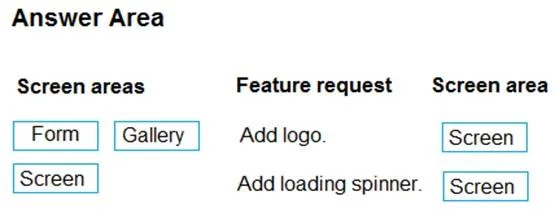
Drag and Drop Question You create a canvas app for a store. The logo must appear as the background image for the app. A loading spinner must display on the screen as the app loads. You need to add…
The correct answer is Screen; Screen. To add a background logo and a loading spinner that display when a Power Apps canvas app loads, the 'Screen' properties for BackgroundImage and LoadingSpinner must be modified.
Question
Exhibit
Answer Area
Drag items
Correct arrangement
- Screen
- Screen
Explanation
To add a background logo and a loading spinner that display when a Power Apps canvas app loads, the 'Screen' properties for BackgroundImage and LoadingSpinner must be modified.
Approach. To 'Add logo' as the background image for the app (or a specific screen within the app), the 'BackgroundImage' property of the 'Screen' control needs to be set. This property allows you to specify an image that will serve as the background for that particular screen. The Power Apps Studio screenshot (image 3) explicitly shows 'BackgroundImage' as a selectable property. Similarly, to 'Add loading spinner' that displays as the app loads on a screen, the 'LoadingSpinner' property of the 'Screen' control needs to be configured. This property controls the visibility and type of a loading indicator for the screen. The Power Apps Studio screenshot also explicitly shows 'LoadingSpinner' as a selectable property. Therefore, both features are managed at the 'Screen' level, making 'Screen' the correct drag target for both requests.
Common mistakes.
- common_mistake. Selecting 'Form' or 'Gallery' is incorrect because these controls manage specific data views or collections of items, not the overall screen appearance or loading indicators for the entire screen. A 'Form' control is used to display or edit a single record, while a 'Gallery' control displays a list of records. While you can add images within a form or gallery, they would be part of the form's layout or an item's template, not a global background image for the entire screen. Neither 'Form' nor 'Gallery' controls have built-in properties like 'BackgroundImage' that apply to the whole screen or a 'LoadingSpinner' property that functions as a screen-wide loading indicator. These types of visual and loading properties are inherently tied to the 'Screen' itself, which represents a distinct page in the app.
Concept tested. Understanding the properties and capabilities of core Power Apps canvas app controls, specifically the 'Screen' control, and how to configure screen-level visual elements (like background images) and user experience indicators (like loading spinners).
Topics
Community Discussion
No community discussion yet for this question.