MB-800 · Question #232
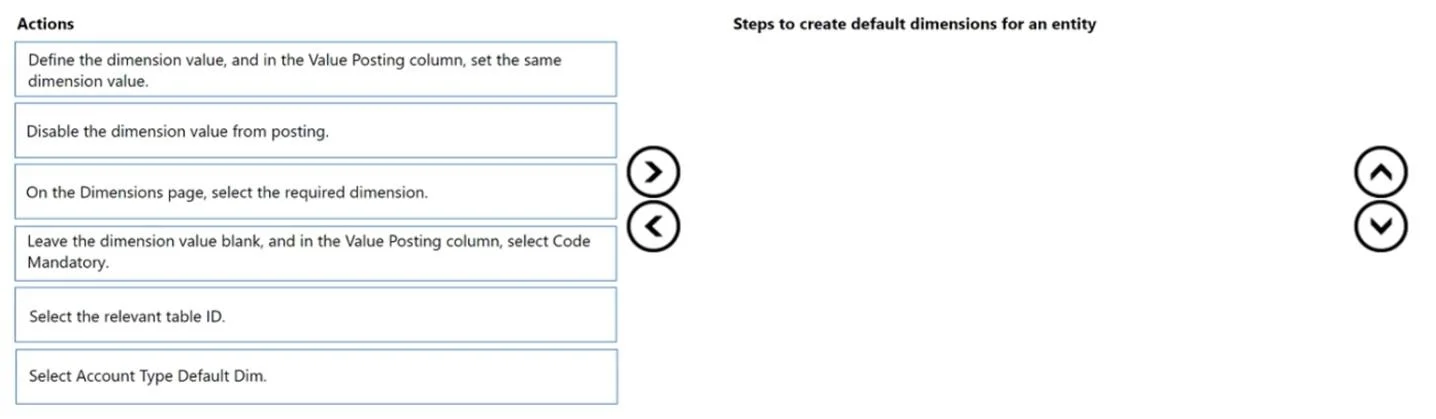
Drag and Drop Question A company uses Dynamics 365 Business Central. The company requires the system to prevent sales orders and other sales transactions from posting without a specific dimension…
The correct answer is Select the relevant Table ID.; Select Account Type Default Dim.; On the Dimensions page, select the required dimension.; Define the dimension value, and in the Value Posting column, set the same dimension value. Explanation: Mandatory Dimensions for All Customers in Business Central Core Concept Business Central lets you set Default Dimensions at two levels: Individual account (a specific customer) Table/Account Type level (ALL customers, regardless of individual setup) The scenario…
Question
Exhibit
Answer Area
Drag items
Correct arrangement
- Select the relevant Table ID.
- Select Account Type Default Dim.
- On the Dimensions page, select the required dimension.
- Define the dimension value, and in the Value Posting column, set the same dimension value.
Explanation
Explanation: Mandatory Dimensions for All Customers in Business Central
Core Concept
Business Central lets you set Default Dimensions at two levels:
- Individual account (a specific customer)
- Table/Account Type level (ALL customers, regardless of individual setup)
The scenario requires the latter - a global rule that fires even when a customer has no individual dimension rules. This is done via Account Type Default Dimensions.
Why This Sequence
Step 1 - Select the relevant Table ID
Technical reason: You must first define scope. The Customer table (Table ID 18) is the target. Selecting the table ID tells BC you're configuring a rule for every record in that table, not a single customer account. This is the prerequisite for everything that follows - you cannot configure Account Type defaults without identifying the table first.
Step 2 - Select Account Type Default Dim
Technical reason: This activates the Account Type Default Dimensions feature specifically, which applies dimension rules to all accounts of that type globally. Without this, you'd be configuring only a single customer's defaults. This step narrows your action to the correct feature within the table context you just established.
Step 3 - On the Dimensions page, select the required dimension
Technical reason: With scope and feature established, you now pick which dimension (e.g., Department, Cost Center) to make mandatory. You cannot configure a dimension's behavior until you've identified the dimension itself, which is why this comes after steps 1–2.
Step 4 - Define the dimension value, and in the Value Posting column, set the same dimension value
Technical reason: Finally, you set a specific default value for the dimension and configure Value Posting = "Same Code". This enforces that the exact defined value is always used - BC will block posting if any other value (or no value) is entered. This is last because the dimension must exist in context before its value and posting rules can be configured.
Why the Discarded Options Are Wrong
| Discarded Item | Why It's Wrong |
|---|---|
| "Leave the dimension value blank, set Code Mandatory" | Code Mandatory only requires any valid code - it doesn't enforce a specific value. The scenario demands a specific value always posts, which requires Same Code with a defined value. |
| "Disable the dimension value from posting" | This prevents use of the dimension entirely - the opposite of the goal. |
Common Mistakes
-
Mixing up Step 4 with the "Code Mandatory" option - The most common error.
Code Mandatory(blank value) is tempting because it sounds like "mandatory," but it only requires something be entered.Same Codeenforces the specific configured value. -
Skipping Table ID and going straight to a customer record - Setting this on an individual customer does not satisfy "even when no rules are set up for a customer." The table-level setup is what makes it apply globally.
-
Reversing Steps 1 and 2 - You can't select Account Type Default Dim in a vacuum; BC needs the Table ID context first to know which account type you mean.
Topics
Community Discussion
No community discussion yet for this question.