nerdexam
Microsoft

MB-800 · Question #162

Drag and Drop Question A company uses Dynamics 365 Business Central. You need to configure the system to meet the following requirements for a purchasing agent: - Create and post purchase documents…

The correct answer is Select the permissions sets that you want to modify.; Remove page permissions for chart of accounts, G/L entries, and G/L account card.; Assign a permission set to a user. Explanation: Restricting G/L Amount Visibility in Business Central The question asks specifically about restricting access to view G/L amounts - not about setting up all purchasing agent permissions from scratch. --- Why This Sequence? Step 1: Select the permission sets that…

Set up Business Central

Question

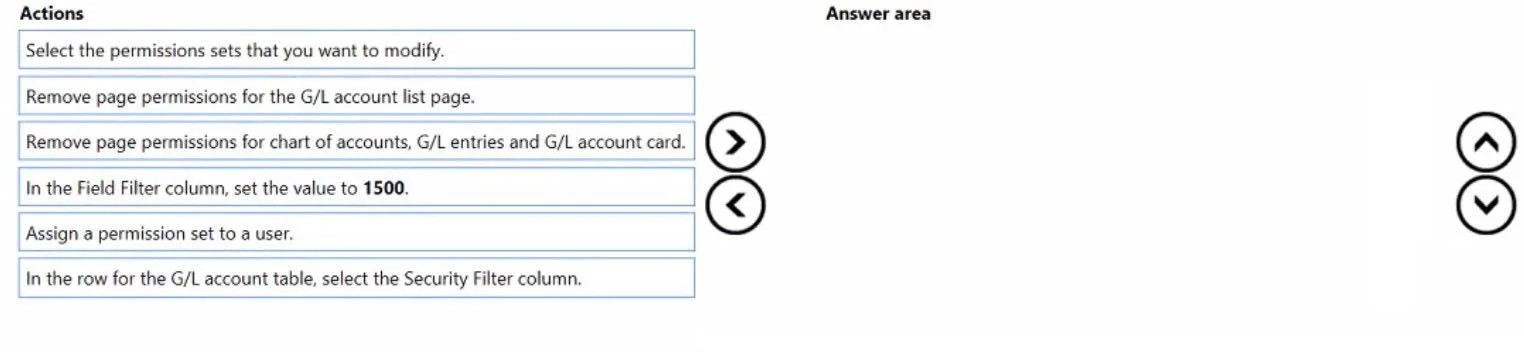
Drag and Drop Question A company uses Dynamics 365 Business Central. You need to configure the system to meet the following requirements for a purchasing agent: - Create and post purchase documents including purchase receipt lines. - Do not allow agents to read general ledger (G/L) or bank balances. - Restrict access to view G/L amounts. - Ensure that purchasing agents can select G/L codes on purchase documents. You need to restrict access to view G/L amounts. Which three actions should you perform in sequence? To answer, move the appropriate actions from the list of actions to the answer area and arrange them in the correct order. Answer:

Exhibit
MB-800 question #162 exhibit

Answer Area

Drag items

Select the permissions sets that you want to modify.Remove page permissions for the G/L account list page.Remove page permissions for chart of accounts, G/L entries and G/L account card.In the Field Filter column, set the value to 1500.Assign a permission set to a user.In the row for the G/L account table, select the Security Filter column.

Correct arrangement

  • Select the permissions sets that you want to modify.
  • Remove page permissions for chart of accounts, G/L entries, and G/L account card.
  • Assign a permission set to a user.

Explanation

Explanation: Restricting G/L Amount Visibility in Business Central

The question asks specifically about restricting access to view G/L amounts - not about setting up all purchasing agent permissions from scratch.


Why This Sequence?

Step 1: Select the permission sets that you want to modify.

You must first identify and open the permission set(s) before you can change anything. This is always the entry point for any permission configuration in Business Central. You cannot remove or add permissions without first selecting the target permission set.

Step 2: Remove page permissions for chart of accounts, G/L entries, and G/L account card.

This is the core action that achieves the goal. These three pages are exactly where users view G/L balances and amounts:

  • Chart of Accounts - shows all G/L account balances
  • G/L Entries - shows posted transaction amounts
  • G/L Account Card - shows balance details per account

Removing page-level permissions hides these views without removing the underlying G/L account table access - which is critical, because agents still need to select G/L codes on purchase documents (table read access remains intact).

Step 3: Assign a permission set to a user.

After modifying the permission set, you assign it to the relevant user(s). Permissions have no effect until they are assigned to a user.


Why the Distractors Are Wrong

ItemWhy It's Excluded
Remove page permissions for the G/L account list pageToo narrow - it misses Chart of Accounts, G/L Entries, and G/L Account Card, leaving gaps
In the Field Filter column, set the value to 1500Field filters restrict specific field values, not page visibility - wrong mechanism for this goal
In the row for the G/L account table, select the Security Filter columnSecurity filters restrict which records a user sees, not whether they can view G/L amount pages

Key Misconception to Avoid

"Removing table permissions for G/L accounts would also work."

It would not - removing the G/L Account table record permissions would break the ability to select G/L codes on purchase documents, violating one of the stated requirements. The correct approach removes only page permissions (the viewing surfaces), leaving table read access intact. This is the distinction Business Central draws between accessing data and viewing financial summaries.

Topics

#user permissions#security setup#G/L access restriction#purchasing agent role

Community Discussion

No community discussion yet for this question.

Full MB-800 Practice