nerdexam
Microsoft

MB-335 · Question #177

Drag and Drop Question A company uses Process manufacturing. Employees work a half day so that they can attend a company event. You have a rush order that must be completed that same day. After review

Explanation: Splitting a Batch Order in Process Manufacturing This question tests knowledge of batch order splitting in Microsoft Dynamics 365 Supply Chain Management (Process manufacturing module). --- The Core Logic: Which Quantity Gets Split Off? The critical constraint is: >

Implement production methods

Question

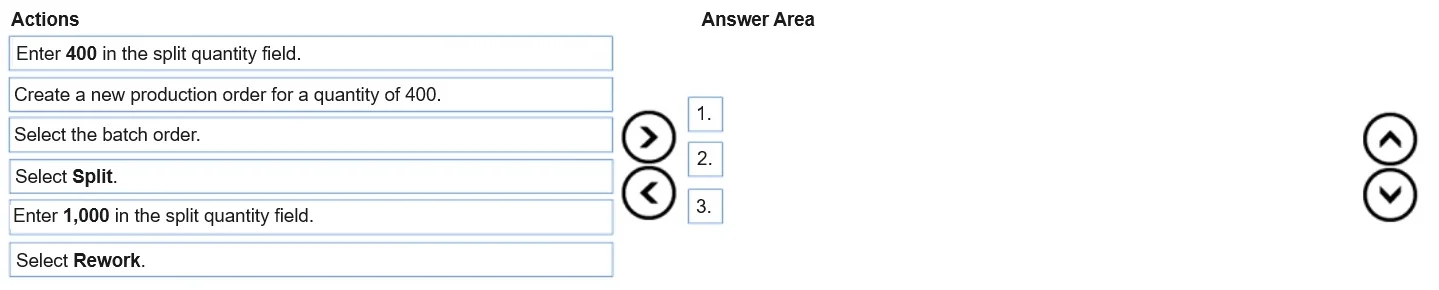
Drag and Drop Question A company uses Process manufacturing. Employees work a half day so that they can attend a company event. You have a rush order that must be completed that same day. After reviewing the net requirements of the batch order, only 400 of the total quantity of 1400 units must be completed today. The production manager must retain the original batch number as the quantity of 400. The original batch number must appear on documentation for the customer. You need to split the batch order into two orders. Which three actions should you perform in sequence? To answer, move the appropriate actions from the list of actions to the answer area and arrange them in the correct order. Answer:

Exhibit
MB-335 question #177 exhibit

Options

  • 1Select the batch order.
  • 2Select Split.
  • 3Enter 1,000 in the split quantity field.

Explanation

Explanation: Splitting a Batch Order in Process Manufacturing

This question tests knowledge of batch order splitting in Microsoft Dynamics 365 Supply Chain Management (Process manufacturing module).


The Core Logic: Which Quantity Gets Split Off?

The critical constraint is:

"The original batch number must be retained as the quantity of 400."

When you split a batch order, the split quantity is the amount removed into a new batch order. The original batch order retains the remainder - and crucially, it keeps the original batch number.

  • Total quantity: 1,400
  • Must complete today (keeps original batch #): 400
  • Split off into new order: 1,400 − 400 = 1,000

Step-by-Step Breakdown

Step 1 - Select the batch order You must first navigate to and select the specific batch order before any actions can be taken on it. This is a prerequisite; no split function is accessible without an active selection.

Step 2 - Select Split With the batch order selected, you invoke the Split function from the menu. This opens the split dialog and is the mechanism by which the system creates the second batch order.

Step 3 - Enter 1,000 in the split quantity field This is the most misunderstood step. The split quantity field represents how much to peel off into a new batch, not how much you want to keep. Since you need the original batch number to cover 400 units, you split off the remaining 1,000 units. The original order shrinks to 400 and retains its batch number for customer documentation.


Common Mistake

Entering 400 instead of 1,000. Students read "400 must be completed today" and assume 400 is the split quantity. This is backwards - entering 400 would leave the original batch with 1,000 units, putting the wrong quantity on customer-facing documentation under the original batch number.

Topics

#batch order#split batch#process manufacturing#batch numbers

Community Discussion

No community discussion yet for this question.

Full MB-335 Practice