MB-230 · Question #215
Drag and Drop Question You are configuring Dynamics 365 Customer Service. Child cases must inherit the customer name and contact from the parent case when opened. You need to configure the case inheri
The correct answer is Enter Service management.; Select Parent and child case settings.; Select the fields to be inherited.. Dynamics 365: Configuring Case Field Inheritance The Core Concept In Dynamics 365 Customer Service, parent-child case inheritance is configured through Service Management - an administrative settings area, not through entity customization. The parent-child relationship on the Cas
Question
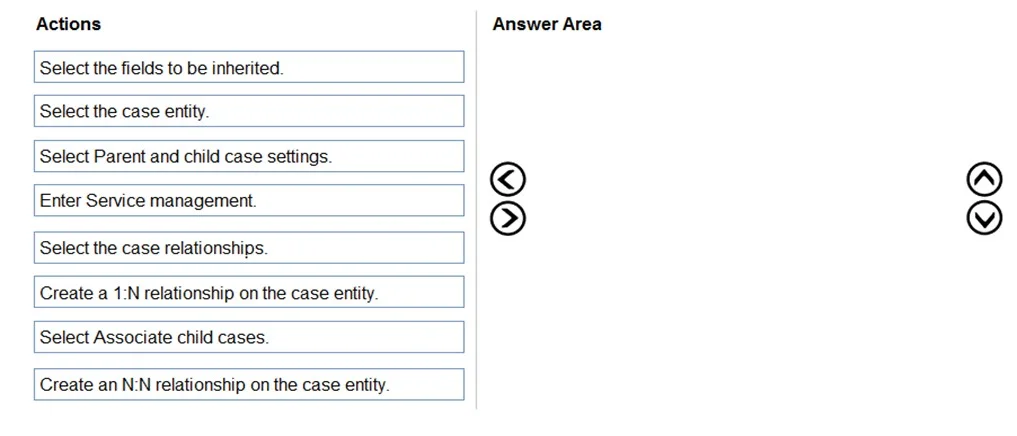
Drag and Drop Question You are configuring Dynamics 365 Customer Service. Child cases must inherit the customer name and contact from the parent case when opened. You need to configure the case inheritance. Which three actions should you perform in sequence? To answer, move the appropriate actions from the list of actions to the answer area and arrange them in the correct order. Answer:
Exhibit
Answer Area
Drag items
Correct arrangement
- Enter Service management.
- Select Parent and child case settings.
- Select the fields to be inherited.
Explanation
Dynamics 365: Configuring Case Field Inheritance
The Core Concept
In Dynamics 365 Customer Service, parent-child case inheritance is configured through Service Management - an administrative settings area, not through entity customization. The parent-child relationship on the Case entity already exists out-of-the-box; you only need to configure which fields get inherited.
Why Each Step Goes in This Order
Step 1 - Enter Service management
This is the mandatory entry point. Service Management is the admin configuration hub for Customer Service features. Without navigating here first, you cannot access case relationship settings. It is the gateway to all subsequent steps.
Step 2 - Select Parent and child case settings
Once inside Service Management, this specific menu item exposes the inheritance configuration panel. It is a named setting within Service Management - you cannot reach it without completing Step 1 first. This is where Dynamics 365 controls how parent cases pass data down to child cases.
Step 3 - Select the fields to be inherited
Inside Parent and child case settings, you are presented with a list of inheritable fields (e.g., Customer Name, Contact). You select which ones child cases should automatically copy from the parent upon creation. This is the final, specific action that achieves the stated requirement.
Why the Distractors Are Wrong
| Item | Why it doesn't belong |
|---|---|
| Select the case entity | Belongs to the Customizations/Solution area, not Service Management. Not part of this workflow. |
| Select the case relationships | Not the correct menu label. The actual setting is "Parent and child case settings." |
| Create a 1:N relationship on the case entity | The parent-child 1:N relationship already exists natively. No creation needed. |
| Create an N:N relationship on the case entity | Parent-child cases are 1:N by definition (one parent, many children). An N:N relationship is wrong conceptually and unnecessary. |
| Select Associate child cases | This relates to linking existing cases together, not configuring field inheritance. |
Common Mistakes
- Jumping to entity customization - Candidates familiar with Power Platform customization instinctively think "field inheritance = custom relationship configuration." Wrong path; this is handled in Service Management settings, not the solution editor.
- Confusing "case relationships" with "parent and child case settings" - The distractor wording is close but the actual UI label is specific.
- Thinking relationships need to be created - The 1:N self-referential relationship on the Case entity ships with Dynamics 365 Customer Service by default. Your only job is to configure which fields flow through it.
Topics
Community Discussion
No community discussion yet for this question.
