
DP-100 · Question #385
Drag and Drop Question You have an existing GitHub repository containing Azure Machine Learning project files. You need to clone the repository to your Azure Machine Learning shared workspace file…
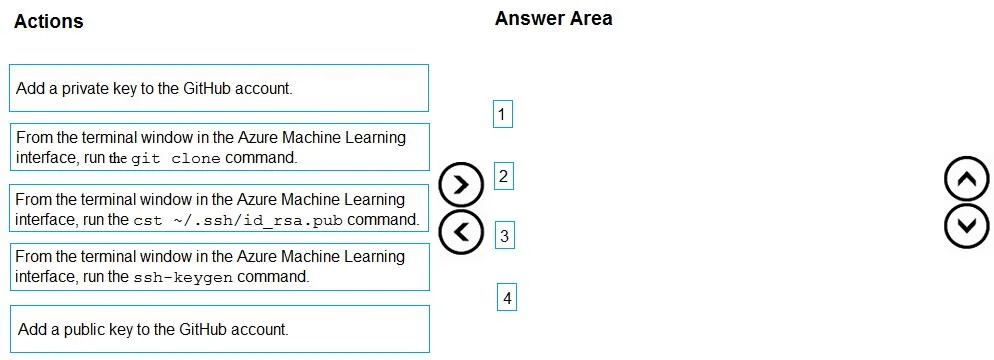
The correct answer is From the terminal window in the Azure Machine Learning interface, run the ssh-keygen command.; Add a private key to the GitHub account.; Add a public key to the GitHub account.; From the terminal window in the Azure Machine Learning interface, run the git clone command. This question tests the sequential steps required to securely clone a GitHub repository into an Azure Machine Learning workspace using SSH keys.
Question
Exhibit
Answer Area
Drag items
Correct arrangement
- From the terminal window in the Azure Machine Learning interface, run the ssh-keygen command.
- Add a private key to the GitHub account.
- Add a public key to the GitHub account.
- From the terminal window in the Azure Machine Learning interface, run the git clone command.
Explanation
This question tests the sequential steps required to securely clone a GitHub repository into an Azure Machine Learning workspace using SSH keys.
Approach. The correct interaction requires dragging the appropriate four actions into the 'Answer Area' and arranging them in the sequence necessary for cloning a GitHub repository using SSH keys from within an Azure Machine Learning terminal environment. This involves generating the keys, configuring GitHub for authentication, and then performing the clone operation.
-
From the terminal window in the Azure Machine Learning interface, run the ssh-keygen command. - This is the initial step to generate a public and private SSH key pair. These keys are essential for secure, password-less authentication with GitHub.
-
From the terminal window in the Azure Machine Learning interface, run the cst ~/.ssh/id_rsa.pub command. - Assuming 'cst' is a typo and refers to 'cat' or a similar command to display/copy the content of the public key (id_rsa.pub). After generating the keys, you need to retrieve the public key's content so it can be added to your GitHub account.
-
Add a public key to the GitHub account. - With the public key's content obtained, this step involves navigating to your GitHub account settings (typically 'SSH and GPG keys') and pasting the public key. This allows GitHub to recognize and authenticate your Azure ML environment when an SSH connection is attempted.
-
From the terminal window in the Azure Machine Learning interface, run the git clone command. - Once the public key is registered with GitHub, the Azure ML terminal can now securely authenticate using its private key, and the 'git clone' command (using the SSH repository URL) can be successfully executed to download the repository's contents.
Common mistakes.
- common_mistake. A common mistake is selecting 'Add a private key to the GitHub account.' This choice is fundamentally incorrect and a serious security flaw. The private key must always remain secure and private on the local client (the Azure ML terminal in this case) and is never to be shared or uploaded to a remote service like GitHub. Only the public key is shared with GitHub for authentication purposes. Any other sequence that attempts to clone the repository before the SSH keys are generated and the public key is added to GitHub would also fail due to authentication errors.
Concept tested. The core technical concept being tested is the understanding of secure Git repository cloning using SSH keys. This includes the lifecycle of SSH key pair generation (public and private keys), the role of the public key in authenticating with remote Git services like GitHub, and the command-line steps involved in setting up SSH authentication and performing a Git clone.
Topics
Community Discussion
No community discussion yet for this question.