
DP-100 · Question #384
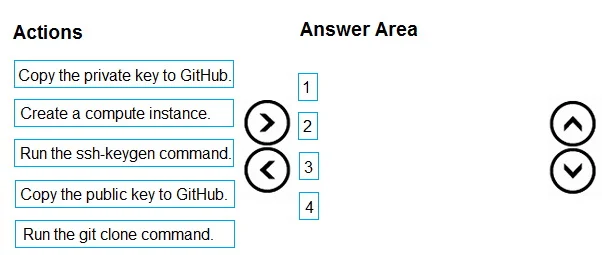
Drag and Drop Question You create an Azure Machine Learning workspace. You need to use the shared file system of the workspace to store a clone of a private Git repository. Which four actions should…
The correct answer is Create a compute instance.; Run the ssh-keygen command.; Copy the public key to GitHub.; Run the git clone command. The correct sequence of actions involves creating a compute instance, generating SSH keys, adding the public key to GitHub, and then cloning the private repository using SSH.
Question
Exhibit
Answer Area
Drag items
Correct arrangement
- Create a compute instance.
- Run the ssh-keygen command.
- Copy the public key to GitHub.
- Run the git clone command.
Explanation
The correct sequence of actions involves creating a compute instance, generating SSH keys, adding the public key to GitHub, and then cloning the private repository using SSH.
Approach. To store a clone of a private Git repository on an Azure Machine Learning workspace's shared file system, it's essential to establish secure authentication, typically using SSH. The correct sequence of actions to achieve this is as follows:
- Create a compute instance: An Azure Machine Learning compute instance provides the necessary virtual machine environment within your workspace. This instance serves as the client machine where you will generate SSH keys and execute Git commands. Without a compute instance, you cannot perform any of the subsequent actions within the workspace context.
- Run the ssh-keygen command: Once the compute instance is available, the next step is to generate an SSH key pair. The
ssh-keygencommand creates two files: a public key (e.g.,id_rsa.pub) and a private key (e.g.,id_rsa). These keys are fundamental for SSH-based authentication. - Copy the public key to GitHub: For your compute instance to authenticate with a private Git repository hosted on GitHub, the generated public key must be added to your GitHub account's SSH keys settings. GitHub uses this public key to verify the identity of the connecting client (your compute instance) and grant access to your private repositories.
- Run the git clone command: After the public key has been registered with GitHub and the private key is securely stored on your compute instance, you can then proceed to clone the private repository. You will use the SSH URL of your repository (e.g.,
[email protected]:your_username/your_repo.git) with thegit clonecommand. This command will download the repository content to the shared file system of your Azure Machine Learning workspace, leveraging the SSH authentication you've set up.
Common mistakes.
- common_mistake. A critical mistake would be to select 'Copy the private key to GitHub.' The private key ('id_rsa') is a secret and should never be shared, uploaded to a public service, or exposed in any way. It must remain secure on the client machine (the Azure ML compute instance) to maintain the integrity of your SSH authentication. Uploading it to GitHub or any other remote service would compromise the security of your Git repositories. Other incorrect choices or sequences might include attempting to run
git clonebefore keys are generated and the public key is registered with GitHub, which would result in an authentication failure for a private repository.
Concept tested. This question tests the understanding of securing access to private Git repositories using SSH keys, specifically within the context of an Azure Machine Learning workspace. It covers the sequential process of provisioning a compute environment, generating SSH key pairs, managing public keys for authentication with a Git hosting service (like GitHub), and securely cloning repositories.
Topics
Community Discussion
No community discussion yet for this question.