nerdexam
Microsoft

AZ-120 · Question #54

Drag and Drop Question You need to connect SAP HANA on Azure (Large Instances) to an Azure Log Analytics workspace. Which four actions should you perform in sequence? To answer, move the appropriate a

The correct answer is Install the Azure Enhanced Monitoring Extension for SAP on SAP HANA on Azure (Large Instances).; Install the Log Analytics client on the SAP HANA on Azure (Large Instances) instance.; Configure a Log Analytics gateway on the virtual network that has connectivity to the SAP HANA on Azure (Large Instances) instance.; On the gateway, run Import-Module OMSGateway and Add-OMSGatewayAllowedHost.. Connecting SAP HANA Large Instances to Azure Log Analytics Architecture Background SAP HANA on Azure Large Instances (HLI) runs on dedicated bare-metal hardware isolated from standard Azure networking. It cannot reach Azure public endpoints directly, so Log Analytics data must be

Maintain SAP workloads on Azure

Question

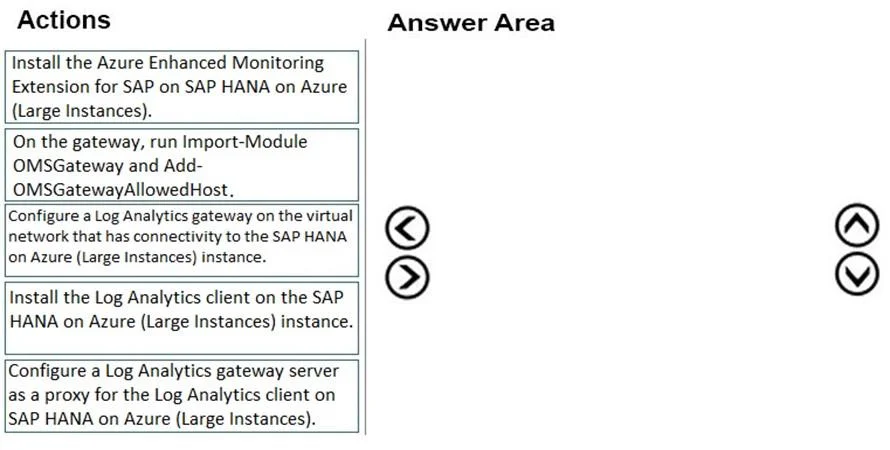
Drag and Drop Question You need to connect SAP HANA on Azure (Large Instances) to an Azure Log Analytics workspace. Which four actions should you perform in sequence? To answer, move the appropriate actions from the list of actions to the answer area and arrange them in the correct order. Answer:

Exhibit
AZ-120 question #54 exhibit

Answer Area

Drag items

Install the Azure Enhanced Monitoring Extension for SAP on SAP HANA on Azure (Large Instances).On the gateway, run Import-Module OMSGateway and Add-OMSGatewayAllowedHost.Configure a Log Analytics gateway on the virtual network that has connectivity to the SAP HANA on Azure (Large Instances) instance.Install the Log Analytics client on the SAP HANA on Azure (Large Instances) instance.Configure a Log Analytics gateway server as a proxy for the Log Analytics client on SAP HANA on Azure (Large Instances).

Correct arrangement

  • Install the Azure Enhanced Monitoring Extension for SAP on SAP HANA on Azure (Large Instances).
  • Install the Log Analytics client on the SAP HANA on Azure (Large Instances) instance.
  • Configure a Log Analytics gateway on the virtual network that has connectivity to the SAP HANA on Azure (Large Instances) instance.
  • On the gateway, run Import-Module OMSGateway and Add-OMSGatewayAllowedHost.

Explanation

Connecting SAP HANA Large Instances to Azure Log Analytics

Architecture Background

SAP HANA on Azure Large Instances (HLI) runs on dedicated bare-metal hardware isolated from standard Azure networking. It cannot reach Azure public endpoints directly, so Log Analytics data must be relayed through a gateway VM that sits in a connected virtual network. This constraint drives the entire sequence.


Why This Specific Order

Step 1 - Install the Azure Enhanced Monitoring Extension for SAP on HLI

This is a hard prerequisite. The Enhanced Monitoring Extension instruments the SAP layer and exposes the SAP-specific metrics and health data that will later be forwarded to Log Analytics. Without it, the Log Analytics agent (Step 2) has nothing SAP-relevant to collect and send. You must prepare the data source before installing the transport mechanism.

Step 2 - Install the Log Analytics client on the HLI instance

Once the monitoring extension is collecting data, you install the Microsoft Monitoring Agent (MMA) on the HLI instance. This agent is responsible for forwarding telemetry to the Log Analytics workspace. It is installed before the gateway is configured because you need to know the identity of the connecting host when you whitelist it in Step 4. The agent will be idle/blocked until the gateway is ready-that's fine; the important thing is that client-side setup is complete.

Step 3 - Configure a Log Analytics gateway on the virtual network

Now you provision the OMS Gateway on a VM in the virtual network that has network line-of-sight to both the HLI instance and Azure Log Analytics endpoints. The gateway acts as an HTTP proxy/relay, forwarding agent traffic outbound to Azure on behalf of the isolated HLI. This must come after Steps 1–2 because there is no point standing up a relay before anything needs to be relayed.

Step 4 - Run Import-Module OMSGateway and Add-OMSGatewayAllowedHost

This finalizes gateway configuration. Import-Module OMSGateway loads the management PowerShell module on the gateway server, and Add-OMSGatewayAllowedHost whitelists the HLI instance so the gateway will accept and forward its traffic. This is the last step because it requires the gateway to already exist (Step 3) and requires knowing the client host identity established in Step 2.


The Excluded Item

"Configure a Log Analytics gateway server as a proxy for the Log Analytics client on SAP HANA on Azure (Large Instances)."

This is the distractor. It sounds plausible-it describes pointing the client to the proxy-but in practice, proxy configuration for the MMA agent is handled during agent installation or via agent settings, not as a discrete named step in this flow. The four steps above cover the complete required sequence per Microsoft's documented guidance for HLI Log Analytics connectivity.


Common Mistakes

MistakeWhy It's Wrong
Setting up the gateway before installing the agentYou need the client host identity to whitelist in Step 4; also, there's no functional reason to build the relay first
Skipping the Enhanced Monitoring ExtensionWithout it, the agent collects generic OS data only-SAP-layer visibility is missing
Treating Step 4 as optionalWithout Add-OMSGatewayAllowedHost, the gateway blocks the HLI instance's connection attempts
Including the excluded item as Step 5The question explicitly asks for four actions; this item is a trap that describes a step already implicit in agent setup

Topics

#Log Analytics#HANA Large Instances#Log Analytics gateway#monitoring setup

Community Discussion

No community discussion yet for this question.

Full AZ-120 Practice