
AZ-104 · Question #155
SIMULATION Overview The following section of the exam is a lab. In this section, you will perform a set of tasks in a live environment. While most functionality will be available to you as it would…
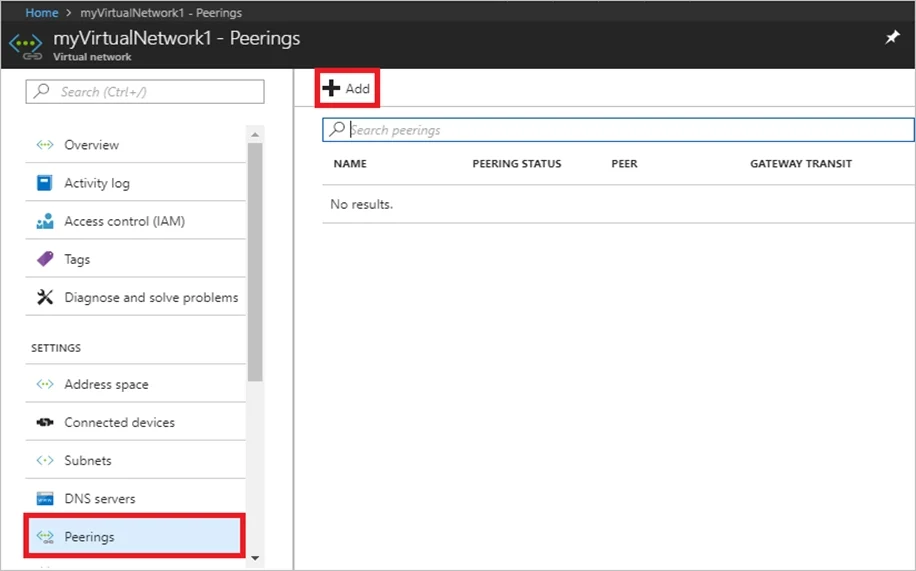
The correct answer is A. See below explanation. Virtual network peering enables you to seamlessly connect two Azure virtual networks. Once peered, the virtual networks appear as one, for connectivity purposes. Peer virtual networks Step 1. In the Search box at the top of the Azure portal, begin typing VNET01-USEA2. When…
Question
Exhibit
Options
- ASee below explanation
How the community answered
(24 responses)- A100% (24)
Explanation
Virtual network peering enables you to seamlessly connect two Azure virtual networks. Once peered, the virtual networks appear as one, for connectivity purposes. Peer virtual networks Step 1. In the Search box at the top of the Azure portal, begin typing VNET01-USEA2. When VNET01- USEA2 appears in the search results, select it. Step 2. Select Peerings, under SETTINGS, and then select + Add, as shown in the following Step 3. Enter, or select, the following information, accept the defaults for the remaining settings, and then select OK. Name: myVirtualNetwork1-myVirtualNetwork2 (for example) Subscription: elect your subscription. Virtual network: VNET01-USWE2 - To select the VNET01-USWE2 virtual network, select Virtual network, then select VNET01-USWE2. You can select a virtual network in the same region or in a different region. Now we need to repeat steps 1-3 for the other network VNET01-USWE2: Step 4. In the Search box at the top of the Azure portal, begin typing VNET01- USEA2. When VNET01- USEA2 appears in the search results, select it. Step 5. Select Peerings, under SETTINGS, and then select + Add. https://docs.microsoft.com/en-us/azure/virtual-network/tutorial-connect-virtual-networks-portal
Community Discussion
No community discussion yet for this question.