
AZ-104 · Question #156
SIMULATION Overview The following section of the exam is a lab. In this section, you will perform a set of tasks in a live environment. While most functionality will be available to you as it would…
The correct answer is A. See below explanation. You can filter network traffic to and from Azure resources in an Azure virtual network with a network security group. A network security group contains security rules that allow or deny inbound network traffic to, or outbound network traffic from, several types of Azure…
Question
Exhibit
Options
- ASee below explanation
How the community answered
(31 responses)- A100% (31)
Explanation
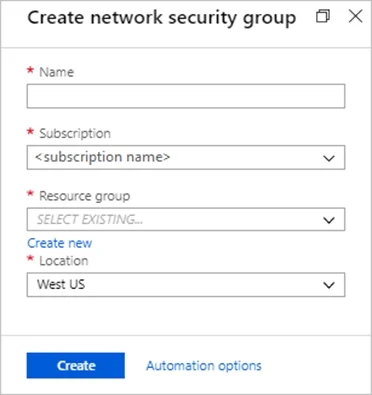
You can filter network traffic to and from Azure resources in an Azure virtual network with a network security group. A network security group contains security rules that allow or deny inbound network traffic to, or outbound network traffic from, several types of Azure resources. A network security group contains security rules that allow or deny inbound network traffic to, or outbound network traffic from, several types of Azure resources. Step A: Create a network security group A1. Search for and select the resource group for the VM, choose Add, then search for and select Network security group. A2. Select Create. The Create network security group window opens. A3. Create a network security group Enter a name for your network security group. Select or create a resource group, then select a location. A4. Select Create to create the network security group. Step B: Create an inbound security rule to allows HTTPS over TCP port 443 B1. Select your new network security group. B2. Select Inbound security rules, then select Add. B3. Add inbound rule B4. Select Advanced. From the drop-down menu, select HTTPS. You can also verify by clicking Custom and selecting TCP port, and 443. B5. Select Add to create the rule. Repeat step B2-B5 to deny TCP port 80 B6. Select Inbound security rules, then select Add. B7. Add inbound rule B8. Select Advanced. Clicking Custom and selecting TCP port, and 80. B9. Select Deny. Step C: Associate your network security group with a subnet Your final step is to associate your network security group with a subnet or a specific network C1. In the Search resources, services, and docs box at the top of the portal, begin typing Web01. When the Web01 VM appears in the search results, select it. C2. Under SETTINGS, select Networking. Select Configure the application security groups, select the Security Group you created in Step A, and then select Save, as shown in the following https://docs.microsoft.com/en-us/azure/virtual-network/tutorial-filter-network-traffic
Community Discussion
No community discussion yet for this question.