
AZ-104 · Question #154
SIMULATION Overview The following section of the exam is a lab. In this section, you will perform a set of tasks in a live environment. While most functionality will be available to you as it would…
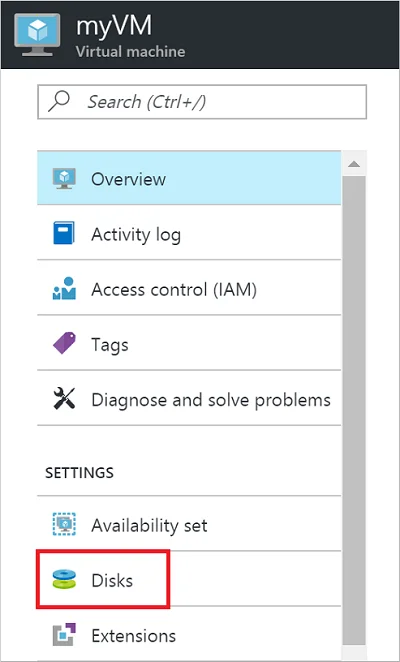
The correct answer is A. See below explanation. Step 1. In the Azure portal, from the menu on the left, select Virtual machines. Step 2. Select the Web01 virtual machine from the list. Step 3. On the Virtual machine page, , in Essentials, select Disks. Step 4. On the Disks page, select the Web01-Disk1 from the list of…
Question
Exhibit
Options
- ASee below explanation
How the community answered
(42 responses)- A100% (42)
Explanation
Step 1. In the Azure portal, from the menu on the left, select Virtual machines. Step 2. Select the Web01 virtual machine from the list. Step 3. On the Virtual machine page, , in Essentials, select Disks. Step 4. On the Disks page, select the Web01-Disk1 from the list of existing disks. Step 5. In the Disks pane, click + Add data disk. Step 6. Click the drop-down menu for Name to view a list of existing managed disks accessible to your Azure subscription. Select the managed disk Web01-Disk1 to attach: https://docs.microsoft.com/en-us/azure/virtual-machines/linux/attach-disk-portal
Community Discussion
No community discussion yet for this question.