
AZ-104 · Question #153
SIMULATION Overview The following section of the exam is a lab. In this section, you will perform a set of tasks in a live environment. While most functionality will be available to you as it would…
The correct answer is A. See below explanation. Task A: Create a Recovery Services vault (if a vault already exists skip this task, go to Task B A1. From Azure Portal, On the Hub menu, click All services and in the list of resources, type Recovery Services and click Recovery Services vaults. If there are recovery services…
Question
Exhibit
Options
- ASee below explanation
How the community answered
(38 responses)- A100% (38)
Explanation
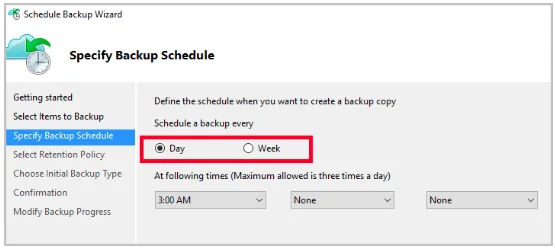
Task A: Create a Recovery Services vault (if a vault already exists skip this task, go to Task B A1. From Azure Portal, On the Hub menu, click All services and in the list of resources, type Recovery Services and click Recovery Services vaults. If there are recovery services vaults in the subscription, the vaults are listed. A2. On the Recovery Services vaults menu, click Add. A3. The Recovery Services vault blade opens, prompting you to provide a Name, Subscription, Resource group, and Location B1. On the Recovery Services vault blade (for the vault you just created), in the Getting Started section, click Backup, then on the Getting Started with Backup blade, select Backup goal. The Backup Goal blade opens. If the Recovery Services vault has been previously configured, then the Backup Goal blades opens when you click Backup on the Recovery Services vault B2. From the Where is your workload running? drop-down menu, select Azure. B3. From the What do you want to backup? menu, select Virtual Machine, and click OK. B4. Finish the Wizard. Task C. create a backup schedule C1. Open the Microsoft Azure Backup agent. You can find it by searching your machine for Microsoft Azure Backup. C2. In the Backup agent's Actions pane, click Schedule Backup to launch the Schedule Backup C3. On the Getting started page of the Schedule Backup Wizard, click Next. C4. On the Select Items to Backup page, click Add Items. The Select Items dialog opens. C5. Select Blob Storage you want to protect, and then click OK. C6.In the Select Items to Backup page, click Next. On the Specify Backup Schedule page, specify Schedule a backup every: day At the following times: 2.00 AM C7. On the Select Retention Policy page, set it to 90 days, and click Next. C8. Finish the Wizard. https://docs.microsoft.com/en-us/azure/backup/backup-configure-vault
Community Discussion
No community discussion yet for this question.