nerdexam
Microsoft

SC-401 · Question #121

SIMULATION Username and password Use the following login credentials as needed: To enter your username, place your cursor in the Sign in box and select the username below. To enter your password…

The correct answer is D. never. Without the full context of the question's scenario, and given the mismatch between the 'task' and the 'date/never' choices, the selection of 'never' as the correct answer suggests that a specific condition or policy related to data expiry or retention for the product…

Implement information protection

Question

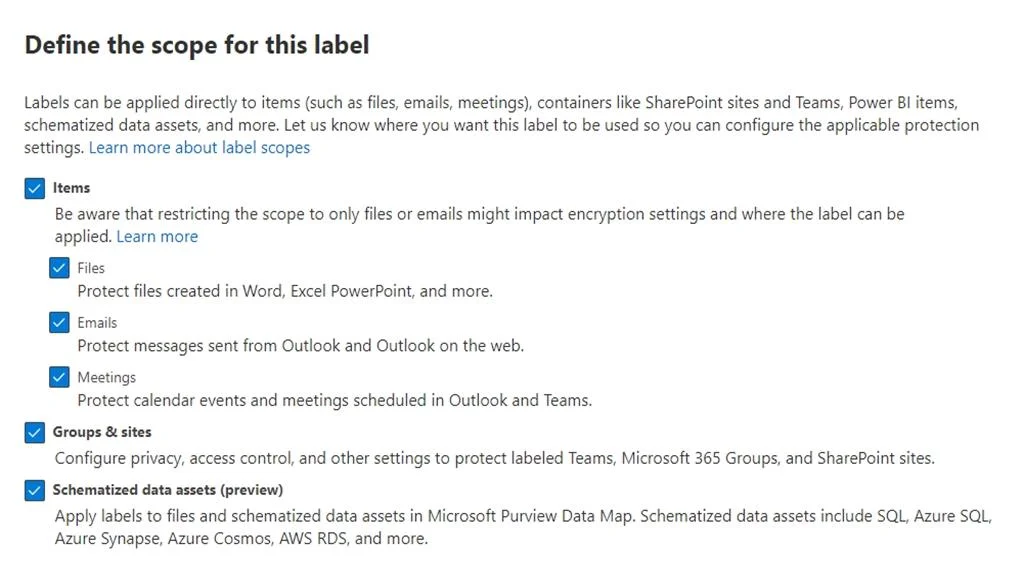
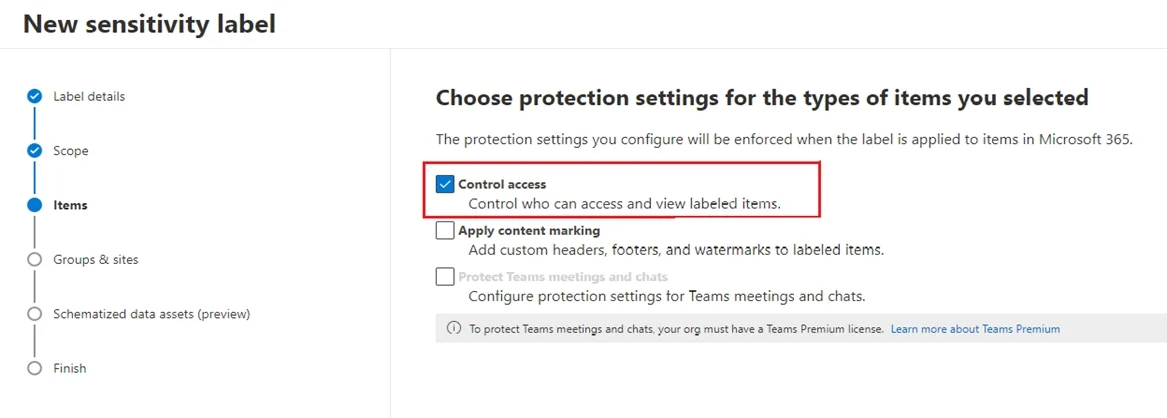
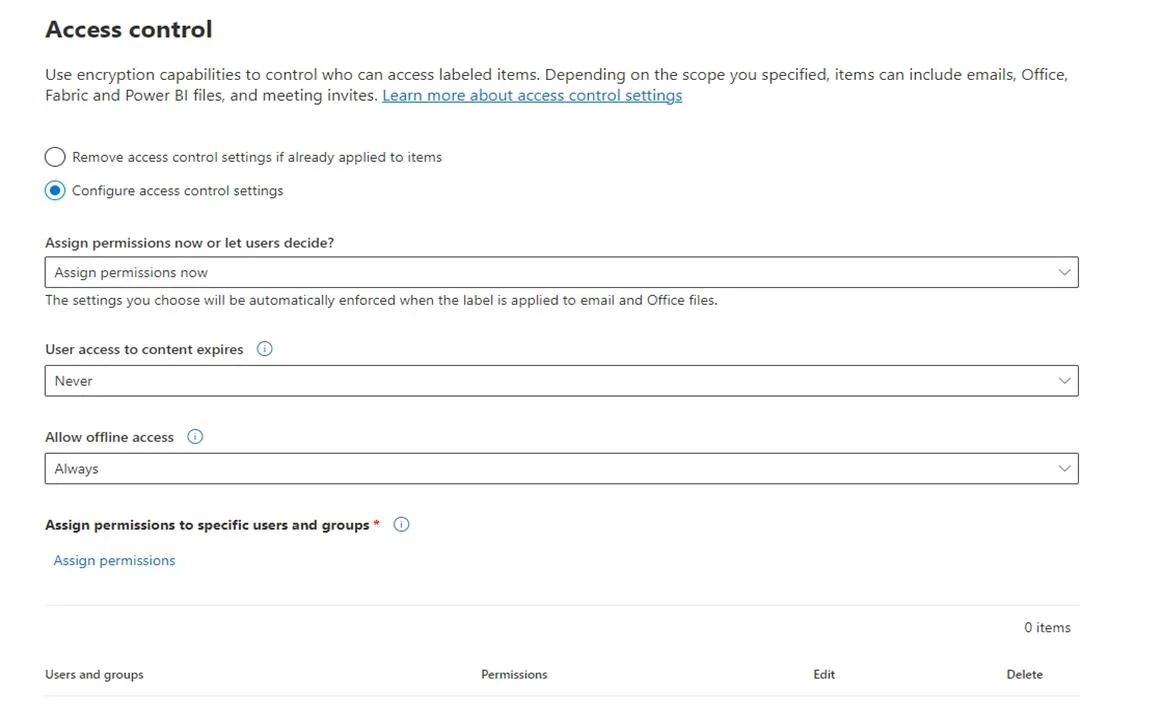
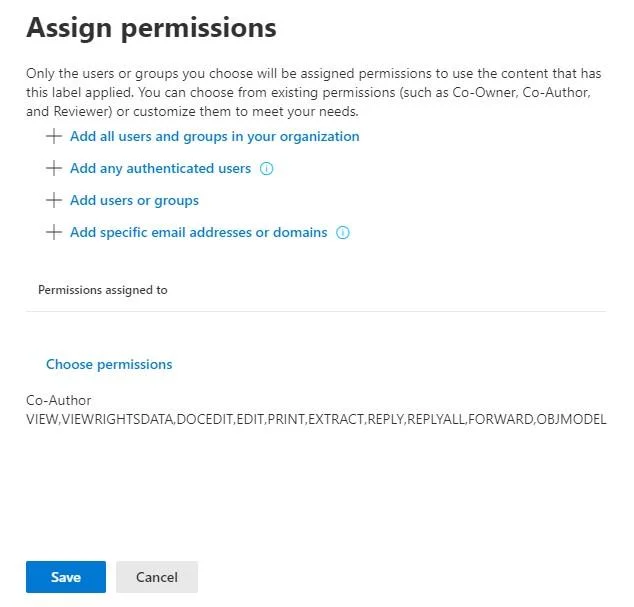
SIMULATION Username and password Use the following login credentials as needed: To enter your username, place your cursor in the Sign in box and select the username below. To enter your password, place your cursor in the Enter password box and select the password below. Microsoft 365 Username: [email protected] Microsoft 365 Password: XXXXXXXXX If the Microsoft Edge browser or Microsoft 365 portal does not load successfully, select the Microsoft Edge browser icon from the task bar, type the URL "https://admin microsoft.com", and press Enter. The following information is for technical support purposes only: Lab Instance: XXXXXXXX. Task 1 You need to provide users with the ability to manually classify files that contain product information that are stored in SharePoint Online sites. The solution must meet the following requirements: - The users must be able to apply a classification of Product1 to the files. - Any authenticated user must be able to open files classified as Product1. - Files classified as Product1 must be encrypted. Answer: Restrict access to content by using sensitivity labels to apply encryption When you create a sensitivity label, you can restrict access to content that the label will be applied to. For example, with the encryption settings for a sensitivity label, you can protect content so that: * Only users within your organization can open a confidential document or email. * Etc. How to configure a label for encryption Step 1: From the Microsoft Purview compliance portal, select Solutions > Information protection > Labels Step 2: Locate and select label Product1. Step 3: On the Define the scope for this label page, the options selected determine the label's scope for the settings that you can configure and where they'll be visible when they're published: Step 4: Select Items, and Files. Deselect the other options. Step 5: Then, on the Choose protection settings for the types of items you selected page, make sure you select Control access. Step 6: On the Access control page, select Configure access control settings: Turns on encryption with rights management and makes the following settings visible: Step 7: Assign permissions to specific users or groups. Add users or groups Step 7a: For users: Any authenticated users. Step 7b: Permissions: Select View Note: You can grant permissions to specific people so that only they can interact with the labeled content: 1. First, add users or groups that will be assigned permissions to the labeled content. 2. Then, choose which permissions those users should have for the labeled content. Assigning permissions: Step 8: Click Save Reference: https://learn.microsoft.com/en-us/purview/trainable-classifiers-get-started-with https://learn.microsoft.com/en-us/purview/encryption-sensitivity-labels

Exhibits

SC-401 question #121 exhibit 1
SC-401 question #121 exhibit 2
SC-401 question #121 exhibit 3
SC-401 question #121 exhibit 4

Options

  • AFebruary 2
  • BFebruary 6
  • CFebruary 15
  • Dnever

How the community answered

(24 responses)
  • A
    4% (1)
  • B
    4% (1)
  • C
    8% (2)
  • D
    83% (20)

Why each option

Without the full context of the question's scenario, and given the mismatch between the 'task' and the 'date/never' choices, the selection of 'never' as the correct answer suggests that a specific condition or policy related to data expiry or retention for the product information files is configured to be indefinite or permanent.

AFebruary 2

February 2 would indicate a specific expiry or retention period, which contradicts the correct answer of 'never', implying an indefinite period for the content.

BFebruary 6

February 6 would indicate a specific expiry or retention period, which contradicts the correct answer of 'never', implying an indefinite period for the content.

CFebruary 15

February 15 would indicate a specific expiry or retention period, which contradicts the correct answer of 'never', implying an indefinite period for the content.

DneverCorrect

The choice 'never' implies that an expiry or retention period for the classified product information files is configured to be indefinite, meaning the data will not expire or be deleted automatically after a set period. This setting would be part of a retention label or policy applied to the content.

Concept tested: Indefinite retention or non-expiry of data using information governance

Source: https://learn.microsoft.com/en-us/microsoft-365/compliance/retention-policies?view=o365-worldwide

Topics

#Sensitivity Labels#Information Protection#Encryption#SharePoint Online

Community Discussion

No community discussion yet for this question.

Full SC-401 Practice