
PL-300 · Question #45
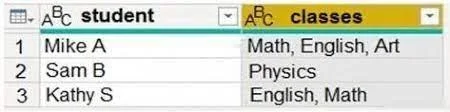
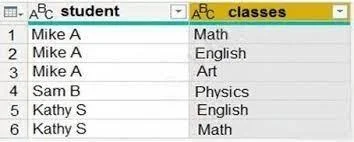
You have a query that returns the data shown in the following exhibit. You need to configure the query to display the data as shown in the following exhibit. Which step should you use in the query?
The correct answer is A. = Table.ExpandListColumn(Table.TransformColumns(Source,{{"classes". To transform a column containing lists of values into multiple rows, with one row for each item in the list, the Power Query M function Table.ExpandListColumn is used after ensuring the column data is properly formatted as a list.
Question
You have a query that returns the data shown in the following exhibit. You need to configure the query to display the data as shown in the following exhibit. Which step should you use in the query?
Exhibits
Options
- A= Table.ExpandListColumn(Table.TransformColumns(Source,{{"classes",
- B= Table.Unpivot(Source, {"classes"}, "Attribute", "Value")
- C= Table.SplitColumn(Source, "classes",Splitter.SplitTextByDelimiter(",",
- D= Table.SplitColumn(Source, "classes",Splitter.SplitTextByPositions({10}), {"classes.1"})
How the community answered
(33 responses)- A82% (27)
- B3% (1)
- C6% (2)
- D9% (3)
Why each option
To transform a column containing lists of values into multiple rows, with one row for each item in the list, the Power Query M function `Table.ExpandListColumn` is used after ensuring the column data is properly formatted as a list.
This Power Query M function sequence first transforms the 'classes' column by splitting text into a list (e.g., from comma-separated values) and then uses `Table.ExpandListColumn` to flatten that list, creating a new row for each item and effectively denormalizing the data.
`Table.Unpivot` transforms columns into attribute-value pairs, which is a different type of denormalization than expanding a list within a single cell into multiple rows.
`Table.SplitColumn` divides a single column into multiple new columns based on a delimiter, not creating new rows for each item in a list.
`Table.SplitColumn` with `SplitTextByPositions` would split the 'classes' column into new columns based on character positions, which is not the goal of expanding list items into new rows.
Concept tested: Power Query data transformation (Expand List Column)
Source: https://learn.microsoft.com/en-us/powerquery-m/table-expandlistcolumn
Topics
Community Discussion
No community discussion yet for this question.