
PL-200 · Question #43
Drag and Drop Question You are customizing a model-driven app for a company. You create a Theme template to ensure the company logo and colors are properly used within these apps. The theme must…
The correct answer is Edit the theme in System settings and upload a jpg file.; Upload the theme elements as new web resources.; Replace an existing UI item's hexadecimal number. This question assesses the test-taker's understanding of how to customize themes in Microsoft Power Apps model-driven apps, specifically regarding updating logos and changing UI element colors.
Question
Exhibit
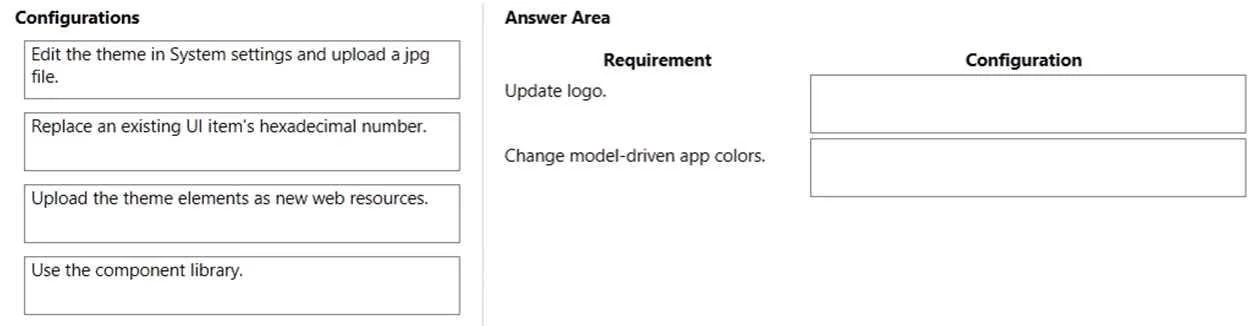
Answer Area
Drag items
Correct arrangement
- Edit the theme in System settings and upload a jpg file.
- Upload the theme elements as new web resources.
- Replace an existing UI item's hexadecimal number.
Explanation
This question assesses the test-taker's understanding of how to customize themes in Microsoft Power Apps model-driven apps, specifically regarding updating logos and changing UI element colors.
Approach. To answer this drag-and-drop question, you must correctly map the configuration actions to the specified requirements based on Power Apps model-driven app theme customization practices:
-
Requirement: Update logo.
- Correct Configuration: Upload the theme elements as new web resources.
- Reasoning: In Power Apps model-driven apps (and Dynamics 365), logos and other image assets used within themes are managed as web resources. The 'Logo' field in the theme editor (as seen in Image 3) expects the name of a web resource. To 'update' a logo, especially if it's a new image or a revised one, you would first need to upload that image file (e.g., JPG) as a new web resource in your solution. Once uploaded, you can then specify its name in the theme's 'Logo' field. Therefore, making the logo available as a web resource is the necessary configuration step.
-
Requirement: Change model-driven app colors.
- Correct Configuration: Replace an existing UI item's hexadecimal number.
- Reasoning: Images 3 and 4 clearly illustrate that all color settings within the theme editor (e.g., 'Navigation Bar Fill Color', 'Link and Button Text Color') are defined by specific hexadecimal color codes (e.g., '#415C55'). To change any of these colors, the direct and correct action is to modify the existing hexadecimal number associated with the respective UI item to the desired new hexadecimal color code.
Common mistakes.
- common_mistake. 1. 'Edit the theme in System settings and upload a jpg file.' - While themes are indeed edited in System Settings, you do not directly 'upload a jpg file' into the logo field of the theme editor. Instead, you specify the name of an existing web resource. To make a JPG available, you first upload it as a web resource, which is better described by the option 'Upload the theme elements as new web resources.' This option is partially correct regarding the location but inaccurate about the direct action for a logo file.
- 'Use the component library.' - Component libraries are primarily designed for creating reusable UI components in Power Apps canvas apps. They are not used for defining or applying themes in model-driven apps, which have a separate theming mechanism as shown in the exhibits.
Concept tested. Customizing themes in Microsoft Power Apps model-driven apps, including understanding how logos are managed via web resources and how UI element colors are configured using hexadecimal values.
Topics
Community Discussion
No community discussion yet for this question.