
PL-200 · Question #328
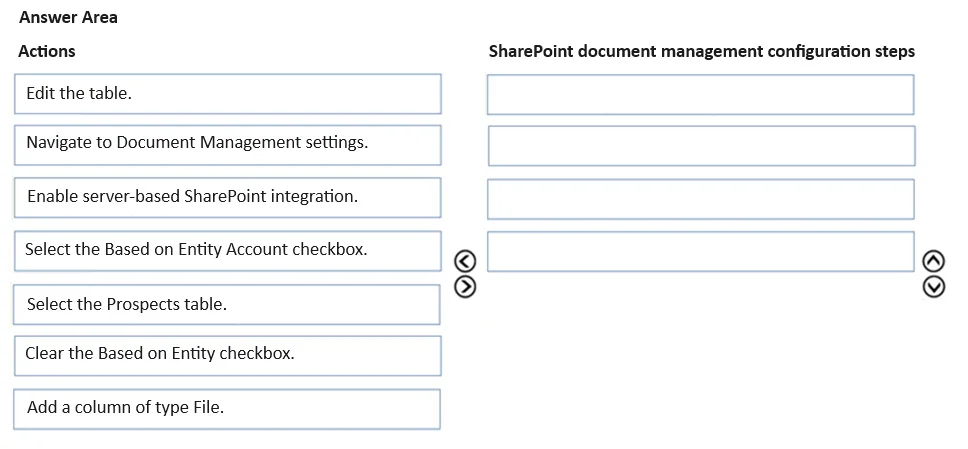
Drag and Drop Question A company is using Dataverse with a custom table named Prospects. The Prospects table has a lookup to the Account table. SharePoint document management is configured in the…
The correct answer is Enable server-based SharePoint integration.; Navigate to Document Management settings.; Select the Prospects table.; Clear the Based on Entity checkbox. To configure SharePoint document management for the custom Prospects table to store documents based on its related Account table, the user must navigate to Document Management settings, select the Prospects table, clear any default self-referential document location, and then…
Question
Exhibit
Answer Area
Drag items
Correct arrangement
- Enable server-based SharePoint integration.
- Navigate to Document Management settings.
- Select the Prospects table.
- Clear the Based on Entity checkbox.
Explanation
To configure SharePoint document management for the custom Prospects table to store documents based on its related Account table, the user must navigate to Document Management settings, select the Prospects table, clear any default self-referential document location, and then specify the Account entity for document storage.
Approach. The scenario requires configuring SharePoint document management for a custom Dataverse table named 'Prospects' such that documents are accessed via a linked 'Account' row, even though server-based SharePoint integration is already enabled environment-wide. The steps must logically progress through the configuration process:
-
Navigate to Document Management settings. - This is the foundational first step for any SharePoint document management configuration within Dataverse/Dynamics 365. It leads to the area where entities are enabled or configured for document management.
-
Select the Prospects table. - Once in the Document Management settings, the next logical step is to identify and select the specific table ('Prospects') that needs to be configured or reconfigured for document management.
-
Clear the Based on Entity checkbox. - When configuring document management for an entity that has a lookup to a parent entity, there is often a default 'Based on Entity' option that would store documents directly under the primary entity's records ('Prospects' in this case). To fulfill the requirement of storing documents under the Account row, this default or implied self-referential setting must first be cleared or deselected. This action ensures that the system doesn't default to storing documents based on the 'Prospects' entity itself.
-
Select the Based on Entity Account checkbox. - After clearing any default settings, this step explicitly configures the document location strategy to use the 'Account' entity that 'Prospects' looks up to. This directly addresses the requirement that documents 'must be accessed by using an Account row linked to the Prospects table'.
Common mistakes.
- common_mistake. Common mistakes include:
- Selecting 'Enable server-based SharePoint integration'. The question explicitly states that 'SharePoint document management is configured in the environment', meaning this step has already been completed and is not part of configuring a specific table.
- Selecting 'Add a column of type File'. This action relates to Dataverse's native file storage capabilities, not the SharePoint document management integration, which links Dataverse records to documents stored in SharePoint.
- Selecting 'Edit the table'. While some table properties are relevant to document management (e.g., 'Can have attached files'), the specific configuration for SharePoint document location based on a parent entity is handled within the dedicated 'Document Management settings' wizard, not typically through the table editor itself for this type of advanced linkage.
- Incorrect sequencing of 'Clear the Based on Entity checkbox' and 'Select the Based on Entity Account checkbox'. Clearing the default is usually a prerequisite to establishing a new, specific parent entity relationship if the UI implies a default selection upon enabling a table for document management.
Concept tested. SharePoint document management integration with Dataverse (Dynamics 365), specifically configuring document location for a custom table based on a related parent entity (lookup relationship).
Reference. null
Topics
Community Discussion
No community discussion yet for this question.