nerdexam
Microsoft

PL-200 · Question #224

Drag and Drop Question A company creates a canvas app. The company plans to make the app available in Microsoft Teams. Only employees will be allowed to use the app. You need to add the app to…

The correct answer is Sign into the maker portal for Microsoft Power Platform.; Select the required Power Apps app.; Add the app to Teams. The correct sequence for adding a Power Apps canvas app to Microsoft Teams involves accessing the Power Apps maker portal, selecting the target app, and then utilizing the built-in 'Add to Teams' feature.

Create apps by using Microsoft Power Apps

Question

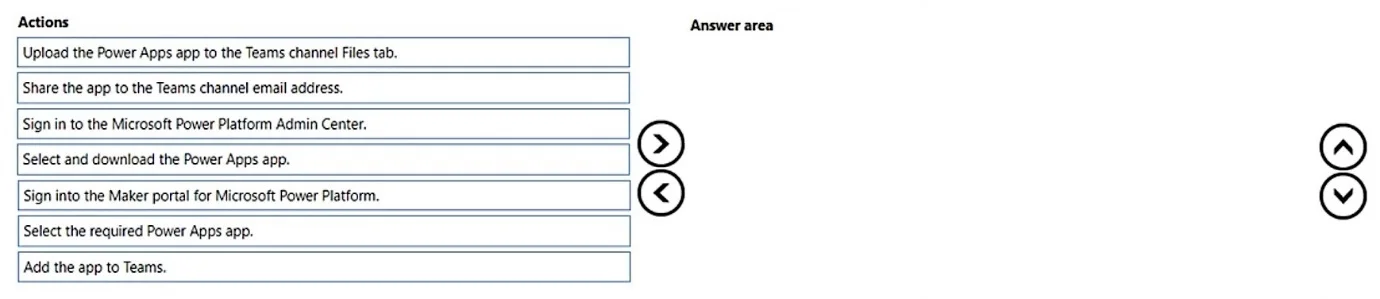
Drag and Drop Question A company creates a canvas app. The company plans to make the app available in Microsoft Teams. Only employees will be allowed to use the app. You need to add the app to Teams. Which three actions should you perform in sequence? To answer, move the appropriate actions from the list of actions to the answer area and arrange them in the correct order. Answer:

Exhibit
PL-200 question #224 exhibit

Answer Area

Drag items

Upload the Host Power Apps app to the Teams channel files tab.Share the app to the Teams channel email address.Sign in to the Microsoft Power Platform Admin Center.Select and download the Power Apps app.Sign into the maker portal for Microsoft Power Platform.Select the required Power Apps app.Add the app to Teams.

Correct arrangement

  • Sign into the maker portal for Microsoft Power Platform.
  • Select the required Power Apps app.
  • Add the app to Teams.

Explanation

The correct sequence for adding a Power Apps canvas app to Microsoft Teams involves accessing the Power Apps maker portal, selecting the target app, and then utilizing the built-in 'Add to Teams' feature.

Approach. The correct interaction is to drag the following three actions from the 'Actions' list to the 'Answer area' and place them in this specific sequence:

  1. Sign into the Maker portal for Microsoft Power Platform. - This is the essential first step to access, manage, and configure canvas apps. The Power Apps maker portal (make.powerapps.com) is where app creators build and publish their applications.
  2. Select the required Power Apps app. - Once in the maker portal, the user must navigate to the 'Apps' section and choose the specific canvas app that needs to be made available in Microsoft Teams.
  3. Add the app to Teams. - After selecting the app, within its details or through the 'File' menu, there is an option (often labeled 'Add to Teams' or 'Publish to Teams') that facilitates the direct integration of the canvas app into a Microsoft Teams environment. This action automates the process of creating an app package and deploying it to Teams for user access. This sequence accurately reflects the standard workflow within the Power Apps maker portal for deploying a canvas app to Microsoft Teams.

Common mistakes.

  • common_mistake. 1. 'Upload the Power Apps app to the Teams channel Files tab.' is incorrect because Power Apps are not simple files to be uploaded to a document library; they are integrated as tabs or personal apps through a specific deployment process.
  1. 'Share the app to the Teams channel email address.' is incorrect. Sharing an app provides access permissions to users or groups but does not embed the app directly into a Teams channel or as a personal app. Embedding requires the 'Add to Teams' functionality.
  2. 'Sign in to the Microsoft Power Platform Admin Center.' is incorrect as the Admin Center is primarily for tenant-wide administration, environment management, and data policies, not for the day-to-day deployment of individual apps to Teams. That action is performed in the maker portal.
  3. 'Select and download the Power Apps app.' is incorrect. Downloading an app package is typically done for backup, migration, or importing purposes, not for directly deploying it into Microsoft Teams using the 'Add to Teams' feature. The integration is usually direct from the maker portal.

Concept tested. Integrating Power Apps canvas applications with Microsoft Teams, understanding the workflow within the Power Apps maker portal, and distinguishing between different administrative and deployment tools within the Power Platform.

Topics

#Canvas Apps#Microsoft Teams Integration#App Deployment#Power Apps Sharing

Community Discussion

No community discussion yet for this question.

Full PL-200 Practice