
PL-100 · Question #40
Drag and Drop Question You create an app with multiple screens. Test users report that the size and type of gallery displayed on each screen are different. You must improve the consistency for the…
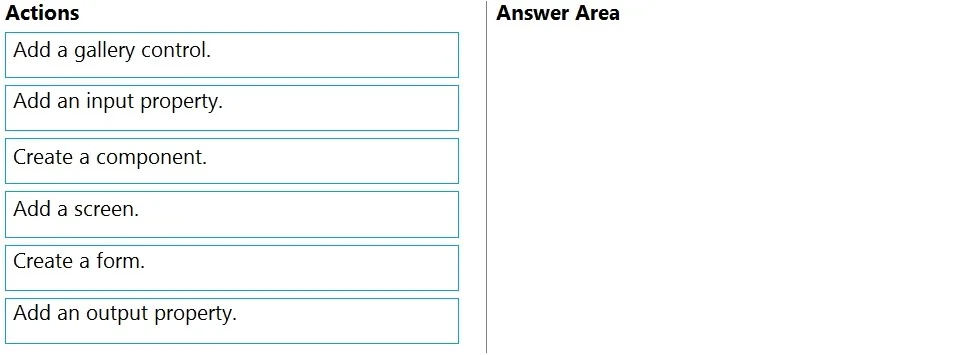
The correct answer is Create a component.; Add an input property.; Add a gallery control. To create a reusable gallery in Power Apps that displays information based on the current record, you must first create a component, then define an input property to receive the record data, and finally add a gallery control within the component to display that data.
Question
Exhibit
Answer Area
Drag items
Correct arrangement
- Create a component.
- Add an input property.
- Add a gallery control.
Explanation
To create a reusable gallery in Power Apps that displays information based on the current record, you must first create a component, then define an input property to receive the record data, and finally add a gallery control within the component to display that data.
Approach. The core requirement is to create a 'reusable gallery' that displays information based on a 'current record' to improve app consistency. This directly translates to using Power Apps components.
- Create a component: This is the fundamental first step. Components are the mechanism in Power Apps for creating reusable UI elements and controls. You must create the container before you can add controls or define properties for it.
- Add an input property: To make the reusable gallery display data based on a 'current record', the component needs a way to receive that record's data from the screen or app where it's used. An input property serves this purpose, allowing data (like a record, table, or text) to be passed into the component. For this scenario, an input property of type 'Record' or 'Table' would be appropriate to hold the 'current record' data.
- Add a gallery control: Once the component is established and capable of receiving data via an input property, you then add the actual gallery control inside the component. The gallery's
Itemsproperty would then be bound to the component's input property, ensuring it displays the received data.
The sequence shown in the image ('Create a component', then 'Add an input property', then 'Add a gallery control') is a logically sound and correct approach. The problem statement explicitly notes that 'More than one order of answer choices is correct', indicating that while 'Create a component' must be first, the order of 'Add an input property' and 'Add a gallery control' can be interchanged (i.e., 'Create a component' -> 'Add a gallery control' -> 'Add an input property' would also be correct).
Common mistakes.
- common_mistake. - Adding a screen: While screens are essential for an app, they are not the mechanism for creating reusable UI elements like a custom gallery. Components are specifically designed for reusability.
- Creating a form: A form is used for displaying or editing a single record, but the problem explicitly asks for a 'gallery'. Galleries are more versatile for displaying collections of items or custom layouts of a record's details. While a form could potentially be within a component, 'Create a form' does not directly address the 'reusable gallery' requirement.
- Adding an output property: Output properties allow a component to send data out to the parent screen or app. The requirement is for the gallery to 'display information based on the current record', which means the component needs to receive data, hence an input property is required for this specific task. An output property is not relevant for the initial data display functionality.
- Incorrect order: Actions like 'Add an input property' or 'Add a gallery control' cannot be performed before 'Create a component', as they are steps taken within the context of component creation and configuration. For example, you cannot add a control to a component that doesn't exist yet.
Concept tested. Power Apps components for creating reusable UI elements, understanding component input properties for data binding, and the logical sequence of steps involved in developing custom components in Power Apps.
Topics
Community Discussion
No community discussion yet for this question.