
PL-100 · Question #301
Drag and Drop Question You have a basic user security role in a test environment. You create a canvas app without customizations in the environment. You need to send the app to production…
The correct answer is Select the canvas app in the Maker portal.; Export the package.; Send the package to production administrators. The question tests the correct sequence of actions to package and send a canvas app for production deployment using the direct app export method in the Power Apps Maker portal.
Question
Exhibit
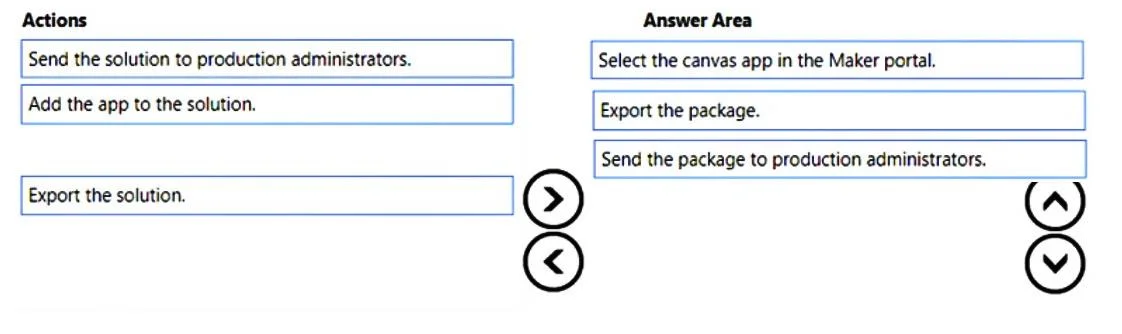
Answer Area
Drag items
Correct arrangement
- Select the canvas app in the Maker portal.
- Export the package.
- Send the package to production administrators.
Explanation
The question tests the correct sequence of actions to package and send a canvas app for production deployment using the direct app export method in the Power Apps Maker portal.
Approach. The correct sequence of actions for sending a canvas app for production deployment, following the direct app export method indicated by the pre-filled answer and available options, is as follows:
-
Select the canvas app in the Maker portal.- Before any action can be performed on a canvas app, it must be located and selected within the Power Apps Maker portal (make.powerapps.com). This is the initial step to interact with the app.
-
Export the package.- After selecting the canvas app, an option is available in the Maker portal to 'Export package' or 'Export app'. This action creates a deployable .zip file, which is referred to as the 'package'. This package contains the canvas app and its associated components, ready for transfer.
-
Send the package to production administrators.- Once the app package (.zip file) has been successfully exported, the final step is to securely transfer this package to the production administrators. These administrators will then be responsible for importing the package into the target production environment, completing the deployment process.
Common mistakes.
- common_mistake. A common mistake would be to choose actions related to Power Apps solutions (e.g., 'Add the app to the solution,' 'Export the solution,' 'Send the solution to production administrators'). While solutions are the recommended best practice for application lifecycle management (ALM) in Power Platform, especially for complex deployments involving multiple components or managed solutions, the specific options provided in the question's correct answer (and the phrasing 'Export the package,' 'Send the package') steer towards the direct app export method. Choosing solution-related actions would imply a different deployment strategy that doesn't align with the expected answer. Additionally, selecting the correct actions but arranging them in the wrong order (e.g., attempting to export before selecting the app) would also be incorrect, as the sequence of operations is critical.
Concept tested. Power Apps canvas app deployment, application lifecycle management (ALM) concepts in Power Platform, direct app export vs. solution-based deployment, and the workflow within the Power Apps Maker portal.
Reference. null
Topics
Community Discussion
No community discussion yet for this question.