
PL-100 · Question #233
Drag and Drop Question An insurance broker uses a Microsoft Dataverse environment with custom tables. You create a Power Apps app to manage vehicle insurance policies. The app has a drop-down field…
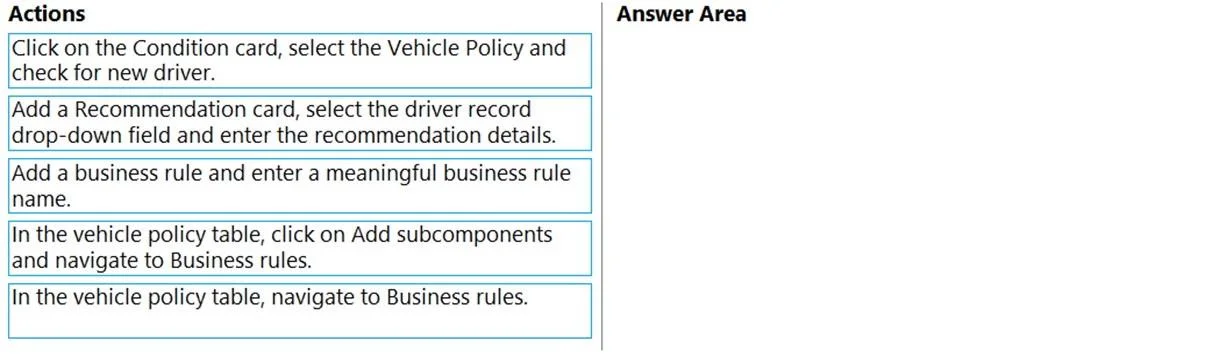
The correct answer is In the vehicle policy table, navigate to Business rules.; Add a business rule and enter a meaningful business rule name.; Click on the Condition card, select the Vehicle Policy and check for a new driver. To ensure correct data entry using a Dataverse business rule, the first steps are to navigate to the table's business rules, create a new rule with a name, and then define the initial condition for the rule.
Question
Exhibit
Answer Area
Drag items
Correct arrangement
- In the vehicle policy table, navigate to Business rules.
- Add a business rule and enter a meaningful business rule name.
- Click on the Condition card, select the Vehicle Policy and check for a new driver.
Explanation
To ensure correct data entry using a Dataverse business rule, the first steps are to navigate to the table's business rules, create a new rule with a name, and then define the initial condition for the rule.
Approach. The correct interaction is to drag the following three actions into the 'Answer Area' in this specific order:
- In the vehicle policy table, navigate to Business rules. (This is the foundational first step, as you must access the specific table's business rule configuration area before you can create or modify any rules for it.)
- Add a business rule and enter a meaningful business rule name. (Once in the business rules area for the 'Vehicle Policy' table, the next logical step is to create a new business rule and assign it a descriptive name to identify its purpose.)
- Click on the Condition card, select the Vehicle Policy and check for new driver. (After creating and naming the rule, you begin defining its logic. The 'Condition card' is where you specify the 'IF' part of the business rule, setting the criteria that must be met for the rule's actions to trigger. In this scenario, a condition related to a 'new driver' is chosen as the trigger for potential recommendations regarding the driving record.)
This sequence establishes the core structure of a business rule-navigating to the feature, creating the rule, and defining its trigger condition-which logically precedes defining the rule's action (like a recommendation).
Common mistakes.
- common_mistake. A common mistake would be to try to define the action of the business rule (e.g., 'Add a Recommendation card...') before the rule itself has been created or its triggering condition defined. Actions cannot exist in isolation; they are part of a rule's 'THEN' clause, which only executes if the 'IF' condition is met. Another mistake would be incorrect navigation, such as choosing 'Click on Add subcomponents' if 'Navigate to Business rules' is a more direct and common path in the UI. Incorrect ordering of the initial steps, such as naming the rule before navigating to the business rules section, would also be incorrect as the UI flow requires navigating first.
Concept tested. Microsoft Dataverse Business Rules in Power Apps/Power Platform. This includes understanding the lifecycle of creating a business rule, from navigation and initialization to defining conditions and actions, and how business rules enforce data quality and guide user input without custom code.
Topics
Community Discussion
No community discussion yet for this question.