
MS-721 · Question #290
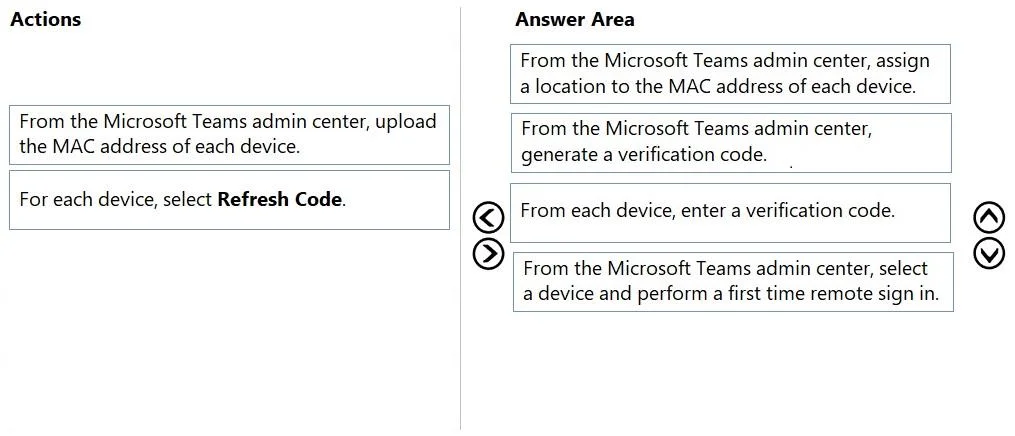
Drag and Drop Question You have a Microsoft Teams Phone deployment. You purchase 25 new Android phones. You need to remotely bulk provision the phones to Teams. Which four actions should you perform…
The correct answer is From the Microsoft Teams admin center, assign a location to the MAC address of each device.; From the Microsoft Teams admin center, generate a verification code.; From each device, enter a verification code.; From the Microsoft Teams admin center, select a device and perform a first time remote sign in. To remotely bulk provision new Microsoft Teams Android phones, the administrator must first upload device MAC addresses, assign a location, generate a verification code, and then perform a remote sign-in from the Teams admin center.
Question
Exhibit
Answer Area
Drag items
Correct arrangement
- From the Microsoft Teams admin center, assign a location to the MAC address of each device.
- From the Microsoft Teams admin center, generate a verification code.
- From each device, enter a verification code.
- From the Microsoft Teams admin center, select a device and perform a first time remote sign in.
Explanation
To remotely bulk provision new Microsoft Teams Android phones, the administrator must first upload device MAC addresses, assign a location, generate a verification code, and then perform a remote sign-in from the Teams admin center.
Approach. The correct sequence for remotely bulk provisioning new Android phones for Microsoft Teams Phone, focusing on the administrator's actions, is as follows:
- From the Microsoft Teams admin center, upload the MAC address of each device. - For new phones, they must first be registered in the Teams admin center. Bulk provisioning starts by uploading a CSV file containing the MAC addresses to establish device presence in the system.
- From the Microsoft Teams admin center, assign a location to the MAC address of each device. - After registration, assigning a physical location is critical for emergency calling (E911) and other location-based services, making it a necessary configuration step for each device.
- From the Microsoft Teams admin center, generate a verification code. - Once the device is known and configured, the administrator generates a unique, time-sensitive code in the Teams admin center. This code acts as a secure link for the physical device to connect to its profile in the admin center.
- From the Microsoft Teams admin center, select a device and perform a first time remote sign in. - After the generated verification code has been entered on the physical Android phone (an interstitial device-side action), the administrator completes the provisioning by remotely initiating and confirming the sign-in process from the Teams admin center, fully bringing the phone online and registered with the user or common area account.
Common mistakes.
- common_mistake. A common mistake would be to omit 'From the Microsoft Teams admin center, upload the MAC address of each device,' especially since the scenario specifies '25 new Android phones.' Without this initial step, the phones would not be known to the Teams admin center, making subsequent steps like assigning a location or generating a verification code impossible. Another mistake is including 'For each device, select Refresh Code,' as this action is for re-establishing a connection or refreshing an expired code, not for initial bulk provisioning. While 'From each device, enter a verification code' is part of the overall provisioning flow, the chosen sequence prioritizes the primary administrative steps required to remotely provision the devices, where the 'perform a first time remote sign in' action directly reflects the completion of the provisioning process from the admin's perspective, enabled by the device's code entry.
Concept tested. Microsoft Teams Phone remote provisioning, bulk device management, IP phone setup in Teams admin center, and understanding the sequence of administrative actions for device registration and initial sign-in for new devices.
Topics
Community Discussion
No community discussion yet for this question.