
MS-721 · Question #140
Drag and Drop Question Your company plans to use Microsoft Teams for collaboration and communication. You need to deploy Microsoft Surface Hub devices to Teams meeting rooms. Which four actions…
The correct answer is Install Windows Configuration Designer; Use the Provision Surface Hub devices wizard; Save the provisioning package to a USB device; Deploy the provisioning package to Surface Hub. To deploy Microsoft Surface Hub devices using provisioning packages, you must first install Windows Configuration Designer, create the package using its wizard, save it to a USB, and then deploy it to the Surface Hub.
Question
Exhibit
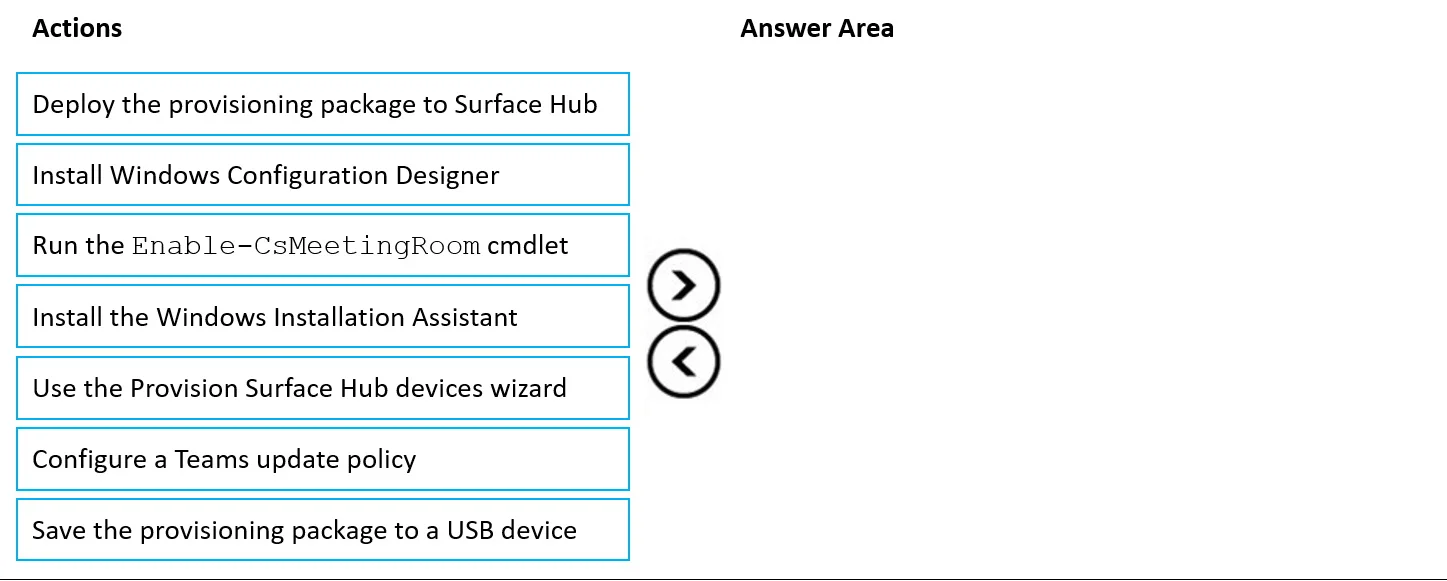
Answer Area
Drag items
Correct arrangement
- Install Windows Configuration Designer
- Use the Provision Surface Hub devices wizard
- Save the provisioning package to a USB device
- Deploy the provisioning package to Surface Hub
Explanation
To deploy Microsoft Surface Hub devices using provisioning packages, you must first install Windows Configuration Designer, create the package using its wizard, save it to a USB, and then deploy it to the Surface Hub.
Approach. The question asks for the four sequential actions to deploy Microsoft Surface Hub devices to Teams meeting rooms. This process typically involves creating and applying a provisioning package. The correct sequence is:
- Install Windows Configuration Designer: This is the prerequisite step. Windows Configuration Designer (WCD) is the tool used to create provisioning packages for Windows-based devices, including Surface Hubs.
- Use the Provision Surface Hub devices wizard: Once WCD is installed, this wizard within the application is used to guide the user through the process of creating the specific provisioning package for a Surface Hub device, customizing settings like device name, network configuration, and initial setup.
- Save the provisioning package to a USB device: After the provisioning package (.ppkg file) has been created using the wizard, it must be saved to a removable media, typically a USB flash drive, so it can be physically transferred to the Surface Hub device.
- Deploy the provisioning package to Surface Hub: The final step is to insert the USB device into the Surface Hub and apply the provisioning package. This action configures the Surface Hub according to the settings defined in the package, preparing it for use in a Teams meeting room.
This sequence ensures the tool is available, the package is created, it's transferable, and then it's applied to the device.
Common mistakes.
- common_mistake. Common mistakes include selecting actions that are not part of the initial device provisioning or are related to different technologies or management tasks. For instance:
- 'Run the Enable-CsMeetingRoom cmdlet': This cmdlet is used for enabling a Skype for Business meeting room account, not for provisioning a physical Surface Hub device for Microsoft Teams. While a resource account is needed for the Surface Hub, this specific cmdlet is not part of the device provisioning process for Teams and is primarily for on-premises Skype for Business deployments.
- 'Install the Windows Installation Assistant': This tool is used for upgrading Windows versions or performing fresh installations, not for creating or applying provisioning packages to configure devices like Surface Hubs.
- 'Configure a Teams update policy': While crucial for maintaining Surface Hubs, this is a post-deployment management task, not part of the initial deployment and provisioning sequence of the device itself.
- Incorrect ordering, such as attempting to save or deploy a package before it has been created using the wizard, would also be incorrect.
Concept tested. Deployment and provisioning of Microsoft Surface Hub devices for Microsoft Teams using Windows Provisioning Packages and Windows Configuration Designer.
Topics
Community Discussion
No community discussion yet for this question.