
MS-720 · Question #85
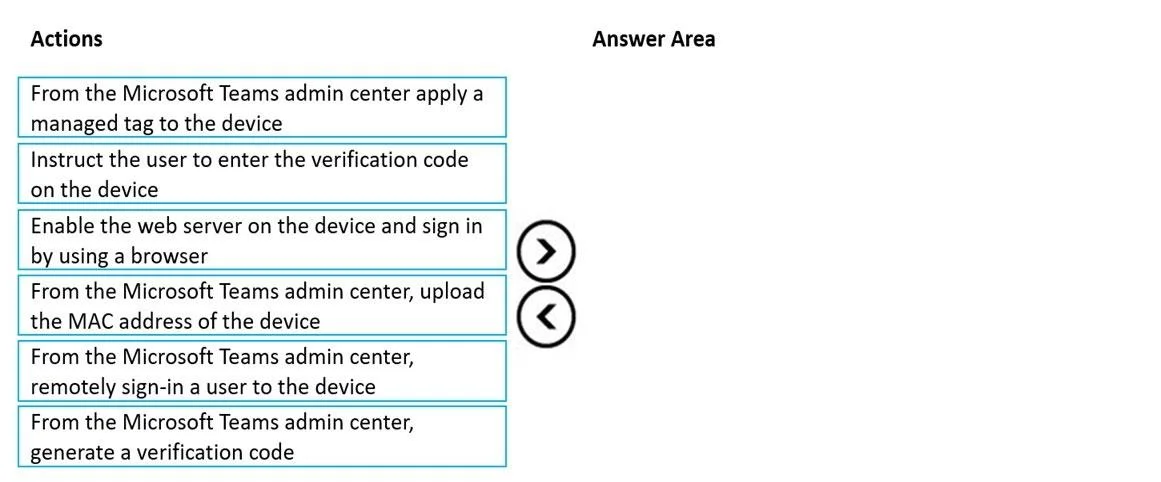
Drag and Drop Question You need to provision a Microsoft Teams-certified common area phone device at a field site. The solution must ensure that a standard user can complete the physical handset…
The correct answer is From the Microsoft Teams admin center, upload the MAC address of the device; From the Microsoft Teams admin center, generate a verification code; Instruct the user to enter the verification code on the device; From the Microsoft Teams admin center, remotely sign-in a user to the device. Explanation: Provisioning a Teams Common Area Phone Without Sharing Credentials The Core Scenario Microsoft Teams supports remote provisioning for certified phones, allowing an admin to sign in a device account without ever exposing credentials to the on-site user. The four…
Question
Exhibit
Answer Area
Drag items
Correct arrangement
- From the Microsoft Teams admin center, upload the MAC address of the device
- From the Microsoft Teams admin center, generate a verification code
- Instruct the user to enter the verification code on the device
- From the Microsoft Teams admin center, remotely sign-in a user to the device
Explanation
Explanation: Provisioning a Teams Common Area Phone Without Sharing Credentials
The Core Scenario
Microsoft Teams supports remote provisioning for certified phones, allowing an admin to sign in a device account without ever exposing credentials to the on-site user. The four correct steps follow this exact flow.
Step-by-Step Reasoning
Step 1: Upload the MAC address of the device
The admin center cannot recognize or manage a physical phone until it's registered to the tenant. Uploading the MAC address is the registration handshake - it tells Teams "this hardware belongs to us." Without this, no subsequent admin action can target the device. This is always first.
Step 2: Generate a verification code
Once the device is registered, the admin generates a time-limited, one-time code scoped to that specific device. This code acts as a secure pairing token between the physical phone and the admin's remote session. It cannot exist before Step 1 because the device isn't known to the system yet.
Step 3: Instruct the user to enter the verification code on the device
The on-site user enters this code on the physical handset. This is the key step that satisfies "without sharing credentials" - the user only types a short numeric code, not any account password. Entering the code completes the pairing and signals to the admin center that the device is ready for remote sign-in.
Step 4: Remotely sign-in a user to the device
Now that the device is paired and waiting, the admin pushes the Common Area Phone account credentials to the device from the admin center. The credentials never touch the end user. This step must be last because the pairing (Step 3) must be confirmed before remote sign-in can succeed.
Why the Two Distractors Are Wrong
| Distractor | Why It's Excluded |
|---|---|
| Apply a managed tag | Tags organize/categorize devices and apply policies - they are not part of the sign-in provisioning flow at all. |
| Enable web server and sign in via browser | This is an alternative provisioning method, but it requires the user to enter credentials directly in a browser on the device, violating the "without sharing credentials" constraint. |
Common Mistakes
- Swapping Steps 2 and 3 - The code must exist before the user can enter it. This order is non-negotiable.
- Choosing the web server method - It sounds technical and plausible, but it's the wrong method for this constraint.
- Including the managed tag step - It's a real Teams admin action, but it's irrelevant to provisioning/authentication.
- Thinking Step 4 is optional - Without the remote sign-in, the phone is paired but not authenticated to any account and cannot make calls.
Topics
Community Discussion
No community discussion yet for this question.