
MS-720 · Question #84
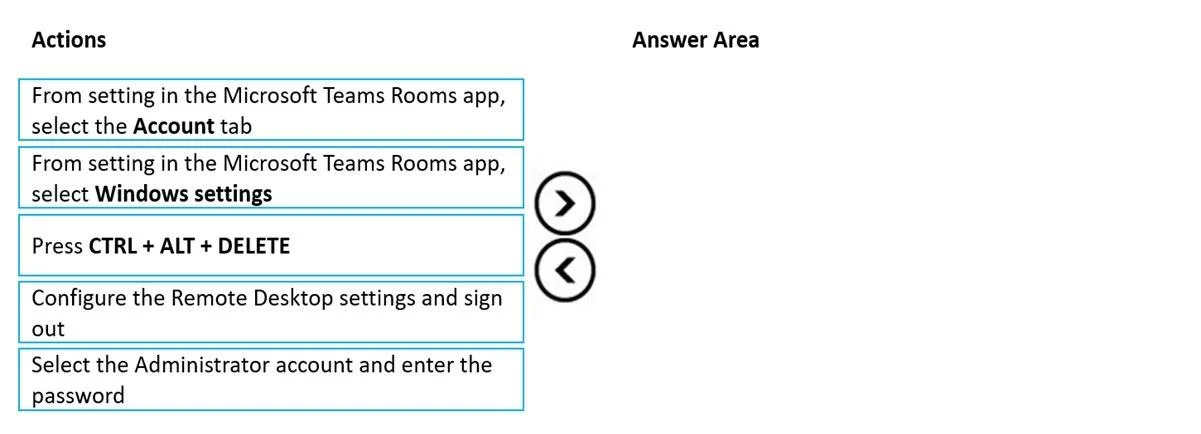
Drag and Drop Question You have a Microsoft Teams Rooms on Windows system in a local conference room. The system is NOT joined to Active Directory. You need to ensure that the system can be managed…
The correct answer is Press CTRL + ALT + DELETE; Configure the Remote Desktop settings and sign out; Select the Administrator account and enter the password. To enable RDP management on a non-Active Directory joined Microsoft Teams Rooms system, the correct sequence involves accessing Windows settings, authenticating as a local administrator, and then configuring Remote Desktop.
Question
Exhibit
Answer Area
Drag items
Correct arrangement
- Press CTRL + ALT + DELETE
- Configure the Remote Desktop settings and sign out
- Select the Administrator account and enter the password
Explanation
To enable RDP management on a non-Active Directory joined Microsoft Teams Rooms system, the correct sequence involves accessing Windows settings, authenticating as a local administrator, and then configuring Remote Desktop.
Approach. The objective is to enable Remote Desktop Protocol (RDP) management on a Microsoft Teams Rooms (MTR) on Windows system that is NOT joined to Active Directory. This requires a sequential process of accessing the underlying Windows operating system, authenticating with local administrative privileges, and finally configuring the RDP settings. The most direct and logical three-step sequence, based on typical MTR administration, is as follows:
-
From setting in the Microsoft Teams Rooms app, select Windows settings: The MTR application runs in a specialized kiosk mode. To access standard Windows operating system features and settings, such as Remote Desktop configuration, you must first exit the MTR application's interface and gain access to the underlying Windows OS. This action serves as the gateway to the Windows environment.
-
Select the Administrator account and enter the password: After selecting 'Windows settings' from the MTR app, the system typically presents a login prompt, requiring administrative credentials to proceed to the Windows desktop or to make system-level changes. Since the system is not joined to Active Directory, a local administrator account's username and password must be entered to gain the necessary elevated permissions.
-
Configure the Remote Desktop settings and sign out: Once successfully logged in as an administrator, you can navigate to the Windows Remote Desktop settings (usually found in System Properties or the Settings app) to enable RDP, configure user access, and adjust any necessary firewall rules. Signing out ensures that the changes are applied and the system returns to a stable state, or can be accessed remotely via RDP.
Common mistakes.
-
common_mistake. Common mistakes include selecting irrelevant actions or placing actions in an incorrect order.
-
Selecting 'From setting in the Microsoft Teams Rooms app, select the Account tab': This option is used for managing the Microsoft Teams user account signed into the MTR application (e.g., signing in, signing out, changing account details), not for accessing the underlying Windows operating system or configuring system-level features like RDP. It is unrelated to the task.
-
Including 'Press CTRL + ALT + DELETE': While CTRL + ALT + DELETE is a fundamental Windows security command, it is generally not a necessary or primary step when the goal is to access Windows settings and then authenticate for RDP configuration on an MTR device. Selecting 'Windows settings' from the MTR app typically leads directly to an administrator password prompt. Using CTRL + ALT + DELETE might be an alternative way to reach a login screen from a locked state, but it is not the most direct or efficient action when only three steps are required to achieve the goal, as a more direct path for authentication exists after accessing Windows settings. Omitting it allows for a more focused sequence of the most critical steps.
-
Incorrect order: Attempting to configure RDP before accessing Windows settings or authenticating as an administrator would fail due to lack of access or permissions. Forgetting to authenticate after accessing the Windows environment would also prevent successful RDP configuration. The sequence must logically progress from gaining access to the OS, to elevating privileges, and then to performing the administrative task.
Concept tested. Managing Microsoft Teams Rooms on Windows systems, navigating MTR application settings to access the underlying Windows operating system, understanding local administrative access for non-Active Directory joined devices, and configuring Remote Desktop Protocol (RDP) for remote management.
Topics
Community Discussion
No community discussion yet for this question.