
MB-330 · Question #54
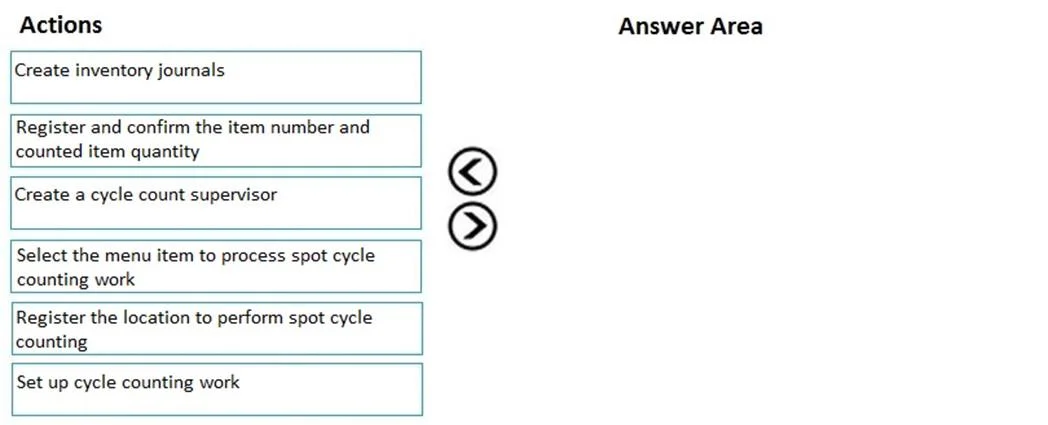
Drag and Drop Question A company plans to implement Dynamics 365 Supply Chain Management mobile device connectivity. You need to perform a spot cycle count on the mobile device. Which three actions…
Spot Cycle Count on Mobile Device - D365 Supply Chain Management What is a Spot Cycle Count? A spot cycle count is an ad-hoc inventory count triggered for a specific location, without pre-scheduled work. On the mobile device, the worker initiates it on-demand rather than…
Question
Exhibit
Options
- Box1Select the menu item to process spot cycle counting work
- Box2Register the location to perform spot cycle counting
- Box3Register and confirm the item number and counted item quantity
Explanation
Spot Cycle Count on Mobile Device - D365 Supply Chain Management
What is a Spot Cycle Count?
A spot cycle count is an ad-hoc inventory count triggered for a specific location, without pre-scheduled work. On the mobile device, the worker initiates it on-demand rather than receiving assigned work.
The Correct Sequence
Box 1 → Select the menu item to process spot cycle counting work
This must come first because you need to enter the correct warehouse app menu context before the system knows what type of work you intend to perform. The mobile device menu item determines the work class, work template, and counting policies that will govern the session. Without selecting the right menu item, you have no active counting operation to work within.
Common mistake: Assuming you navigate to a location first. Unlike directed cycle count work (where work is pre-assigned and you receive it), spot counts are initiated by the worker, so the menu selection is the trigger.
Box 2 → Register the location to perform spot cycle counting
Once inside the spot cycle count menu, the system prompts you to specify where you want to count. Entering the location tells the system which license plates, items, and on-hand quantities to pull for comparison. The system may also check whether an existing count journal or work order exists for that location.
Common mistake: Thinking item registration comes before location. The system must know the location context first - it uses this to scope which inventory records are relevant and to create the counting work/journal.
Box 3 → Register and confirm the item number and counted item quantity
Only after the location is established can you record what you physically counted. You enter the item number (or scan a barcode) and the physical quantity observed. The system compares your input against the system on-hand and either accepts it or flags a discrepancy for review/approval based on the configured tolerance thresholds.
Common mistake: Skipping item number entry and just entering a quantity. Both the item and quantity are required to create a valid count line - the system needs to know which item's quantity you are reporting at that location.
Why This Order Makes Logical Sense
The sequence mirrors the natural scoping hierarchy:
Mode (what task) → Location (where) → Item + Quantity (what you found)
Each step narrows the context for the next. You cannot register a location without being in a counting session, and you cannot record counted quantities without a location to attach them to. This is consistent with how D365 WMS mobile workflows generally flow: establish work context → provide spatial context → provide inventory data.
Topics
Community Discussion
No community discussion yet for this question.