
MB-330 · Question #50
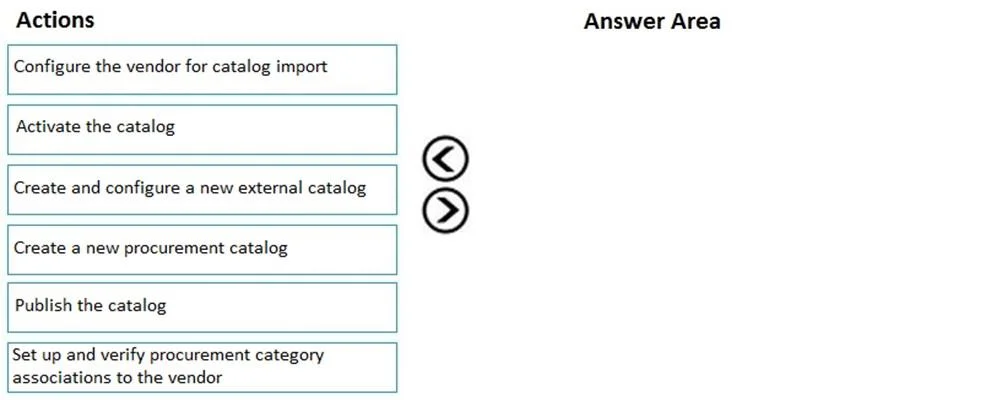
Drag and Drop Question A company wants to expand their purchasing power by enhancing their current procurement catalog in Dynamics 365 Supply Chain Management. The company wants to redirect to…
The correct answer is Set up and verify procurement category associations to the vendor; Create and configure a new external catalog; Activate the catalog. External Catalog Setup in Dynamics 365 SCM - Explained Context An external catalog (PunchOut catalog) lets users click a link in D365 to browse a vendor's external website, select items, and return them into a purchase requisition automatically. This is distinct from an…
Question
Exhibit
Answer Area
Drag items
Correct arrangement
- Set up and verify procurement category associations to the vendor
- Create and configure a new external catalog
- Activate the catalog
Explanation
External Catalog Setup in Dynamics 365 SCM - Explained
Context
An external catalog (PunchOut catalog) lets users click a link in D365 to browse a vendor's external website, select items, and return them into a purchase requisition automatically. This is distinct from an internal procurement catalog (which lives inside D365).
Why This Specific Order
Step 1 - Set up and verify procurement category associations to the vendor
This is the prerequisite. Before an external catalog can be configured, D365 must know which procurement categories the vendor is authorized to supply. The external catalog configuration references these associations to classify items that return from the vendor's site.
Without this, the system has no framework to map incoming punchout items to the correct categories on the requisition.
Step 2 - Create and configure a new external catalog
With the vendor-category relationship established, you now create the external catalog record. This involves:
- Linking the vendor
- Providing the vendor's PunchOut URL
- Configuring cXML message settings and the return URL (so items flow back into D365)
- Mapping procurement categories to the catalog
This step depends on Step 1 because the category mappings are configured here.
Step 3 - Activate the catalog
Activation flips the catalog from inactive/draft to live, making it accessible on purchase requisitions. No user can PunchOut until this step is done.
Why the Other Items Are Wrong
| Item | Why Excluded |
|---|---|
| Configure the vendor for catalog import | This relates to importing vendor catalog files (EDI/cXML file imports into internal catalogs) - not PunchOut/external catalogs. |
| Create a new procurement catalog | Procurement catalogs are internal D365 catalogs. The question is explicitly about external catalogs. |
| Publish the catalog | Publishing applies to internal procurement catalogs. External catalogs are activated, not published. |
Common Mistakes
- Swapping "Publish" for "Activate" - the most frequent error. Candidates confuse the publish step (internal catalogs) with activate (external catalogs).
- Skipping vendor-category associations - jumping straight to catalog creation fails because there's nothing to map items to.
- Including "procurement catalog" steps - the entire procurement catalog workflow (create → publish) is a different feature from external catalogs.
Topics
Community Discussion
No community discussion yet for this question.