
MB-330 · Question #160
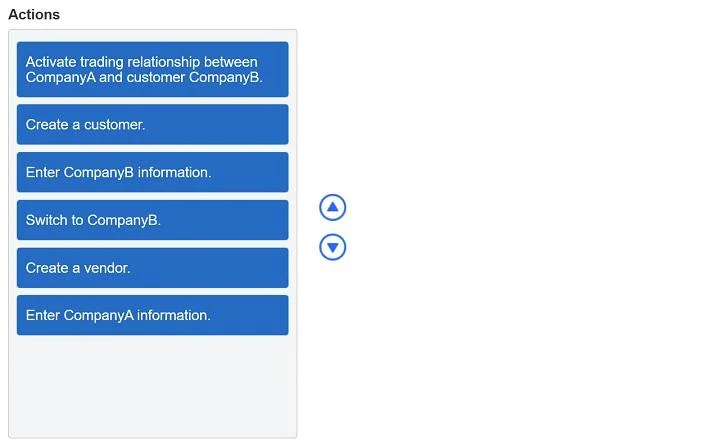
Drag and Drop Question You work for an international company. Your company has registered several subsidiaries in other countries and you need to set up an intercompany trade relationship between…
The correct answer is Create a customer.; Enter CompanyB information.; Switch to CompanyB.; Create a vendor.; Enter CompanyA information.; Activate trading relationship between CompanyA and customer CompanyB. Intercompany Trade Setup in D365 Supply Chain - Explanation Core Concept First In D365 SCM, intercompany setup requires both sides of the relationship to be configured separately: CompanyA (the seller) must have a customer record for CompanyB CompanyB (the buyer) must have a…
Question
Exhibit
Answer Area
Drag items
Correct arrangement
- Create a customer.
- Enter CompanyB information.
- Switch to CompanyB.
- Create a vendor.
- Enter CompanyA information.
- Activate trading relationship between CompanyA and customer CompanyB.
Explanation
Intercompany Trade Setup in D365 Supply Chain - Explanation
Core Concept First
In D365 SCM, intercompany setup requires both sides of the relationship to be configured separately:
- CompanyA (the seller) must have a customer record for CompanyB
- CompanyB (the buyer) must have a vendor record for CompanyA
You are configuring both perspectives before linking them.
Step-by-Step Breakdown
Step 1 - Create a customer You begin inside CompanyA (the selling entity). CompanyB is CompanyA's customer, so the first action is to create a customer account. This establishes the receivables-side identity of CompanyB within CompanyA's ledger.
Common mistake: Students sometimes think you should start in CompanyB because it's "receiving" the goods. You always start in the originating/selling company.
Step 2 - Enter CompanyB information Immediately after creating the customer record shell, you populate it with CompanyB's details (name, address, legal entity ID, etc.). This must happen before switching contexts, because you are still inside CompanyA working on that customer record.
Step 3 - Switch to CompanyB Now you change the active legal entity to CompanyB. D365 SCM is multi-entity; you must be operating within a company to create records that belong to it. You cannot create CompanyB's vendor record while still logged into CompanyA.
Step 4 - Create a vendor Inside CompanyB, you create a vendor account representing CompanyA. From CompanyB's perspective, CompanyA is its supplier. This mirrors step 1 but from the purchasing side.
Step 5 - Enter CompanyA information Just as you filled in CompanyB's details in step 2, you now fill in CompanyA's details into this vendor record. The parallel structure (create → enter info) is intentional and symmetrical.
Step 6 - Activate trading relationship between CompanyA and customer CompanyB This is the linking/activation step performed last, typically navigated to via the intercompany setup menu (often under the customer record in CompanyA, or via Accounts Receivable → Setup → Intercompany). Both sides must already exist before this step can succeed - the system needs the customer record (steps 1–2) and the counterpart vendor record (steps 4–5) to establish the automated intercompany order flow.
Common mistake: Attempting to activate the relationship before creating both the customer AND vendor records. The activation step references both entities and will fail or be incomplete if either is missing.
Summary Pattern
| Phase | Location | Action |
|---|---|---|
| Seller side | CompanyA | Create customer → Enter CompanyB info |
| Switch | - | Change active legal entity |
| Buyer side | CompanyB | Create vendor → Enter CompanyA info |
| Link | CompanyA | Activate the intercompany relationship |
The order follows seller → buyer → activate, ensuring all referenced records exist before the relationship is turned on.
Topics
Community Discussion
No community discussion yet for this question.