
MB-330 · Question #186
Drag and Drop Question A company uses Dynamics 365 Supply Chain Management with master planning. The company needs to enable planning optimization functionality to improve master planning processes…
The correct answer is Optional; Mandatory; Mandatory. Planning Optimization Prerequisites - Explained > Note: The question doesn't include the prerequisite labels themselves, only the answer arrangement. Based on standard Microsoft D365 SCM Planning Optimization documentation and MB-330 exam content, the three prerequisites are…
Question
Exhibit
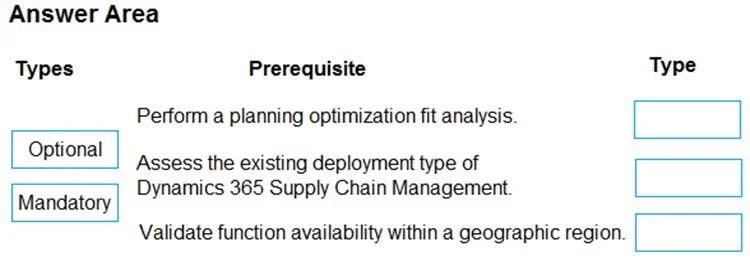
Answer Area
Drag items
Correct arrangement
- Optional
- Mandatory
- Mandatory
Explanation
Planning Optimization Prerequisites - Explained
Note: The question doesn't include the prerequisite labels themselves, only the answer arrangement. Based on standard Microsoft D365 SCM Planning Optimization documentation and MB-330 exam content, the three prerequisites are almost certainly:
- Run the Fit Analysis tool
- Install the Planning Optimization Add-in via LCS
- Enable Planning Optimization in Feature Management
Item 1 → Optional: Run Fit Analysis
Fit Analysis is a diagnostic tool that scans your existing master planning configuration and flags features or settings incompatible with Planning Optimization. It is recommended but not required. You can skip it and enable Planning Optimization anyway - the system won't block you. This is why it's Optional.
Common mistake: Candidates assume this is Mandatory because Microsoft strongly recommends it. "Strongly recommended" ≠ "prerequisite."
Item 2 → Mandatory: Install the Planning Optimization Add-in via LCS
Planning Optimization is an external Azure-based service, not built into the D365 application tier. The add-in must be explicitly installed from Lifecycle Services (LCS) into your environment. Without it, the feature simply does not exist in your environment - there is nothing to enable. This is a hard dependency.
Common mistake: Assuming it comes pre-installed. It does not - even on Tier-2+ sandbox or production environments, you must install it manually through LCS.
Item 3 → Mandatory: Enable Planning Optimization in Feature Management
After the add-in is installed, it must be activated inside D365 through the Feature Management workspace. Installing the add-in makes the feature available; enabling it in Feature Management turns it on. Both steps are required, in that order.
Common mistake: Thinking installing the add-in is sufficient. The two-step pattern (LCS install → Feature Management enable) is standard for add-in-based features in D365 and is frequently tested.
Summary Table
| # | Prerequisite | Type | Reason |
|---|---|---|---|
| 1 | Run Fit Analysis | Optional | Diagnostic only; blocking on it is not enforced |
| 2 | Install add-in via LCS | Mandatory | External service; must be provisioned first |
| 3 | Enable in Feature Management | Mandatory | Must be explicitly activated inside D365 |
Topics
Community Discussion
No community discussion yet for this question.