
MB-330 · Question #110
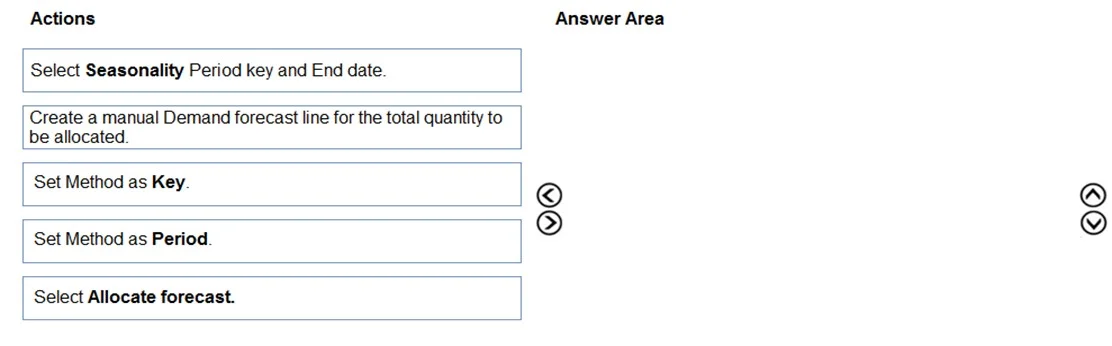
Drag and Drop Question During a company's busy season, the sales team experiences multiple backorders. The company wants to use forecasting to determine seasonal buying trends. You need to define…
The correct answer is Create a manual Demand forecast line for the total quantity to be allocated.; Select Allocate forecast.; Set Method as Period; Select Seasonality Period key and End date. Demand Forecasting with Seasonality - Sequence Explained This question is from Microsoft Dynamics 365 Supply Chain Management, covering how to allocate a demand forecast across seasonal periods. --- The Core Logic The workflow follows a natural funnel: create data → trigger the…
Question
Exhibit
Answer Area
Drag items
Correct arrangement
- Create a manual Demand forecast line for the total quantity to be allocated.
- Select Allocate forecast.
- Set Method as Period
- Select Seasonality Period key and End date.
Explanation
Demand Forecasting with Seasonality - Sequence Explained
This question is from Microsoft Dynamics 365 Supply Chain Management, covering how to allocate a demand forecast across seasonal periods.
The Core Logic
The workflow follows a natural funnel: create data → trigger the tool → choose the method → configure the parameters.
Step-by-Step Breakdown
1. Create a manual Demand forecast line for the total quantity to be allocated
You must have a forecast line before anything else can happen. This line holds the aggregate total - the full quantity for the season. Without it, there is nothing to allocate. This is always the entry point.
2. Select Allocate forecast
With the forecast line created, you now open the allocation dialog by clicking Allocate forecast. This is what exposes the method and parameter options used in steps 3 and 4. You cannot access those fields until this action is triggered.
3. Set Method as Period
Inside the allocation dialog, you choose Period as the method. This tells the system to distribute the total quantity across time periods using a period/seasonality key. "Period" is correct here because you are modeling seasonal buying trends - recurring patterns across calendar intervals.
Common mistake: Choosing "Set Method as Key" instead. A generic allocation key distributes quantity by fixed percentages, not by calendar-based seasonal patterns. "Period" + a seasonality key is the correct combination for seasonal forecasting.
4. Select Seasonality Period key and End date
Only after choosing the "Period" method does the system make the Seasonality Period key selector available. You then pick the key that defines your seasonal distribution pattern (e.g., higher weight in Q4) and set the End date so the system knows the horizon over which to spread the quantity.
Why the Unused Item Is Wrong
| Item | Why excluded |
|---|---|
| Set Method as Key | "Key" is for generic allocation keys, not calendar-based seasonality. Using it would not model seasonal trends correctly. |
Key Takeaway
The ordering is strictly dependency-driven: you cannot allocate without a forecast line, you cannot set a method without opening the allocation dialog, and you cannot select the seasonality key until the method is set to "Period."
Topics
Community Discussion
No community discussion yet for this question.