
MB-310 · Question #95
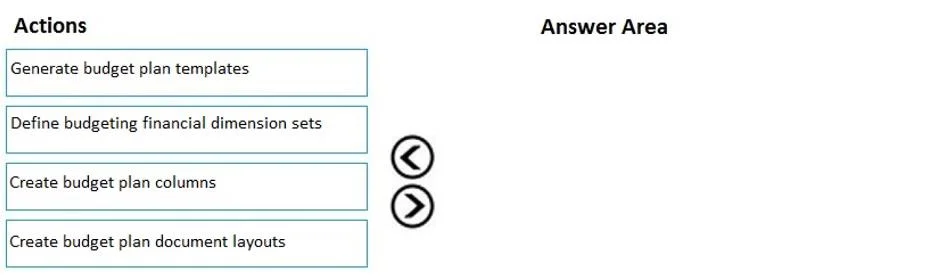
Drag and Drop Question A company needs to create budget plan templates for its budgeting process. You need to create the budget plan templates. In which order should you perform the actions? To…
The correct answer is Define budgeting financial dimension sets; Create budget plan columns; Create budget plan document layouts; Generate budget plan templates. Budget Plan Templates: Step-by-Step Ordering Explained This question comes from Microsoft Dynamics 365 Finance (Budgeting module). The order follows a strict dependency chain - each step provides the raw material for the next. --- Step 1: Define Budgeting Financial Dimension…
Question
Exhibit
Answer Area
Drag items
Correct arrangement
- Define budgeting financial dimension sets
- Create budget plan columns
- Create budget plan document layouts
- Generate budget plan templates
Explanation
Budget Plan Templates: Step-by-Step Ordering Explained
This question comes from Microsoft Dynamics 365 Finance (Budgeting module). The order follows a strict dependency chain - each step provides the raw material for the next.
Step 1: Define Budgeting Financial Dimension Sets
Why first: Financial dimension sets are the foundation. They define which financial dimensions (e.g., Department, Cost Center, Business Unit) are used in the budgeting process. Everything downstream - columns, layouts, templates - references these dimensions. You cannot define meaningful columns without first establishing what dimensions structure your data.
Step 2: Create Budget Plan Columns
Why second: Columns define the individual data fields that appear in the budget worksheet (e.g., amounts by period, scenario, or dimension). Column definitions reference the dimension sets from Step 1. You must have dimensions before you can configure columns that use them.
Step 3: Create Budget Plan Document Layouts
Why third: A document layout arranges and organizes the columns (from Step 2) into a structured view of the budget plan document. Layouts consume columns - you're essentially designing the worksheet structure. Columns must exist before you can place them in a layout.
Step 4: Generate Budget Plan Templates
Why last: This action produces the actual Excel-based template files based on the document layout (from Step 3). It is a generation/output step - it reads all prior configuration and produces a usable artifact. Nothing can be generated until all upstream configuration is complete.
Common Mistakes
| Misconception | Reality |
|---|---|
| Starting with "Generate" | Generate is purely an output step - it has no inputs to work with yet |
| Creating layouts before columns | Layouts are arrangements of columns; columns must exist first |
| Skipping dimension sets | Columns without dimension sets are incomplete - dimensions drive the data structure |
| Confusing layout with template | The layout is configuration; the template is the Excel file output from that configuration |
Mental model: Think of it as building a house - dimensions are the foundation, columns are the walls, layouts are the floor plan, and generating the template is handing someone the finished blueprint.
Topics
Community Discussion
No community discussion yet for this question.