
MB-310 · Question #406
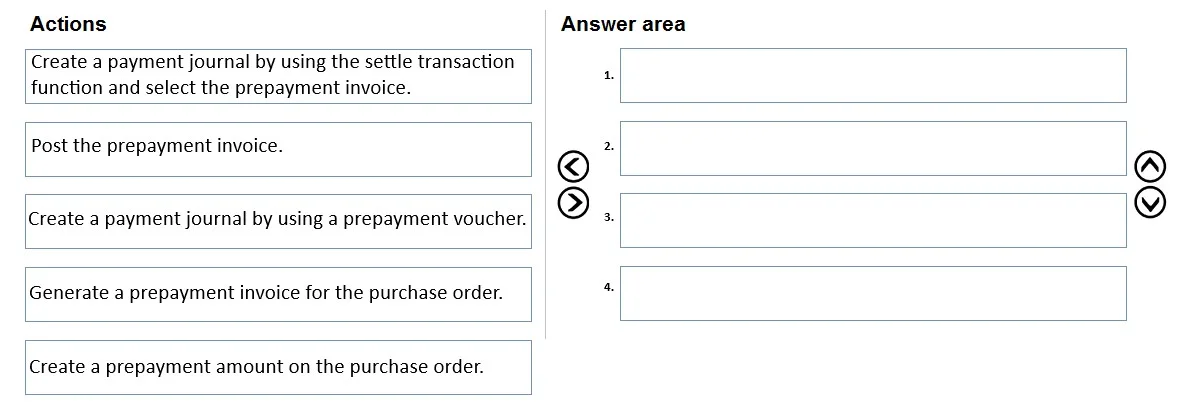
Drag and Drop Question A company uses Dynamics 365 Finance. The company requires prepayment for a purchase order. You need to create a prepayment that is associated with the purchase order. Which…
The correct answer is Create a prepayment amount on the purchase order.; Generate a prepayment invoice for the purchase order.; Create a prepayment journal by using the settle transaction function and select the prepayment invoice.; Post the prepayment invoice. Dynamics 365 Finance: Purchase Order Prepayment Sequence Why This Order Matters Prepayments in D365 Finance follow a strict accounting workflow: establish the liability → formalize it as an invoice → link payment to it → record the payment. Skipping or reordering steps breaks…
Question
Exhibit
Answer Area
Drag items
Correct arrangement
- Create a prepayment amount on the purchase order.
- Generate a prepayment invoice for the purchase order.
- Create a prepayment journal by using the settle transaction function and select the prepayment invoice.
- Post the prepayment invoice.
Explanation
Dynamics 365 Finance: Purchase Order Prepayment Sequence
Why This Order Matters
Prepayments in D365 Finance follow a strict accounting workflow: establish the liability → formalize it as an invoice → link payment to it → record the payment. Skipping or reordering steps breaks the audit trail and accounting entries.
Step-by-Step Breakdown
1. Create a prepayment amount on the purchase order
This is the logical and system prerequisite. Before any financial documents can be generated, you must define the prepayment terms directly on the PO (header → Payment tab). This tells the system how much is expected as prepayment and enables the prepayment invoice option. Without this, the "Generate prepayment invoice" action is unavailable.
Common mistake: Trying to go straight to a journal entry without configuring the PO first. The system won't have a reference to attach the payment to.
2. Generate a prepayment invoice for the purchase order
Once the prepayment amount is set on the PO, you generate a prepayment invoice from the PO itself (Purchase → Generate → Prepayment invoice). This creates a formal vendor liability document - a posted vendor invoice specifically flagged as a prepayment. It establishes the amount owed before goods are received.
Common mistake: Confusing this with a standard vendor invoice or trying to use a regular invoice posting. Prepayment invoices are a distinct document type and must be created this way to be selectable in step 3.
3. Create a prepayment journal using the "Settle transaction" function and select the prepayment invoice
This is where the actual payment is recorded. In Accounts Payable → Journals → Payment journal, you create a payment line and use Settle transactions to link it to the prepayment invoice created in step 2. This marks the invoice as "being paid" and generates the correct accounting entries (debit prepayment asset account, credit bank/cash).
Common mistake: Choosing "Create a prepayment journal by using a prepayment voucher" (the distractor option). A prepayment voucher is used for ad hoc prepayments not tied to a specific PO - it bypasses the PO linkage entirely. Since this scenario requires the prepayment to be associated with the purchase order, you must use the settle transaction method instead.
4. Post the prepayment invoice
Finally, you post the payment journal. Posting finalizes the transaction in the general ledger, updates vendor balances, and marks the prepayment as paid. The prepayment will later be settled against the final vendor invoice when goods are received and invoiced.
Common mistake: Posting before completing the settle/link step (step 3), which would create an unlinked payment with no reference to the PO or prepayment invoice.
The Distractor Explained
"Create a prepayment journal by using a prepayment voucher" is the trap answer. Prepayment vouchers are valid in D365 Finance, but they are used for prepayments that are not tied to a specific purchase order. The question explicitly states the prepayment must be associated with the PO, which requires the settle-transaction approach to maintain the PO → invoice → payment linkage.
Topics
Community Discussion
No community discussion yet for this question.