MB-280 · Question #139
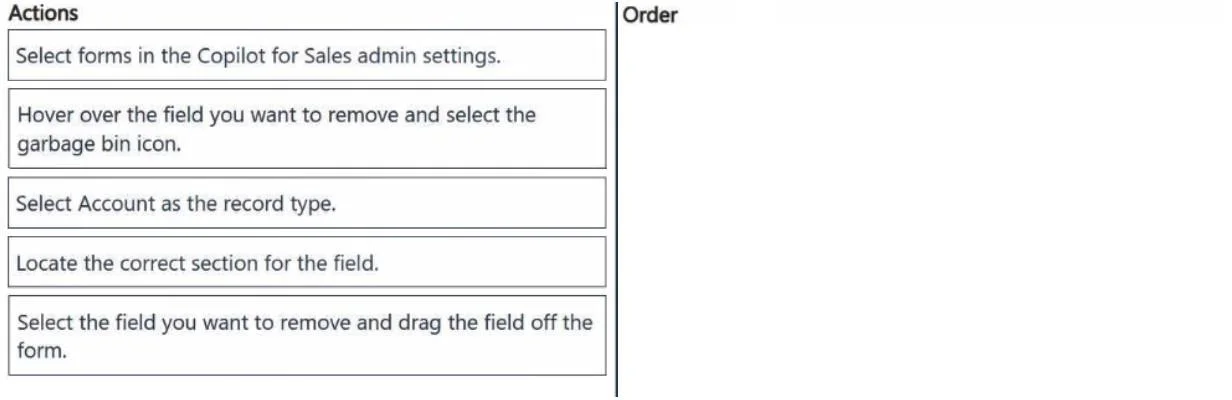
Drag and Drop Question Your sales team indicates there are too many fields on accounts in Copilot for Sales. You need to remove certain fields from the Copilot for Sales account form. Which three acti
The correct answer is Select forms in the Copilot for Sales admin settings.; Select Account as the record type.; Hover over the field you want to remove and select the garbage bin icon.. Explanation: Removing Fields from Copilot for Sales Account Form The Correct Sequence and Why --- Step 1: Select forms in the Copilot for Sales admin settings This is the mandatory entry point. Before you can modify any form, you must navigate to the Forms section within the Copi
Question
Exhibit
Answer Area
Drag items
Correct arrangement
- Select forms in the Copilot for Sales admin settings.
- Select Account as the record type.
- Hover over the field you want to remove and select the garbage bin icon.
Explanation
Explanation: Removing Fields from Copilot for Sales Account Form
The Correct Sequence and Why
Step 1: Select forms in the Copilot for Sales admin settings
This is the mandatory entry point. Before you can modify any form, you must navigate to the Forms section within the Copilot for Sales admin settings panel. You cannot access record-type-specific forms or individual fields without first entering this administrative context. Skipping this would mean you have no form to edit.
Step 2: Select Account as the record type
The Forms section displays multiple record types (Account, Opportunity, Contact, etc.). You must specify which record type's form you want to modify. Since the sales team's complaint is about the account form specifically, selecting "Account" scopes your editing session to the correct form. This must happen before any field-level actions because the available fields displayed depend on the selected record type.
Step 3: Hover over the field you want to remove and select the garbage bin icon
Once you're in the Account form, you remove a field by hovering over it to reveal the delete (garbage bin) icon, then clicking it. This is the actual removal mechanism in Copilot for Sales.
Why the Distractors Are Wrong
| Rejected Item | Why It's Not Correct |
|---|---|
| Locate the correct section for the field | This is an implied navigational sub-step, not a distinct required admin action in the sequence. The exam treats finding the field as part of step 3. |
| Select the field and drag it off the form | This is a deliberate trap. Copilot for Sales uses the garbage bin icon to remove fields - drag-off is not the supported removal method. Confusing this with drag-and-drop reordering (which is supported) is a common mistake. |
Common Misconception
Many candidates insert "Locate the correct section" as step 3 and push the garbage bin action to step 4. The exam treats locating and removing as a single logical action - the hover-and-delete step implicitly requires you to find the field first.
Topics
Community Discussion
No community discussion yet for this question.