
AZ-800 · Question #238
SIMULATION You need to ensure that the Azure file share named share1 can sync to on-premises servers. The required source files are located in a folder named \\dc1.contoso.com\install. You do NOT…
The correct answer is A. Deploy Azure File Sync. To enable an Azure file share to synchronize with on-premises servers, the Azure File Sync service must be deployed.
Question
SIMULATION You need to ensure that the Azure file share named share1 can sync to on-premises servers. The required source files are located in a folder named \dc1.contoso.com\install. You do NOT need to specify the on-premises servers at this time. To complete this task, sign in the required computer or computers. Answer:
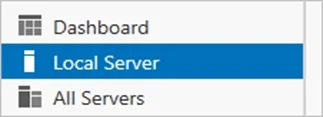
Deploy Azure File Sync Use Azure File Sync to centralize your organization's file shares in Azure Files, while keeping the flexibility, performance, and compatibility of an on-premises file server. Azure File Sync transforms Windows Server into a quick cache of your Azure file share. You can use any protocol that's available on Windows Server to access your data locally, including SMB, NFS, and FTPS. You can have as many caches as you need across the world. Phase 1: Prepare Windows Server to use with Azure File Sync [Maybe it can be skipped] Phase 2: Deploy the Storage Sync Service Phase 3: Install the Azure File Sync agent Phase 1: Prepare Windows Server to use with Azure File Sync [Maybe it can be skipped] For each server that you intend to use with Azure File Sync, including each server node in a Failover Cluster, disable Internet Explorer Enhanced Security Configuration. This is required only for initial server registration. You can re-enable it after the server has been registered. Note: You can skip this step if you're deploying Azure File Sync on Windows Server Core. Step 1: Open Server Manager. Step 2: Click Local Server:
Step 3: On the Properties subpane, select the link for IE Enhanced Security Configuration. Step 4: In the Internet Explorer Enhanced Security Configuration dialog box, select Off for Administrators and Users:
Phase 2: Deploy the Storage Sync Service The deployment of Azure File Sync starts with placing a Storage Sync Service resource into a resource group of your selected subscription. Step 1: To deploy a Storage Sync Service, go to the Azure portal, click Create a resource and then search for Azure File Sync. In the search results, select Azure File Sync, and then select Create to open the Deploy Storage Sync tab. Step 2: On the pane that opens, enter the following information:
Name: A unique name (per region) for the Storage Sync Service. Subscription: The subscription in which you want to create the Storage Sync Service. Resource group: A resource group is a logical group of Azure resources, such as a storage account or a Storage Sync Service. You can create a new resource group or use an existing resource group for Azure File Sync. Location: The region in which you want to deploy Azure File Sync. Only supported regions are available in this list. Step 3: When you are finished, select Create to deploy the Storage Sync Service. Phase 3: Install the Azure File Sync agent The Azure File Sync agent is a downloadable package that enables Windows Server to be synced with an Azure file share. Step 1: You can download the agent from the Microsoft Download Center. When the download is finished, double-click the MSI package to start the Azure File Sync agent installation. [Here: The required source files are located in a folder named \dc1.contoso.com\install] Step 2: Complete the Wizard. Reference:
https://learn.microsoft.com/en-us/azure/storage/file-sync/file-sync-deployment-guide
Exhibit
Options
- ADeploy Azure File Sync
How the community answered
(37 responses)- A100% (37)
Why each option
To enable an Azure file share to synchronize with on-premises servers, the Azure File Sync service must be deployed.
Deploying Azure File Sync involves creating a Storage Sync Service in Azure, which is the foundational resource required to establish synchronization relationships between Azure file shares and Windows Server endpoints.
Concept tested: Azure File Sync deployment, enabling hybrid file services
Source: https://learn.microsoft.com/en-us/azure/storage/files/storage-sync-files-planning
Topics
Community Discussion
No community discussion yet for this question.