
AZ-500 · Question #6
Case Study 1 - Litware, Inc Overview Litware, Inc. is a digital media company that has 500 employees in the Chicago area and 20 employees in the San Francisco area. Existing Environment Litware has…
Correct Sequence 1. From the Azure portal, create an Azure AD administrator for LitwareSQLServer1. 2. Connect to SQLDB1 by using Microsoft SQL Server Management Studio (SSMS). 3. In SQLDB1, create contained database users. --- Why This Order Step 1 - Create an Azure AD…
Question
Exhibits
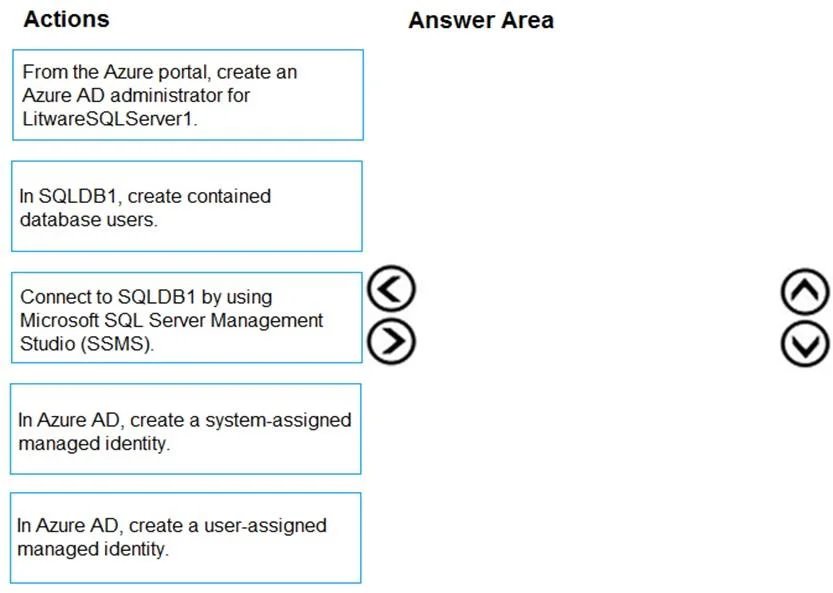
Answer Area
Drag items
Explanation
Correct Sequence
- From the Azure portal, create an Azure AD administrator for LitwareSQLServer1.
- Connect to SQLDB1 by using Microsoft SQL Server Management Studio (SSMS).
- In SQLDB1, create contained database users.
Why This Order
Step 1 - Create an Azure AD administrator for LitwareSQLServer1
Azure SQL Database does not support Azure AD authentication by default. You must first designate an Azure AD admin at the server level before any Azure AD-based logins can work. This is a server-level prerequisite - without it, Azure SQL simply cannot validate Azure AD tokens. No downstream step is possible until this is done.
Technical reason: The Azure AD admin setting enables the OAuth/AAD authentication flow at the server level and grants that admin the ability to create Azure AD-backed users inside databases.
Step 2 - Connect to SQLDB1 using SSMS
Once the Azure AD admin is set, you authenticate to SQLDB1 as that admin using SSMS. You need an active, authenticated connection to the database before you can execute any T-SQL DDL statements inside it. SSMS is the tool used to run CREATE USER ... FROM EXTERNAL PROVIDER syntax.
Technical reason: Contained database users are created via T-SQL commands, which require a live database session. You cannot create them through the Azure portal GUI.
Step 3 - Create contained database users in SQLDB1
With an authenticated session open, you run:
CREATE USER [[email protected]] FROM EXTERNAL PROVIDER;
This maps Azure AD identities (users or groups) directly to the database without requiring SQL logins at the server level - hence "contained."
Technical reason: Contained database users are scoped to the database, not the server, and are the correct mechanism for per-database Azure AD access.
Common Mistakes / Misconceptions
| Mistake | Why It's Wrong |
|---|---|
| Trying to create contained users before setting the AAD admin | Will fail - AAD auth is not enabled on the server yet |
| Choosing "create user-assigned managed identity" | Managed identities are for application-to-Azure-service auth (e.g., an app accessing Key Vault), not for configuring AAD logins on SQL DB |
| Choosing "create system-assigned managed identity" | Same misunderstanding - this is about Azure resource identity, not SQL DB user configuration |
| Reversing steps 2 and 3 | Step 3 requires an open SSMS connection, so step 2 must come first |
The managed identity options are distractors targeting candidates who confuse "Azure AD authentication for SQL" with "managed identity for application access."
Topics
Community Discussion
No community discussion yet for this question.