
220-1201 · Question #235
SIMULATION 10 A customer recently experienced a power outage at a SOHO. The customer does not think the components are connected properly. A print job continued running for several minutes after the…
SIMULATION 10 - UPS & Surge Protector Configuration Explained --- Overall Goal A UPS (Uninterruptible Power Supply) contains a battery that keeps connected devices running when wall power fails. The goal is to maximize the time available to save work and gracefully shut down…
Question
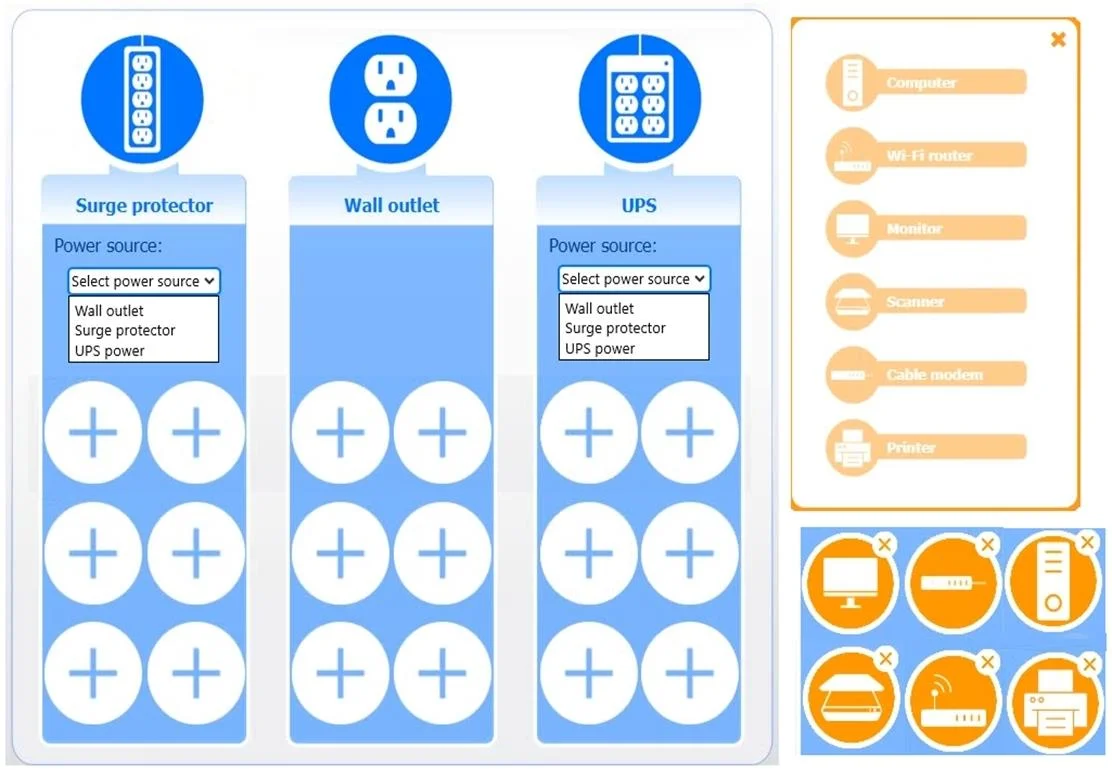
SIMULATION 10 A customer recently experienced a power outage at a SOHO. The customer does not think the components are connected properly. A print job continued running for several minutes after the power failed, but the customer was not able to interact with the computer. Once the UPS stopped beeping, all functioning devices also turned off. In case of a future power failure, the customer wants to have the most time available to save cloud documents and shut down the computer without losing any data. INSTRUCTIONS Based on the customer's requirements, connect the customer's devices to the proper outlets. Then, use the drop-down menus to select the power source for the surge protector and UPS. This may require reselecting dropdowns or removing devices from their initial location. Click on the + to add a device, and click the X to remove a device. Each device may only be used once. If at any time you would like to bring back the initial state of the simulation, please click the Reset All button. Answer:
Exhibit
Explanation
SIMULATION 10 - UPS & Surge Protector Configuration Explained
Overall Goal
A UPS (Uninterruptible Power Supply) contains a battery that keeps connected devices running when wall power fails. The goal is to maximize the time available to save work and gracefully shut down the computer. To do this, you must be selective about what gets UPS battery power - only devices essential to that shutdown workflow. Everything else just needs surge protection.
Step-by-Step Reasoning
Step 1 - Connect Computer, Monitor, Wi-Fi Router, and Cable Modem to the UPS
These four devices form the critical chain for saving cloud documents:
- Computer - obvious; it's what you're shutting down.
- Monitor - you can't interact with the computer if you can't see the screen.
- Wi-Fi Router + Cable Modem - cloud documents require internet. If either drops, you can't sync/save to the cloud before shutdown.
The clue in the scenario is that "the customer was not able to interact with the computer" - this suggests the monitor (or router/modem) lost power while the computer stayed on, explaining why the print job kept running but the user couldn't do anything useful.
If any of these are left off the UPS, you lose the ability to complete a safe cloud save and shutdown - defeating the entire purpose.
Step 2 - Connect Scanner and Printer to the Surge Protector
Printers and scanners are non-critical during a power failure. You don't need to print or scan to save a document and shut down. Plugging them into the UPS would drain the battery faster, reducing the time available for the critical devices.
The scenario hints at this too: "a print job continued running for several minutes after the power failed" - the printer was on the UPS, wasting battery on a job that didn't matter.
Surge protectors offer no battery backup - devices on them will lose power immediately when the wall outlet fails. That's acceptable for the printer and scanner.
Step 3 - Set UPS Power Source to 'Wall Outlet'
The UPS must draw power from the wall to charge its battery and pass power through to connected devices under normal conditions. This is simply the correct physical/logical configuration - the UPS sits between the wall and your critical devices.
If set incorrectly (e.g., chained from the surge protector), the UPS may not charge properly or may introduce an unsupported load dependency.
Step 4 - Set Surge Protector Power Source to 'Wall Outlet'
The surge protector also draws directly from the wall. It provides no battery backup, only voltage spike protection. It should not be plugged into the UPS - doing so would put the printer/scanner load on the UPS battery, wasting runtime during an outage.
Plugging the surge protector into the UPS is a common mistake. This would partially negate step 2 by forcing the UPS to power the printer and scanner anyway.
What Goes Wrong Without Each Step
| Skipped Step | Consequence |
|---|---|
| Monitor off UPS | Can't see screen; can't interact to save/shutdown |
| Router/Modem off UPS | Internet lost; can't save to cloud |
| Printer/Scanner on UPS | Battery drains faster; less time for critical tasks |
| Surge protector plugged into UPS | UPS powers non-critical devices, defeating the triage |
Memory Tip
"Save and Shutdown" devices go on the UPS; everything else goes on the surge protector.
Ask yourself: "Do I need this device to save my work and turn off the computer?" If yes -> UPS. If no -> surge protector. The computer, monitor, and internet chain (router + modem) all answer yes. The printer and scanner answer no.
Topics
Community Discussion
No community discussion yet for this question.