
SC-300 · Question #338
SIMULATION Use the following login credentials as needed: To enter your username, place your cursor in the Sign in box and click on the username below. To enter your password, place your cursor in…
> Note: The exam question describes an Access Review task (Salesforce guest users), but the provided procedure describes an MFA Registration Policy task. These are two unrelated scenarios. The explanation below covers the MFA Registration Policy procedure as written…
Question
SIMULATION Use the following login credentials as needed:
To enter your username, place your cursor in the Sign in box and click on the username below. To enter your password, place your cursor in the Enter password box and click on the password below. Microsoft 365 Username:[email protected] Microsoft 365 Password: =1122334455667788 If the Microsoft 365 portal does not load successfully in the browser, press CTRL-K to reload the portal in a new browser tab. The following information is for technical support purposes only:
Lab Instance: 99999999 You need to implement a process to review guest users who have access to the Salesforce app. The review must meet the following requirements:
- The reviews must occur monthly.
- The manager of each guest user must review the access.
- If the reviews are NOT completed within five days, access must be removed.
- If the guest user does not have a manager, Megan Bowen must review the access.
To complete this task, sign in to the appropriate admin center. Answer:
Exhibit
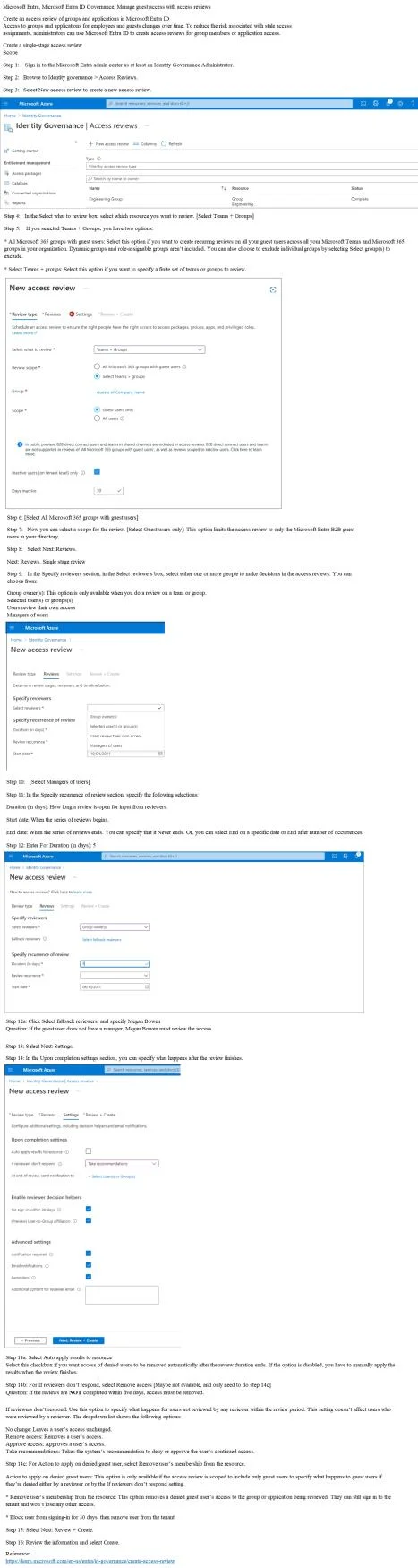
Explanation
Note: The exam question describes an Access Review task (Salesforce guest users), but the provided procedure describes an MFA Registration Policy task. These are two unrelated scenarios. The explanation below covers the MFA Registration Policy procedure as written.
Overall Goal
Configure the Entra ID Protection MFA Registration Policy so that only members of sg-Finance are required to register for MFA, while exempting Debra Berger. The constraint "without using Conditional Access" means you must use the dedicated Identity Protection > MFA registration policy - not a Conditional Access policy - which is a simpler, purpose-built control.
Step-by-Step Reasoning
Step 1 - Sign in as Security Administrator
Identity Protection policies are protected resources. The Security Administrator role (or Global Administrator) is the minimum privilege required to read and write these policies. Signing in with a lesser role (e.g., Security Reader) would let you view the policy but not save changes.
Step 2 - Navigate to Protection > Identity Protection > MFA Registration Policy
This is the only built-in policy specifically designed to control MFA registration enrollment. It is distinct from Conditional Access policies (which enforce MFA at sign-in) and from Authentication Methods policies (which control which methods are available). Going to the wrong blade is the most common mistake on this type of question - Conditional Access is explicitly excluded by the requirement.
Step 3 - Open Assignments > Users
This section controls the policy's scope. Without configuring it, the policy either applies to no one or to all users (depending on defaults), neither of which meets the requirement.
Step 4 - Under Include: select sg-Finance group
Targeting a specific group limits enforcement to only those members. If you left this as "All users," Debra's exclusion would still work, but you'd force MFA registration on the entire tenant - violating the requirement. Selecting "Individuals and groups" lets you type and pick sg-Finance.
Step 5 - Under Exclude: select Debra Berger
Exclusions are evaluated after inclusions. Even though Debra may be in sg-Finance, adding her to the Exclude list ensures the policy does not apply to her. Skipping this step means Debra gets the registration prompt despite the business requirement to exempt her.
Order matters: If you set the Exclude before the Include (which the UI allows), it still works logically - but always confirm both are set before saving.
Step 6 - Set Enforce Policy to "On"
This is the activation switch. The policy can be fully configured with Include/Exclude rules, but if Enforce is left as "Off" (report-only mode), it generates audit logs but does not prompt users to register. This is a frequent exam trap - the policy looks complete but does nothing.
Step 7 - Save
Persists all changes. Without saving, navigating away discards the configuration silently.
What Goes Wrong If Steps Are Skipped
| Skipped Step | Consequence |
|---|---|
| Wrong role at sign-in | Can view but cannot save; changes silently fail or are blocked |
| Wrong portal blade (Conditional Access) | Creates a sign-in enforcement policy, not a registration policy - violates the stated constraint |
| No Include group | Policy scoped to all users or no users |
| No Exclude for Debra | Debra is prompted for MFA registration despite exemption requirement |
| Enforce left Off | Policy is in audit/report-only mode; users are never prompted |
| Not saved | All configuration is lost |
Memory Tip
"SAMBA-ES" - Security admin, Admin center, MFA registration policy, Both Include+Exclude, Assignments scoped, Enforce On, Save.
Or think of it as: "Who must register? sg-Finance. Who's exempt? Debra. Is it live? Yes. Saved? Yes."
Bonus: Why Not Conditional Access?
Conditional Access MFA policies enforce MFA at sign-in (grant control). The MFA Registration Policy controls whether users are prompted to set up MFA methods in the first place. The question explicitly requires the latter - and explicitly forbids Conditional Access - so Identity Protection is the correct and only compliant path.
Topics
Community Discussion
No community discussion yet for this question.