
SC-300 · Question #339
SIMULATION Use the following login credentials as needed: To enter your username, place your cursor in the Sign in box and click on the username below. To enter your password, place your cursor in…
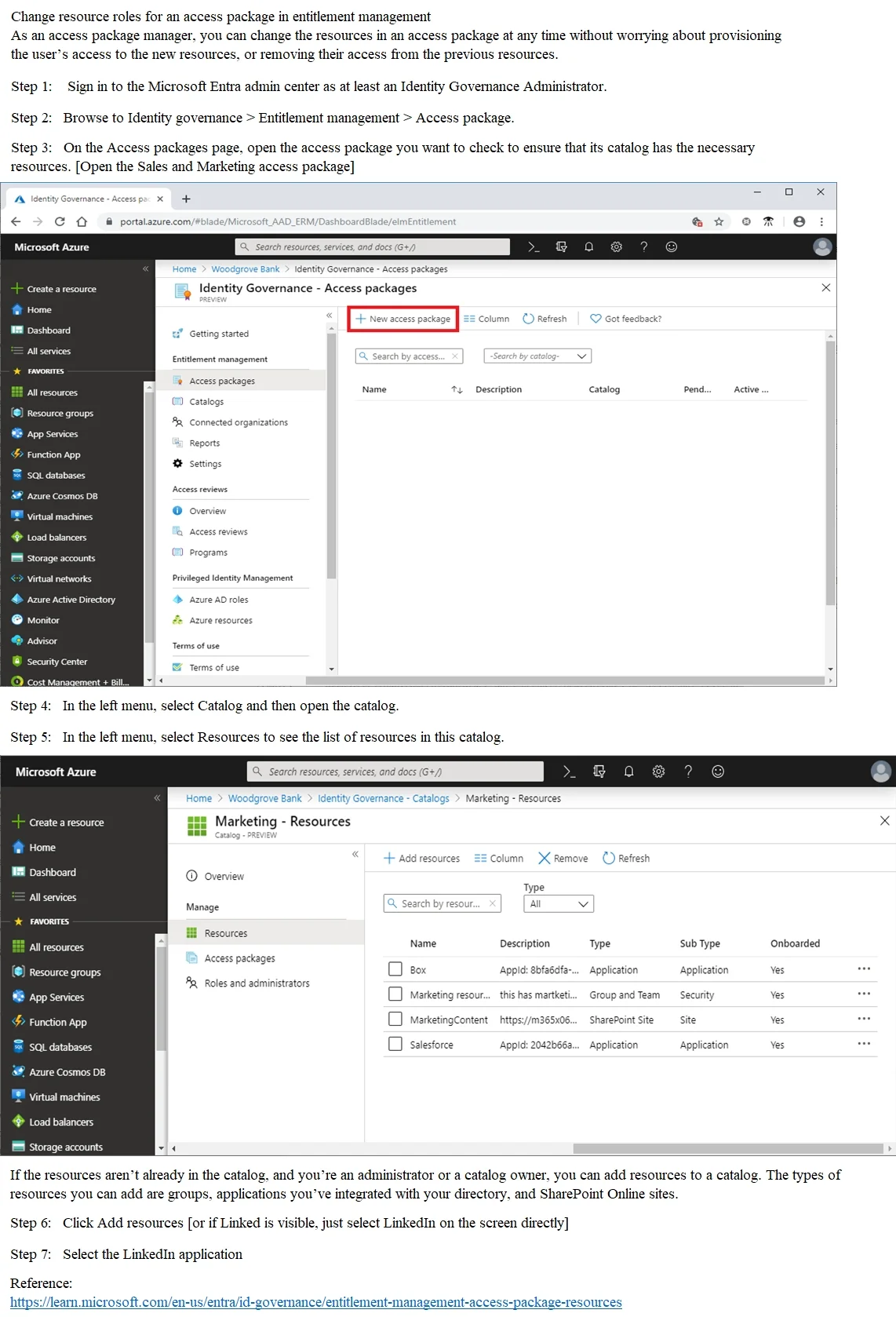
The correct approach involves navigating to Microsoft Entra admin center > Identity Governance > Entitlement Management > Access Packages, opening the 'Sales and Marketing' access package, and then adding the LinkedIn application as a resource role under the 'Resource roles'…
Question
SIMULATION Use the following login credentials as needed:
To enter your username, place your cursor in the Sign in box and click on the username below. To enter your password, place your cursor in the Enter password box and click on the password below. Microsoft 365 Username:[email protected] Microsoft 365 Password: =1122334455667788 If the Microsoft 365 portal does not load successfully in the browser, press CTRL-K to reload the portal in a new browser tab. The following information is for technical support purposes only:
Lab Instance: 99999999 You need to add the LinkedIn application as a resource to the Sales and Marketing access package. The solution must NOT remove any other resources from the access package. To complete this task, sign in to the appropriate admin center. Answer:
Exhibit
Explanation
The correct approach involves navigating to Microsoft Entra admin center > Identity Governance > Entitlement Management > Access Packages, opening the 'Sales and Marketing' access package, and then adding the LinkedIn application as a resource role under the 'Resource roles' tab - without deleting or modifying any existing resource roles already assigned. This is the only method that satisfies both requirements: adding LinkedIn AND preserving existing resources, as Entitlement Management allows additive changes to resource roles within an access package.
Topics
Community Discussion
No community discussion yet for this question.