
PL-300 · Question #173
You have a report that includes a card visualization. You need to apply the following conditional formatting to the card while minimizing design effort. For values that are greater than or equal to…
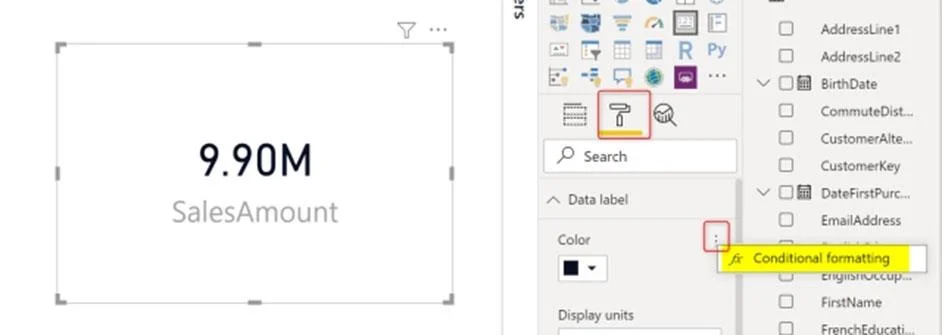
The correct answer is B. Rules. Finding the conditional formatting in the card visual is a bit tricky. There is no separate option for that. You need to go to the Format tab of the visual, and then expand the Data Label. The right beside the Data Label's colour you need to hover your mouse, and you will find…
Question
You have a report that includes a card visualization. You need to apply the following conditional formatting to the card while minimizing design effort. For values that are greater than or equal to 100, the font of the data label must be dark red. For values that are less than 100, the font of the data label must be dark gray. Which type of format should you use?
Exhibit
Options
- AColor scale
- BRules
- CField value
How the community answered
(18 responses)- A6% (1)
- B89% (16)
- C6% (1)
Explanation
Finding the conditional formatting in the card visual is a bit tricky. There is no separate option for that. You need to go to the Format tab of the visual, and then expand the Data Label. The right beside the Data Label's colour you need to hover your mouse, and you will find a three dots icon appearing, which if you click on it, you will see Conditional Formatting. Now in the Conditional Formatting tab, you can apply it in different methods. for example, you can choose Rules, and then The Rules mode will give you the ability to put custom roles as below; https://radacad.com/enhance-the-card-visual-in-power-bi-with-conditional-formatting
Topics
Community Discussion
No community discussion yet for this question.