
Microsoft
PL-200 · Question #335
Case Study 4 - Contoso Suites Background Contoso Suites is an animal shelter that specializes in finding homes for dogs that have been given up by their owners. The shelter can house up to 20 dogs…
Sign in or unlock PL-200 to reveal the answer and full explanation for question #335. The question stem and answer options stay visible for context.
Create apps by using Microsoft Power Apps
Question
Case Study 4 - Contoso Suites Background Contoso Suites is an animal shelter that specializes in finding homes for dogs that have been given up by their owners. The shelter can house up to 20 dogs. The shelter is implementing one model-driven Power Apps app to track the dogs and schedule meetings with potential adopters. No other apps will be created. The model-driven app uses Dataverse with out-of-the-box functionality when possible. Dataverse is set up with the following configuration: - The solution prefix "cs" is used for all new components. - Only the root business unit is used. - All tables are stored in Dataverse and do not require rapid scaling. - Exchange server-side sync is not configured. Adopters - Adopter information is stored in a Contact table. - Contacts are considered to be duplicates if they have the same email address and last name. - Adopters are often late to meetings, so a reminder email is sent to them two hours before their meeting. - The email reminders must not be tracked in the system. Dogs - Dog information is stored in a Dog table, which is organization owned. - Breed, size, and weight are fields in the table. Dog residency - A Resident table tracks the stay of each dog. - Each resident record has a lookup for the dog and its food. - The food type and amount are logged on each resident record. Auto-posting is not configured for changes to food type and amount. - A fee of $120 is in a currency column named Adoption Fee. This fee can be changed depending on the adoption circumstances. - A formula column named Deposit is automatically populated with 20% of the adoption fee. - A resident record is generated automatically when a dog record is created. This is the only way a resident record can be created. Exercise and feedings - Exercise for the dogs is tracked in an Exercise table. - Feedings are tracked in a Feeding table. - Exercise and feeding records appear in a resident record timeline. Care staff - The care staff must be able to view who changed the food type and the amount that was given, for up to three months ago. - The staff must be able to update the weight of a dog on the resident record. - The staff report that the buttons are too small on the touch screen they use to log exercise and feeding. - The staff must be able to view who the adopters are for upcoming meetings. The staff must not be able to update adopter information. Administrative staff - Administrative staff must receive a weekly list of duplicate contacts. Duplicate alerts must not appear when a staff member saves a new contact. - When an adopter wants to adopt a dog, the staff must perform a series of adoption duties in order. The following duty list must be displayed on the screen: o Commitment: - Obtain adopter signature in a commitment document. - Collect deposit. o Pre-pickup: - Document spay or neutering date. - Perform spay or neutering. - Document pickup date. o Pickup: - Collect full payment. - Verify dog is picked up. o A dog must be picked up no sooner than two days after spaying or neutering. o A pop-up window must appear with an error message if the Pickup date is too soon. o Only administrative staff must be able to add new adopters and dogs. Drag and Drop Question You need to enable the care staff to update a dog's weight. Which three actions should you perform in sequence? To answer, move the appropriate actions from the list of actions to the answer area and arrange them in the correct order. Answer:
Exhibit
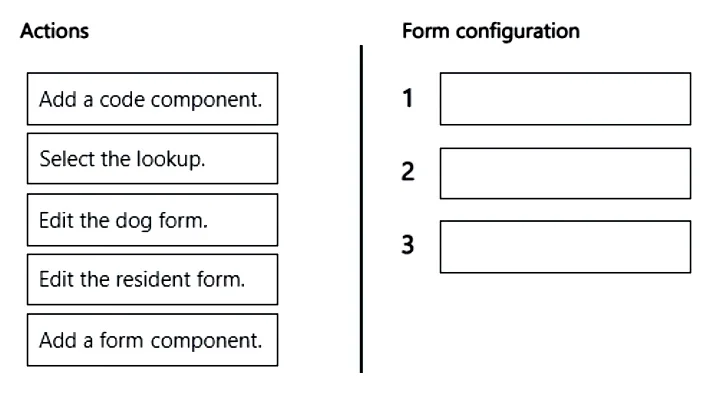
Answer Area
Drag items
Add a code component.Select the lookup.Edit the dog form.Edit the resident form.Add a form component.
Unlock PL-200 to see the answer
You've previewed enough free PL-200 questions. Unlock PL-200 for full answers, explanations, the timed quiz mode, progress tracking, and the master PDF. Question stem and options stay visible so you can still see what's on the exam.
Topics
#Model-driven app forms#Quick View forms#Dataverse security roles#Dataverse relationships