
PL-100 · Question #157
Drag and Drop Question You create a model-driven app named Service Monitor to monitor services for a quality assurance team. New records are created in a Service table in the Service Monitor…
The correct answer is Open the Service Monitor app.; Open the Service Table.; Edit the filters in the custom view. To resolve an issue where filtering data on the Service Name column in a custom view yields no results, the correct approach involves navigating to the model-driven app, opening its associated table, and then adjusting the filter criteria within the custom view's definition.
Question
Exhibit
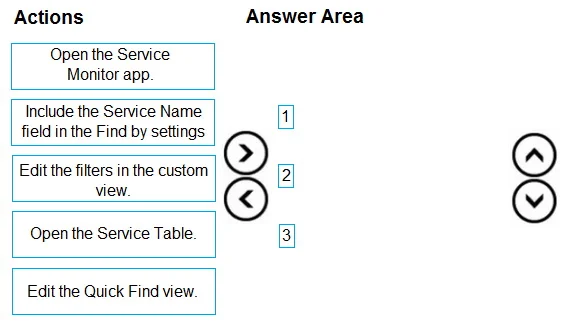
Answer Area
Drag items
Correct arrangement
- Open the Service Monitor app.
- Open the Service Table.
- Edit the filters in the custom view.
Explanation
To resolve an issue where filtering data on the Service Name column in a custom view yields no results, the correct approach involves navigating to the model-driven app, opening its associated table, and then adjusting the filter criteria within the custom view's definition.
Approach. The problem states that filtering data in a custom view on the 'Service Name' column does not return results. This typically indicates an issue with the filter criteria defined within the custom view itself. The correct sequence of actions to address this is:
- Open the Service Monitor app. - This is the initial entry point to access the components of the model-driven app, often done through the Power Apps maker portal (make.powerapps.com) by selecting the app to edit or view its details. While one could go directly to solutions/tables, starting with the app is a plausible navigation path.
- Open the Service Table. - Custom views are components of a table. After accessing the app's context, the next logical step is to navigate to the 'Service Table' to access its associated views. This is usually done by finding the table within the solution or directly under 'Tables' in the maker portal.
- Edit the filters in the custom view. - Once at the 'Service Table' definition, you can locate the specific custom view that is experiencing the problem. Opening this view in the view designer allows you to inspect and modify its 'Filter criteria'. If the view has an incorrectly configured filter on the 'Service Name' column (e.g., a filter excluding all records, or a condition that prevents proper searchability within the view's context), editing these filters will resolve the issue and ensure accurate results are returned when filtering data within that view.
Common mistakes.
- common_mistake. A common mistake would be to assume the problem relates to the table's Quick Find functionality and select 'Include the Service Name field in the Find by settings' or 'Edit the Quick Find view'. While these actions are crucial for global search capabilities across a table's views, the question's phrasing 'when they filter data in the custom view' suggests an issue with the specific filter criteria defined within that custom view itself, rather than the general table-level quick find/search configuration. The Quick Find view primarily defines which columns are used when a user types into the general search box above a view. If the issue is with a custom view's specific pre-defined filters or how a user applies column filters within that view, then editing the Quick Find view would not resolve it. Additionally, selecting the correct actions but arranging them in an illogical order (e.g., editing a view's filters before opening the table it belongs to) would also be incorrect.
Concept tested. Troubleshooting data filtering and search issues in Microsoft Power Apps model-driven apps, specifically understanding the distinction between managing a custom view's internal filter criteria and configuring a table's Quick Find (search) settings, as well as the navigation path for editing app components.
Topics
Community Discussion
No community discussion yet for this question.